The Timestone Software Knockout system can be used in combination with TNJ job files and the Neo applications as long as the Knockout prerequisites are met:
Version 4.11 (or later)
The Timestone Cloud Agent 1.5 (or later)
Account credentials
This article should be read in combination with the article Knockouts.
Some information will not be applicable since it was written with SQL jobs in mind; however, the video and other information are still applicable to TNJ jobs.
Further Reading: The Timestone Cloud Agent & Knockouts
The Timestone Cloud Agent is a Windows service that handles communication between the Timestone Software applications and its cloud services.
Knockouts by Timestone Software is a fully integrated, automatic system for extracting ‘subjects’ from their background.
The process
Knocking out images in a TNJ job is essentially the same process as Knockouts in an SQL job, with step 3 below being a notable difference.
To knock out images:
In Images Mode, select the image(s) to knock out
With the Alpha toolbar open, click the Knockout button, or navigate to Image > Knockouts/Alpha> Knockout
Manually retrieve the Alpha images by navigating to Images>Knockouts/Alpha>Retrieve pending knockout, or using the keyboard shortcut ALT + F3
The above action will send the requests to the Timestone Cloud Agent, who in turn will retrieve the original images and send them to the Knockouts system. The Cloud Agent then downloads the alpha images (PNGs) when ready and saves them in the same location as the original images. Unlike the SQL version, the Cloud Agent will NOT refresh the TNJ, meaning the user will need to manually trigger the system to "retrieve” the Alpha images from the Cloud Agent.
NOTE
There is no need to refresh the images in the app in order to see the alpha images.
The renamed-refresh function, needed when using 3rd party knockout vendors, is not required with Timestone Knockouts.
HOWEVER, the user will need to manually trigger the software to retrieve the Alpha images when using Knockouts with TNJ jobs.
TNJ Knockout indicators
A small square icon at the upper right-hand of the image preview displays the knockout status of each image.
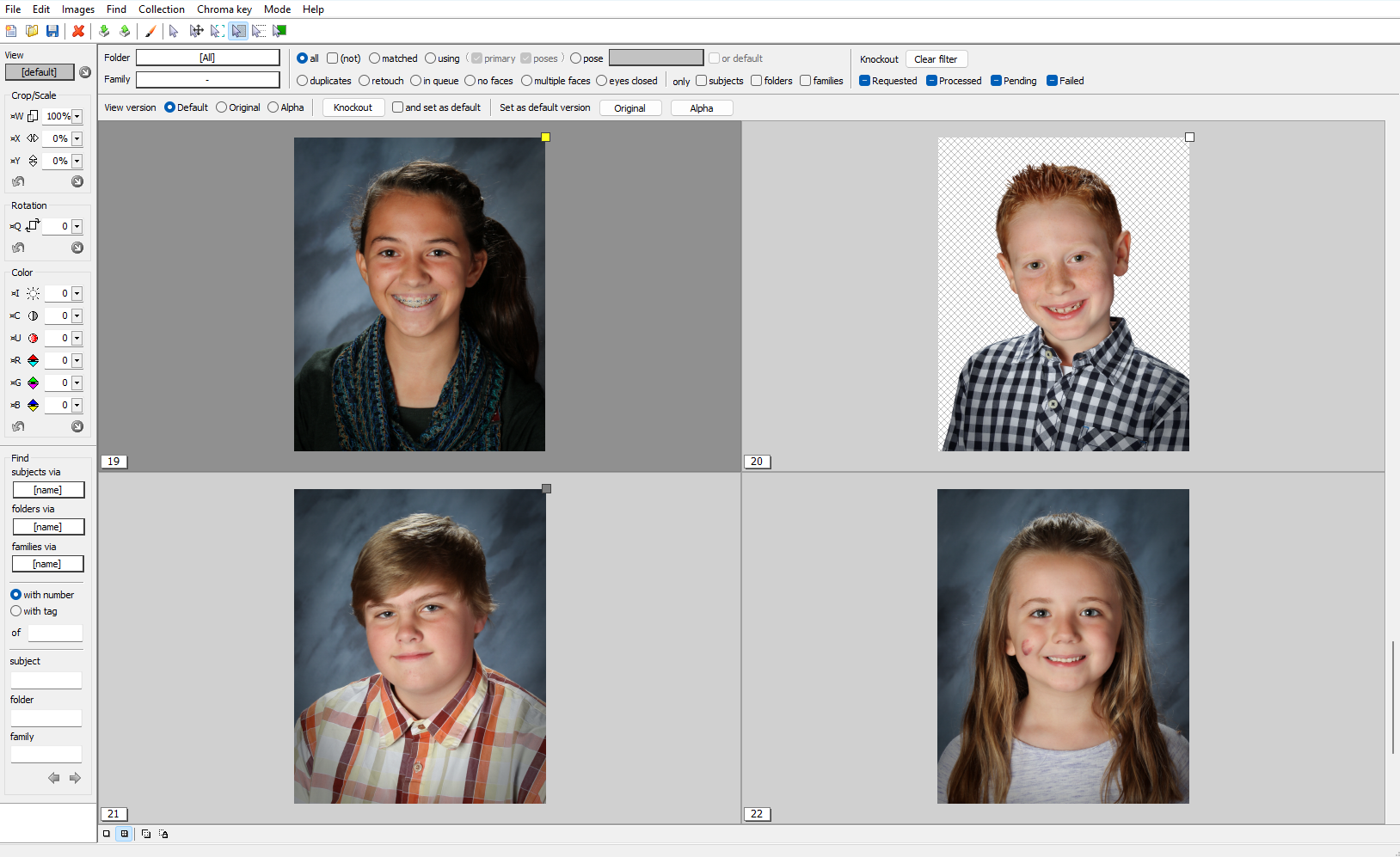
Figure 1: Four images, each with a different Knockout indicator
The five status indicators for TNJ job knockouts are as follows:
No indicator - image not sent for processing
Yellow- knockout has been requested, and the result has not been retrieved.
Red- Missing or corrupt image
Gray - knockout complete, original is the default
White - knockout complete, alpha is the default
Knockouts in CapturePost
Although CapturePost uses TNJ files, the Knockout process is different and can only extract subjects from their backgrounds when printing ‘instant’ ID cards with CapturePost.
Further Reading: Knockouts in CapturePost
At the time of writing, CapturePost only supports Knockouts when printing. The Print command will trigger the Knockout procedure for the currently selected image.