It is possible to remove orders from NeoPack or from Fulfill. The method differs for Paper Orders versus Online Orders.
Timestone Software does not collect money on the user’s behalf; therefore, refunding payments falls to the user via their chosen payment portal.
Removing Paper Orders
Paper orders can be removed from Details Mode by selecting the desired record and navigating to Orders > Remove Order, or using the keyboard shortcut Shift + Ctrl + F3. This removes all paper orders associated with the selected subject. It is also possible to remove paper orders from Orders Mode on the View/Change Paper Orders Tab by selecting the desired subject and navigating to Orders> Remove Order, or with the keyboard shortcut Shift + Ctrl + F3.
CAUTION
Once a paper order is removed there is no way to recover the order, and a new order should be placed if needed.
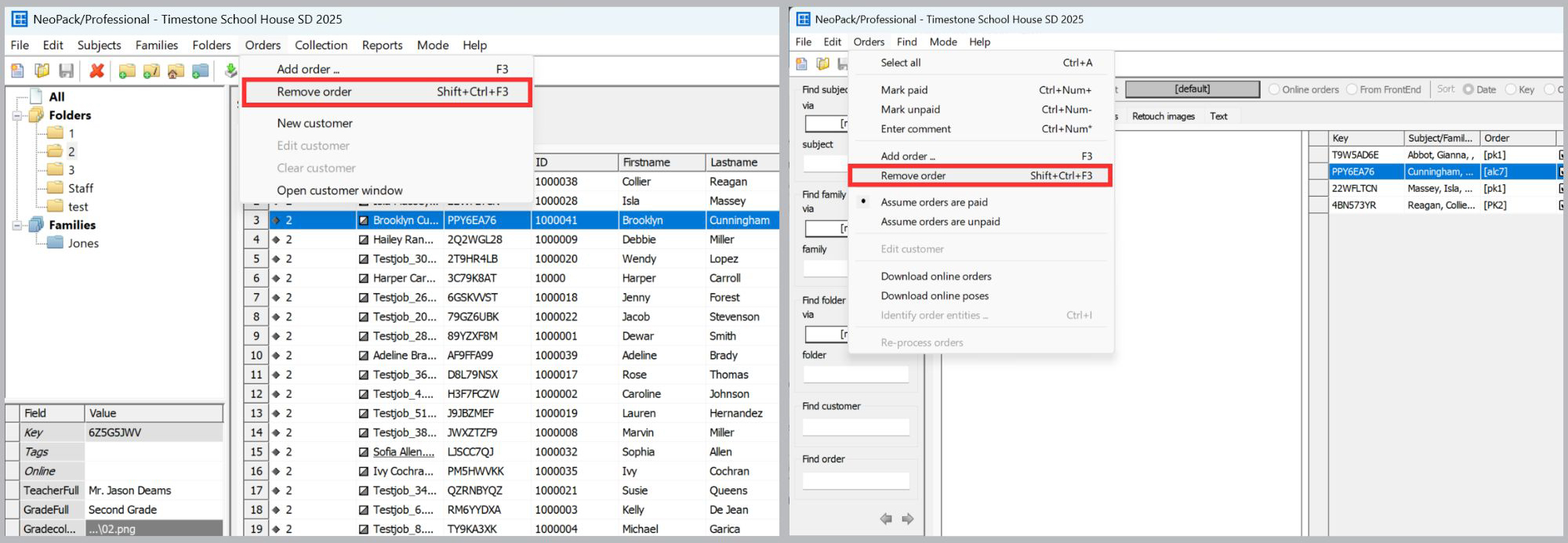
Figure 1: Removing paper orders from Details and Orders Mode
Removing Online Orders
Once downloaded, online orders can be removed from either Fulfill or NeoPack. It should be noted that orders are deleted in their entirety; it is not possible to remove part of an order.
NOTE
Unlike Paper Orders, Online Orders are able to be redownloaded via the site Service Panel.
Further Reading: Site Service Panel
The Service Panel allows the user to access order and payment information for any order that has been placed on the site, regardless of the download status of the order.
Deleting pre-orders in NeoPack
Preorders, online orders downloaded into NeoPack, can be deleted in Orders Mode by selecting the Order/Customer line (gray) and clicking the Delete Icon on the toolbar (a red X).
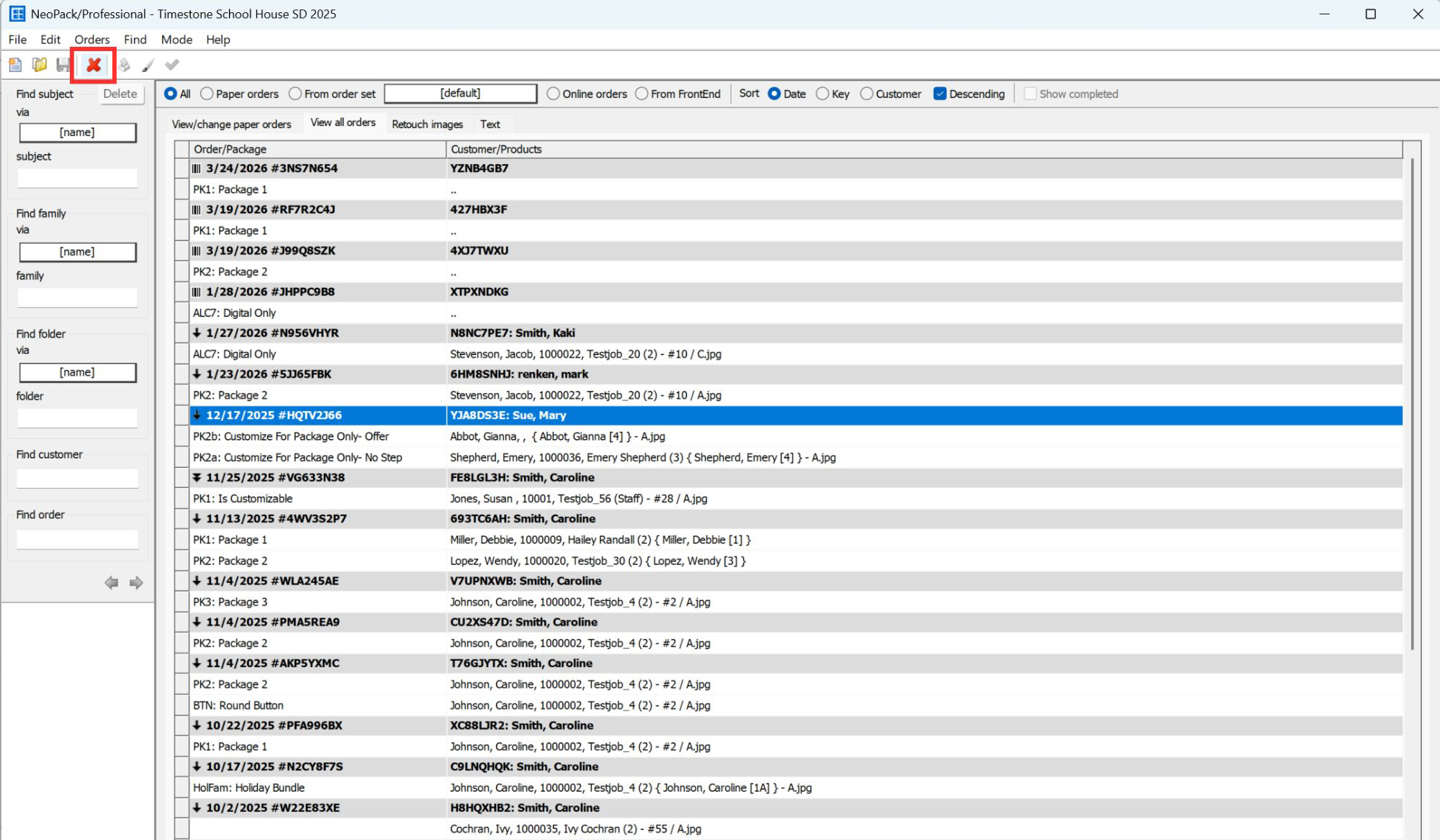
Figure 2: Removing Online Orders from NeoPack
Deleting orders in Fulfill
Although online orders processed through Fulfill appear in NeoPack’s Orders Mode, they cannot be removed from NeoPack. Removing online orders in Fulfill is done via the Edit > Remove Order menu option or the keyboard shortcut Shift + CTRL + Z.
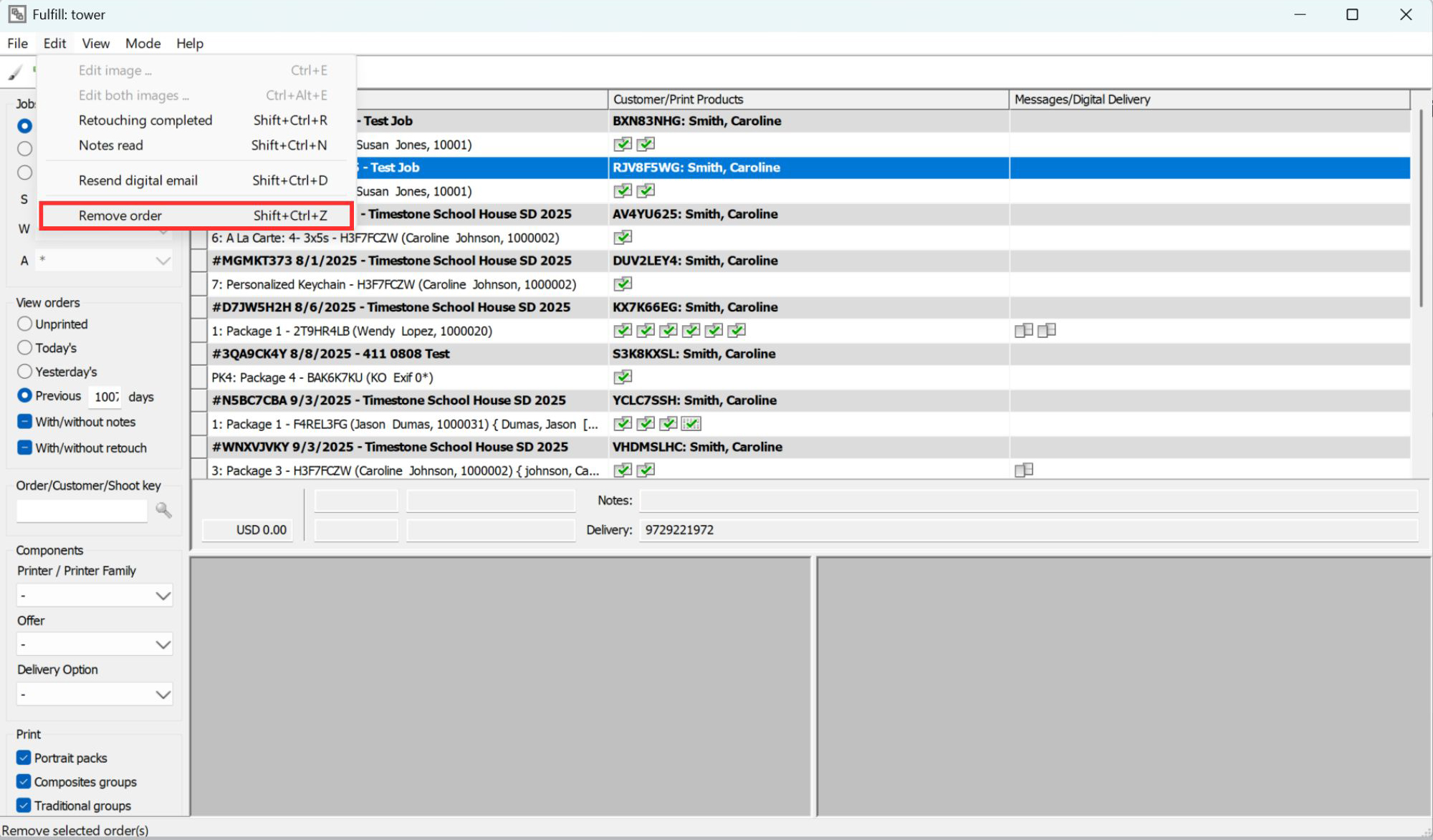
Figure 3: Removing Orders from Fulfill
Cancelling an Online Order
It is possible to cancel or void an online order from the site Service Panel before it is downloaded. A voided order does not download, and its information cannot be edited.
CAUTION
Once an order is voided it can not be reinstated. Voided orders do not download.
To Cancel (void) an order:
Log in to the Service Panel and navigate to the Orders tab
Locate the order to be canceled and click the order key to proceed to the Order Details Screen
Click the Actions dropdown menu in the upper right-hand corner and click Cancel (void) order.
A pop-up will appear asking to confirm the decision to cancel the order. Click Yes to void the order.
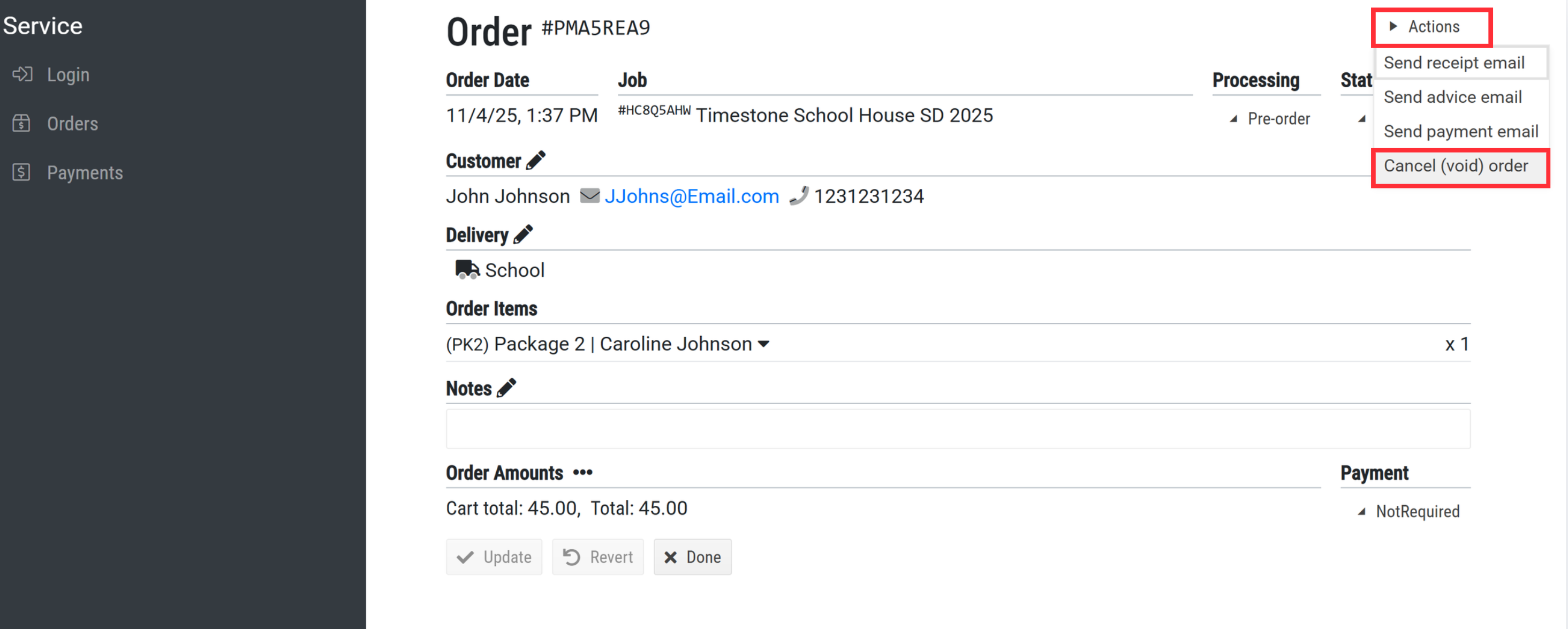
Figure 4: Voiding an order in the Service Panel
FAQ
How can I remove paper orders from NeoPack or Fulfill?
You can remove paper orders by selecting the desired record in Details Mode and navigating to Orders > Remove Order, or by using the keyboard shortcut Shift + Ctrl + F3.
How do I refund a customer for a cancelled order?
You need to refund them from your Payment Provider’s console (if possible) or via some other way.
Can online orders be redownloaded after removal?
Yes, online orders can be redownloaded via the site Service Panel.
How do I delete pre-orders in NeoPack?
Pre-orders can be deleted in Orders Mode by selecting the Order/Customer line and clicking the Delete Icon (a red X) on the toolbar.
What steps do I need to follow to cancel an online order?
Log in to the Service Panel, navigate to the Orders tab, locate the order, click the order key, select Cancel (void) order from the Actions dropdown, and confirm the cancellation.
Does deleting an order remove products from the queue?
Yes.
What happens if I void an order?
A voided order does not download and cannot be reinstated.
How do I remove online orders in Fulfill?
Online orders in Fulfill can be removed via the Edit > Remove Order menu option or by using the keyboard shortcut Shift + CTRL + Z.