Rather watch a video than read a document?
A movie tutorial accompanies this document
Prerequisites
Version 4.12 or later of the desktop applications.
Overview
Complex sales tax requirements in the USA make calculating the sales tax applicable to an online order difficult, if not handled inherently and automatically.
The Timestone Internet Ordering System can automatically calculate the Sales Tax amount to be applied to an order based on the address at which the order changes hands, from the photographer to the customer.
Tax locations
The address at which the order changes hands is referred to as the Tax Location.
Four location types need to be considered.
Customer address: For orders shipped directly to the customer.
Job location: The school or job address, for when orders are collected from the school.
Studio (Site) address: For orders collected directly from the studio
Secondary (Delivery) address: An alternative office or location the studio may use as a pickup location
FOUR TAX LOCATION TYPES
It is important to have a thorough understanding of the four different Tax Location types so they are correctly used with the various delivery methods and options. To this end the tabs below provide more information of each Tax Location type.
The address the online customer enters into IOS as their shipping address is referred to as the Customer address or location. Sales Tax will be calculated based on this address.
In the case where the Customer address cannot be correctly verified, the system will use the SITE address for tax calculation.
A secondary, central pickup location apart from the Site address.
Used for common secondary locations, the Delivery option calculates sales tax based on a Zip Code entered into the Sales Tax Location column adjacent to the Sales Tax as Per column in tsAdmin.
This option is typically used by the user to create alternate pickup locations that are “universal”, such as Secondary Studio locations or pickup depots, as seen in the delivery option set in Figure 3 below.
The Job sales tax option is calculated based on the Postal code of a single job-specific location and is typically used for “pickup at school” delivery options.
This Zip code is entered NOT in the Sales Tax Location column adjacent to the Sales Tax As Per, but instead in the Location for sales tax field in tsIOS’s Checkout tab.
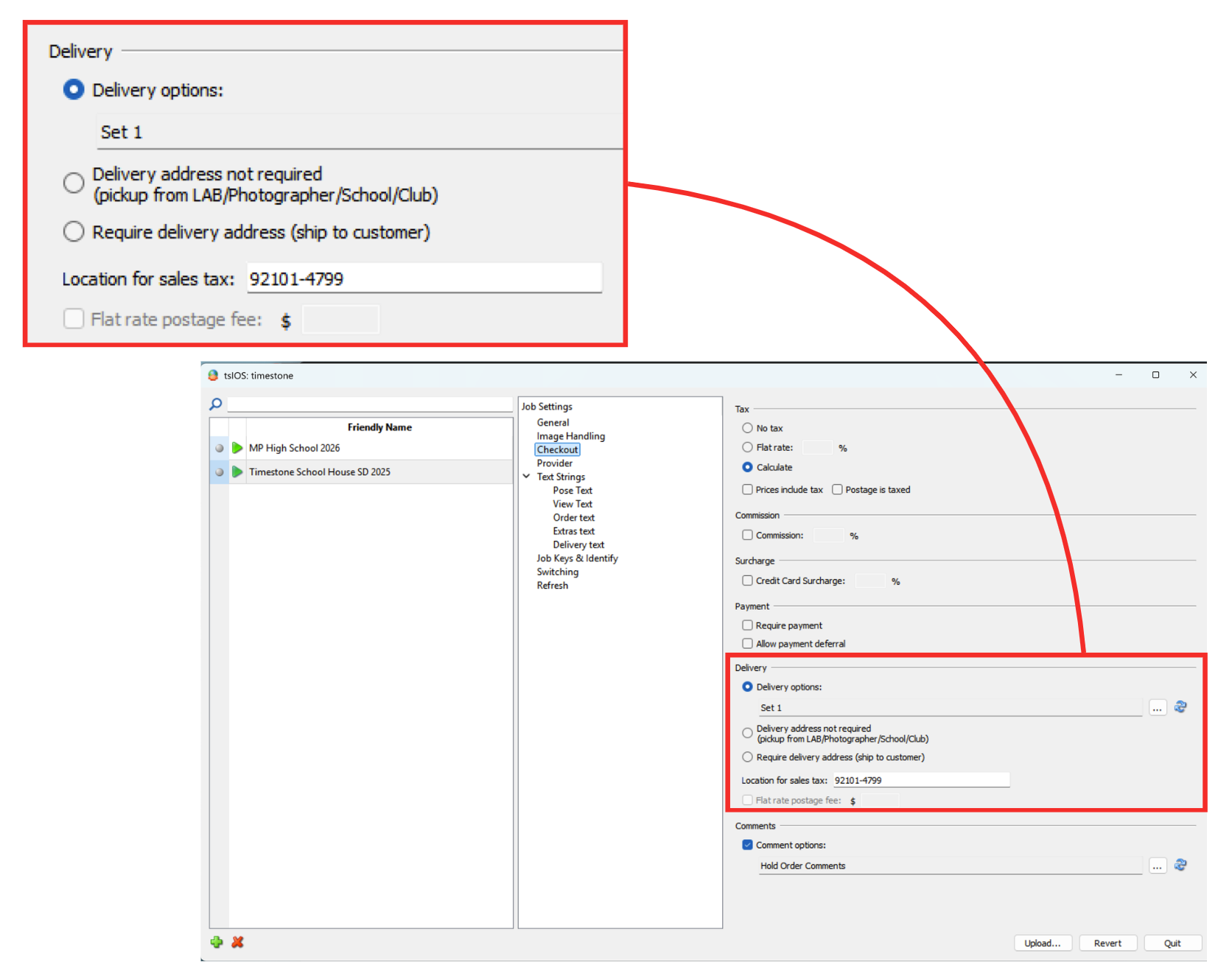
Figure 1: The location for Sales Tax Field in tsIOS
The Site address, sometimes referred to as the Default address, is entered into the site configuration by Timestone staff.
It serves three purposes:
In a Delivery Option Set with a delivery option of type ‘Pickup from Studio’
When ‘Delivery address not required’ is selected in the Delivery section of tsIOS, and a job address is not used
As a fallback address if the address supplied by a customer is invalid, or the tax rate cannot be ascertained for the address
With the Site option selected, the system will use the default address provided by the user to Timestone Software Support staff.
Setting the site address
Timestone Software staff will enter the site address into the IOS site config settings. The company address we have on file will be used by default.
If a different address to the one on file should be used, please inform a member of Timestone staff so that the site address can be updated accordingly.
The site address, also referred to as the default or fallback address, is not visible to customers and is used by the system to calculate sales tax in the following cases:
When explicitly told to, for example, a “Pickup at studio” delivery option
When ‘Delivery address not required’ is the selected delivery method, and a job address is not provided
As a fallback, if the customer- provided address cannot be verified.
Activating sales tax calculation
Sales tax calculation can be switched on (and off) on a job by job basis. This is done in tsIOS by selecting Calculate in the Tax section of the Checkout tab.
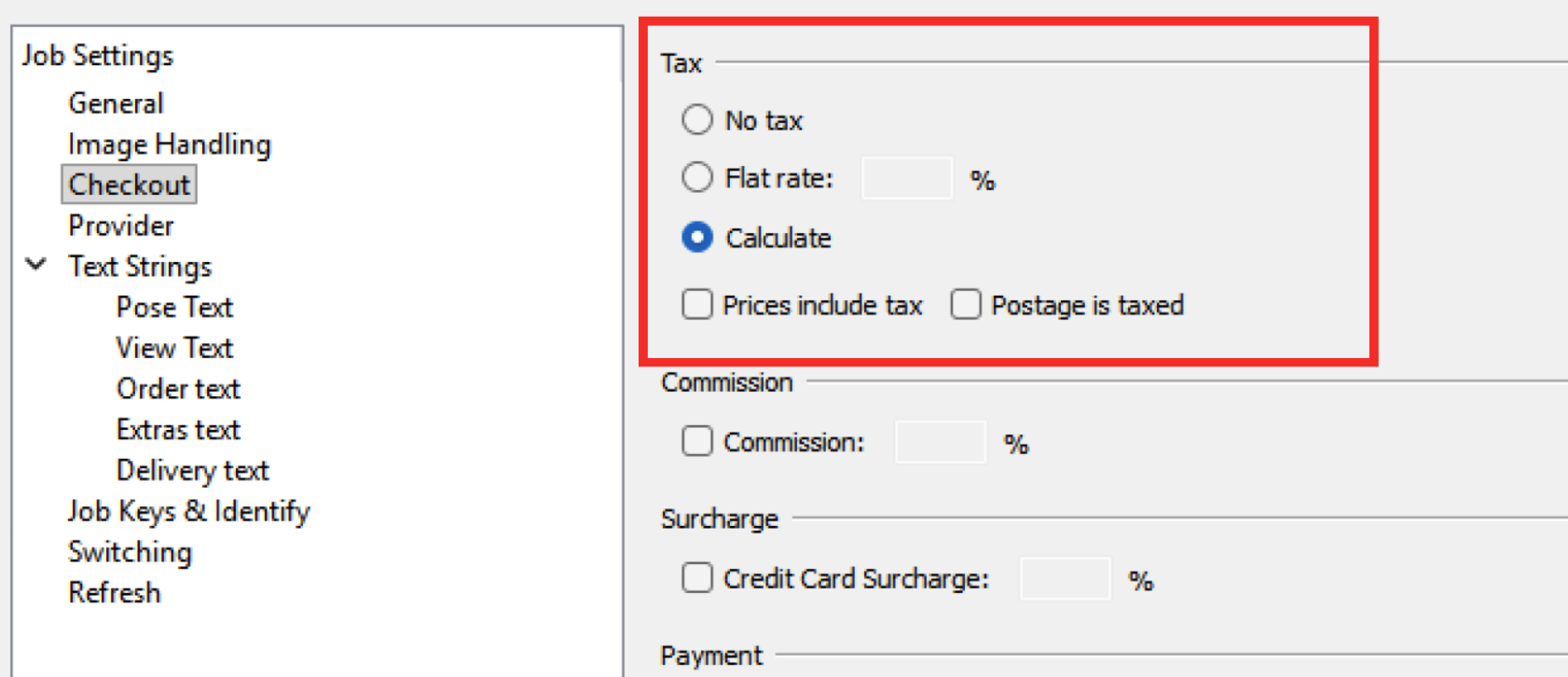
Figure 2: Selecting the Calculate tax option from the Checkout tab in tsIOS
Additionally, the Calculate option checks to see if postage should be taxed for a given order’s Zip Code and automatically takes this into consideration, regardless of the status of the Postage is taxed option.
Setting up Sales Tax calculations with Delivery Options
Delivery Option Sets are probably the most common method of handling delivery methods in IOS. It is therefore important that the user understands how to apply the various Tax Locations to different Delivery Options.
Delivery Options and Delivery Option Sets
More information is available regarding Delivery Options and Delivery Option Sets.
Further Reading: Delivery Options and tsIOS
BLA
Link
BLA
Link
Setting a Tax Location for a Delivery Option
Each Delivery Option is assigned a Tax Location with the Sales Tax As Per column.
The drop-down menu is used to select one of the four Tax Locations described above.
The Sales Tax Location column
Where an option has a Tax Location of ‘Delivery,’ as would be the case for orders collected from a secondary address or depot, it is necessary to enter the address of that location. This is done with the Sales Tax Location column as displayed in the screen grab below.
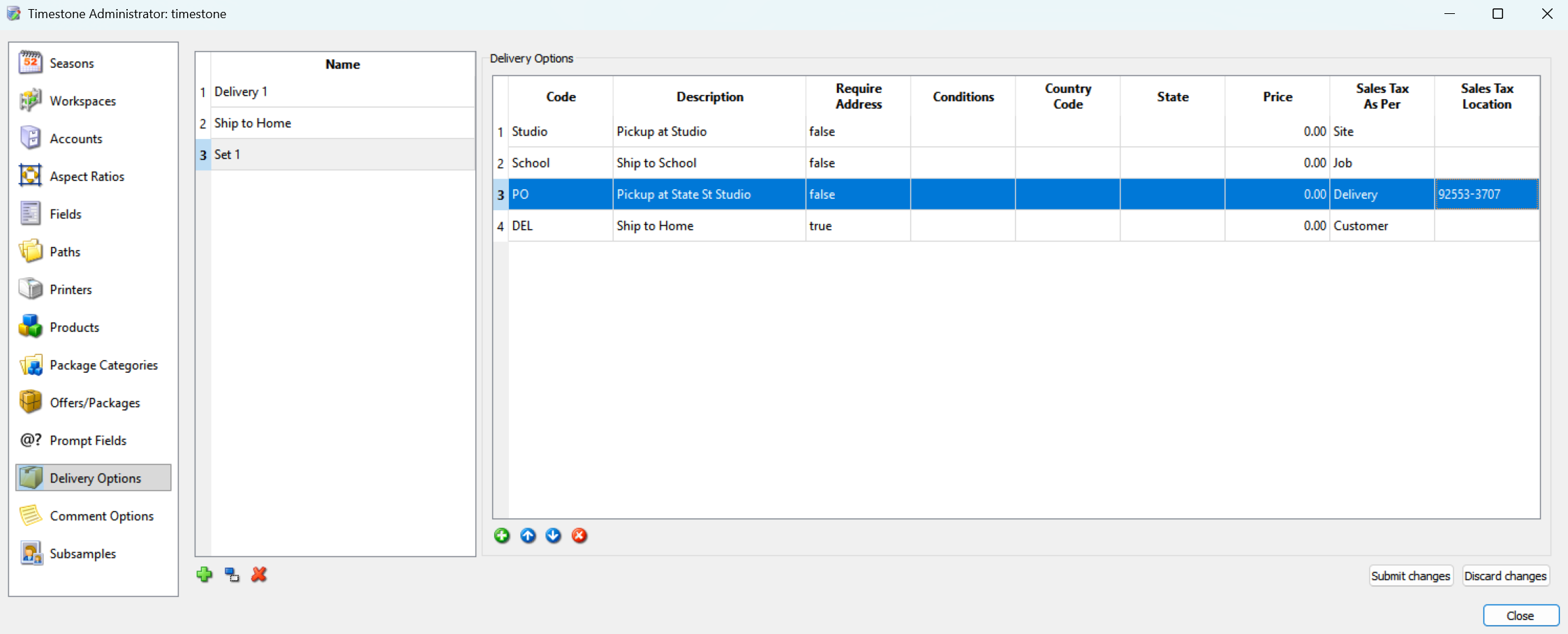
Figure 3: Delivery options set with different Sales Tax options
Setting up Sales Tax with other options
Apart from Delivery Option Sets, tax calculation can also be used with the Delivery Address not required and the Require delivery address options for delivery in tsIOS.
Delivery Address not required: The system will use the Site address to calculate taxes unless the user has added a job-specific postal code to the Location for sales tax field, as seen in Figure 4.
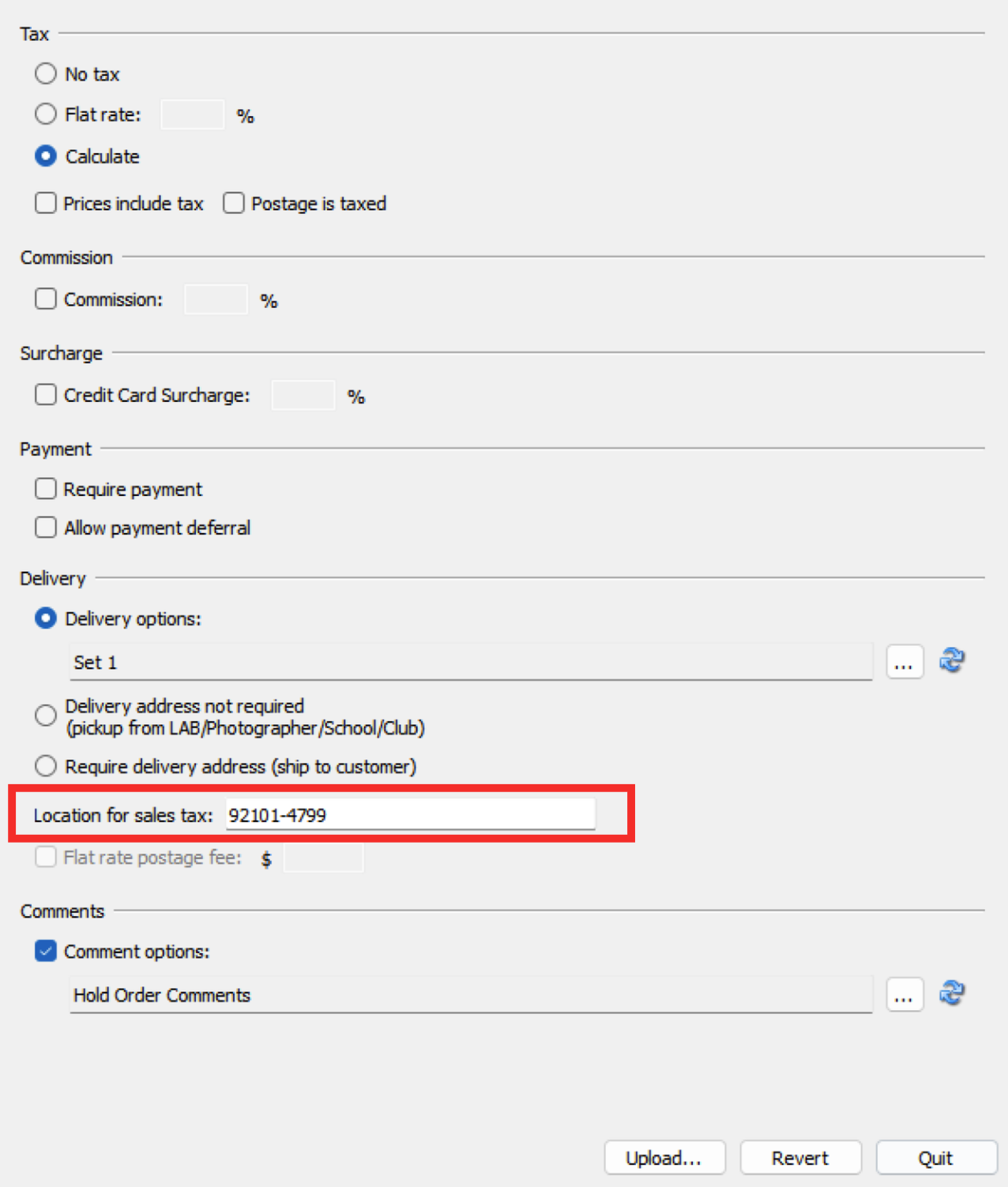
Figure 4: The Location for sales tax field in tsIOS
IOS Sales Tax Report
A sales tax report in CSV format is available. The general syntax to download the report is as follows:
https://yoursite/reports/ordering/Salestaxes
The report is useful for ascertaining the different jurisdictions’ tax rates and amounts per order collected. This report shows both paid and unpaid orders, the chosen delivery option, and can be combined with any of the other IOS reports’ optional parameters.
Further Reading: IOS Reports
Five reports are available that retrieve data directly from the IOS website.
Each report is accessed via a unique URL, which prompts the user for their IOS username and password. The reports are subsequently downloaded as CSV files.
FAQ
Is the full address needed or just the zip code?
Only the zip code is needed; however, where an address has a full 9-digit zip code, this should be used in preference to the simple 5-digit base code.
Is this for other countries other than the USA?
No, this refers to US Sales Tax only.
Do I have to provide you with our address?
Only if you want us to use an address other than the company address we have on file
All our orders are shipped to the customer. Do we still need a Site address?
Yes, because there may be times the customer enters an address that the system cannot verify or find the applicable tax rate. In these cases, it uses the Site address to calculate Sales Tax rather than have the order tax-free.
For us, digital products are not taxable. What happens?
If your Package is only Digital products, you can mark the package as Non-Taxable in tsAdmin. However, if the package is a mix of physical and digital products, this is not possible, and tax will be calculated for the entire package.
We only bulk deliver orders back to the school. Where do I enter the school’s address?
Enter the school’s zip code in tsIOS in the Delivery section. You can then use the Delivery address not required selection or make a Delivery Option Set with a single option and select Job in the Sales Tax as per column.
What happens if a customer-provided address cannot be verified?
If the address cannot be verified, the system will use the Site address for tax calculation.
Is there a report available for sales tax calculations?
Yes, a sales tax report is available as part of the IOS reports.
I have some orders where the postage should be taxed. Does the Calculate option take this into account?
Yes, the US Sales tax Calculate option checks to see if postage should be taxed for a given order’s Zip Code and automatically taxes the order total, including shipping if appropriate, no matter the status of the Postage is taxed option.
I have “postage is taxed” unchecked; however, it appears that postage is being taxed on some orders.
When using the Calculate Sales Tax option, the system will know if the Sales Tax location needs postage to taxed or not. The ‘Postage is taxed’ option in tsIOS is therefore ignored