Timestone Software’s Template Designer includes the ability to add the following effects to template objects:
Drop Shadow
Outline
Outer glow
Inner Glow
The effects can be added to any template object, which includes:
Image holes
Labeled Holes
Graphics
Text
Fill objects
Adding Effects
The user can add an effect to any template object. The object effects give the user live feedback as each parameter is manipulated, meaning the most common approach to applying an effect will be to simply adjust each setting until the effect ‘looks right’. However, it is strongly advised that the user test the effect on finished, printed products to be certain the effect is as desired.
Note
When adding effects to an object on a sizable template, the units are therefore also "abstract". For this reason, it may be difficult to gauge the final appearance of the effect when adjusting each effect parameter. In these and indeed all situations, it is recommended the user test the finished product to ensure the effect displays as expected.
To add an effect to an object
Place the object onto the template in the normal way, or select an existing template object
Select Edit>Object effects>Set or use the Ctrl-E keyboard shortcut to activate the effects window
Turn on the desired effect or effects and manipulate the various settings until satisfied
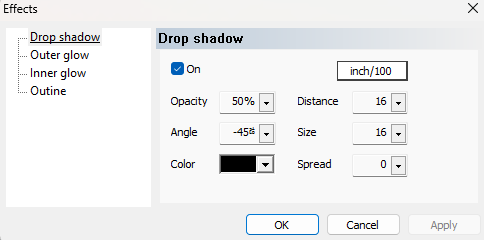
Figure 1: The effects window
Each effect presents the user with its own set of parameters. Parameters common to all effects include:
Opacity
Color
Size
Other parameters include:
Angle, distance, and spread (Drop shadow)
Spread (Outer glow)
Choke (Inner glow)
Copying an effect
Once an effect has been set, it may be copied and applied to another template object.
To copy and paste an object effect:
Select the object with the effect to be copied
Select Edit>Object effects>Copy or use the Shift+Alt+E keyboard shortcut
Select a new object
Paste the effect by selecting Edit>Object effects>Paste or use the Shift+Ctrl+E keyboard shortcut