Timestone Software allows the user to duplicate a subject, with or without its matched images. Images can also be duplicated.
Duplicating a subject
Subjects are duplicated via the Edit menu in Details Mode.
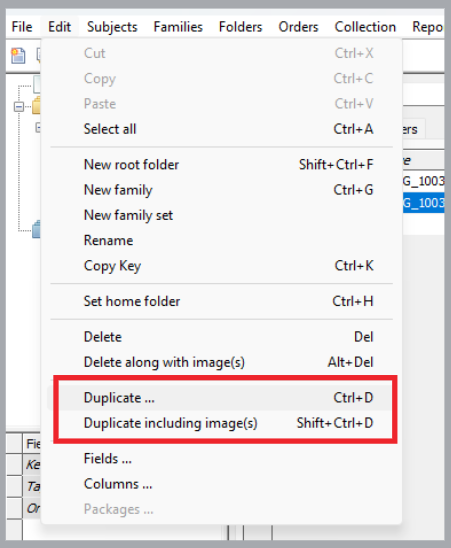
Figure 1: Duplicating a subject in Details Mode
Before duplicating a subject, the following points should be considered:
The Subject key is never duplicated, as it must be unique
Order information is never duplicated
If a Subject has multiple images, all images will be duplicated
Pose Numbers or labels will be duplicated
The Duplicate subject will have the same Unique field value (ID) as the original, but will be considered a completely separate subject.
To duplicate a subject WITHOUT its matched images:
Select the subject or subjects to be duplicated from the main menu
Select Edit>Duplicate ... or use the Control+D keyboard shortcut
Duplicating the subject only produces the following result.
NOTE
The data is identical except the duplicate record has been assigned a new Key and does not have a matched image
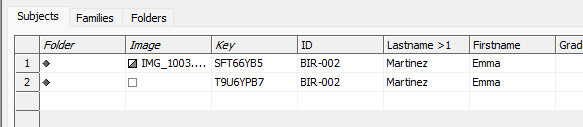
Figure 2: Result of duplicating the subject only
To duplicate a subject and its images:
Select the subject or subjects to be duplicated
Select Edit>Duplicate including image(s) ... or use the Shift+Control+D keyboard shortcut
Figure 3 below shows the result of duplicating the same record as the previous example, including her image(s).
NOTE
The image field now includes the image filename, and the Subject Key has been changed.
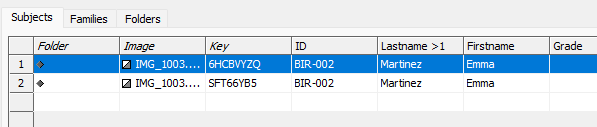
Figure 3: Result of duplicating a subject, including their images
Images Mode and Poses Mode will show the duplicate images for the subject.
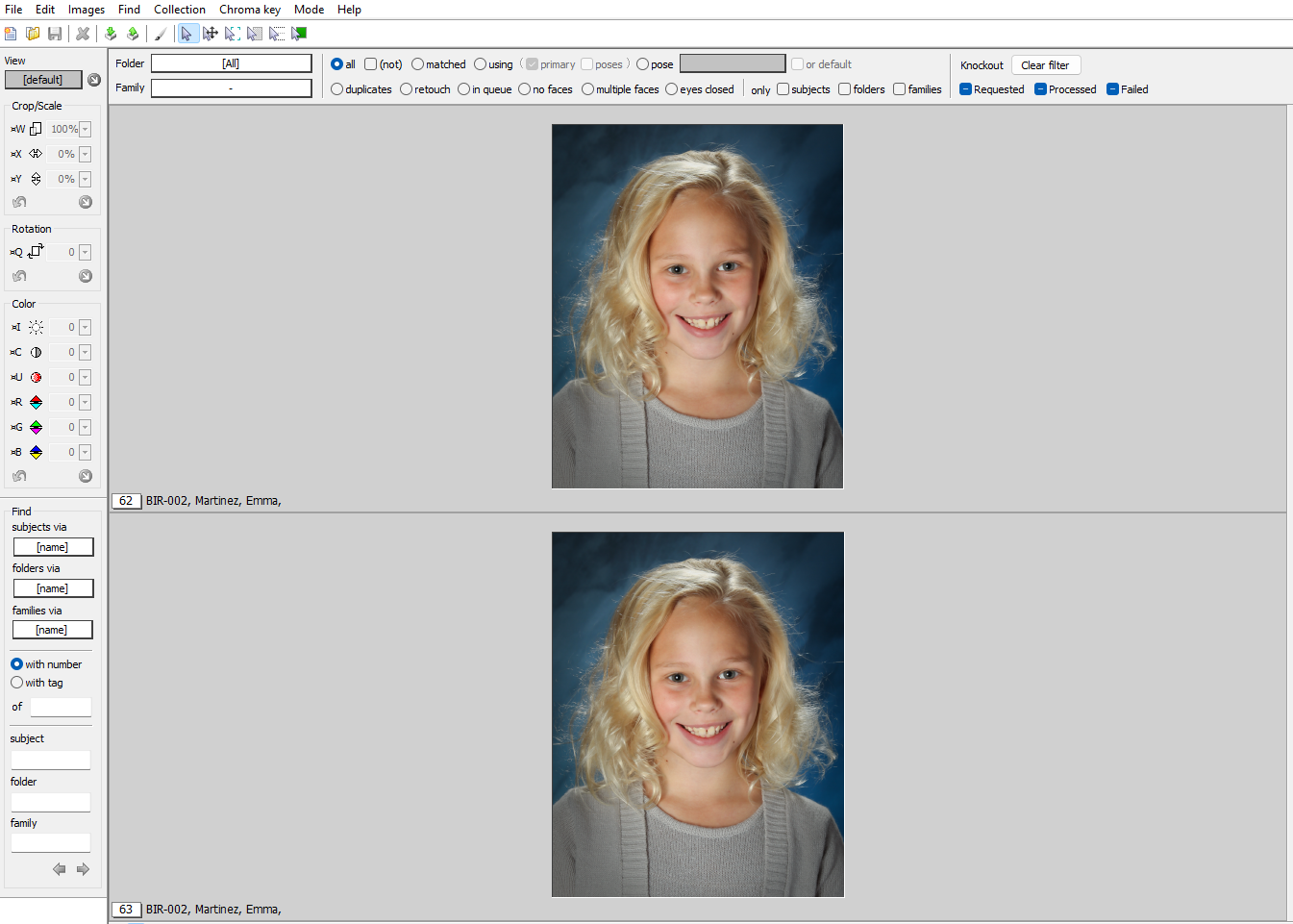
Figure 4: Images Mode showing a duplicate subject and image
Duplicating an image
Images can also be duplicated independently of their subjects via a different method. Duplicating an image creates a new thumbnail/preview of the currently selected image or images, including the Alpha image version if one exists. The duplicate image can then be used independently of the original. For example, it can be cropped differently and assigned a different pose from the original as needed.
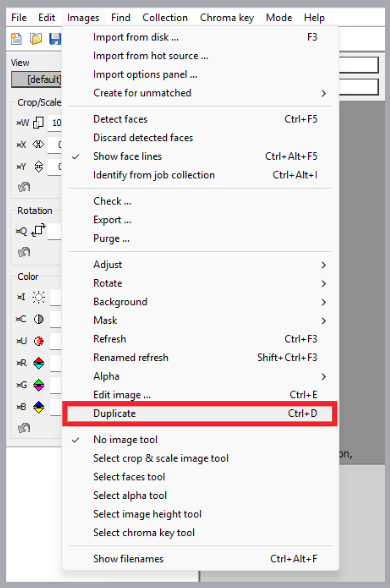
Figure 5: The Duplicate option in Images Mode
To duplicate an image:
Select the desired image(s) in Images Mode
Select Images>Duplicate or use Ctrl+D keyboard shortcut.
The duplicated image is automatically matched to the same subject as the original, and any cropping or edits from the original image are reset for the duplicate, as seen in Figure 6 below.
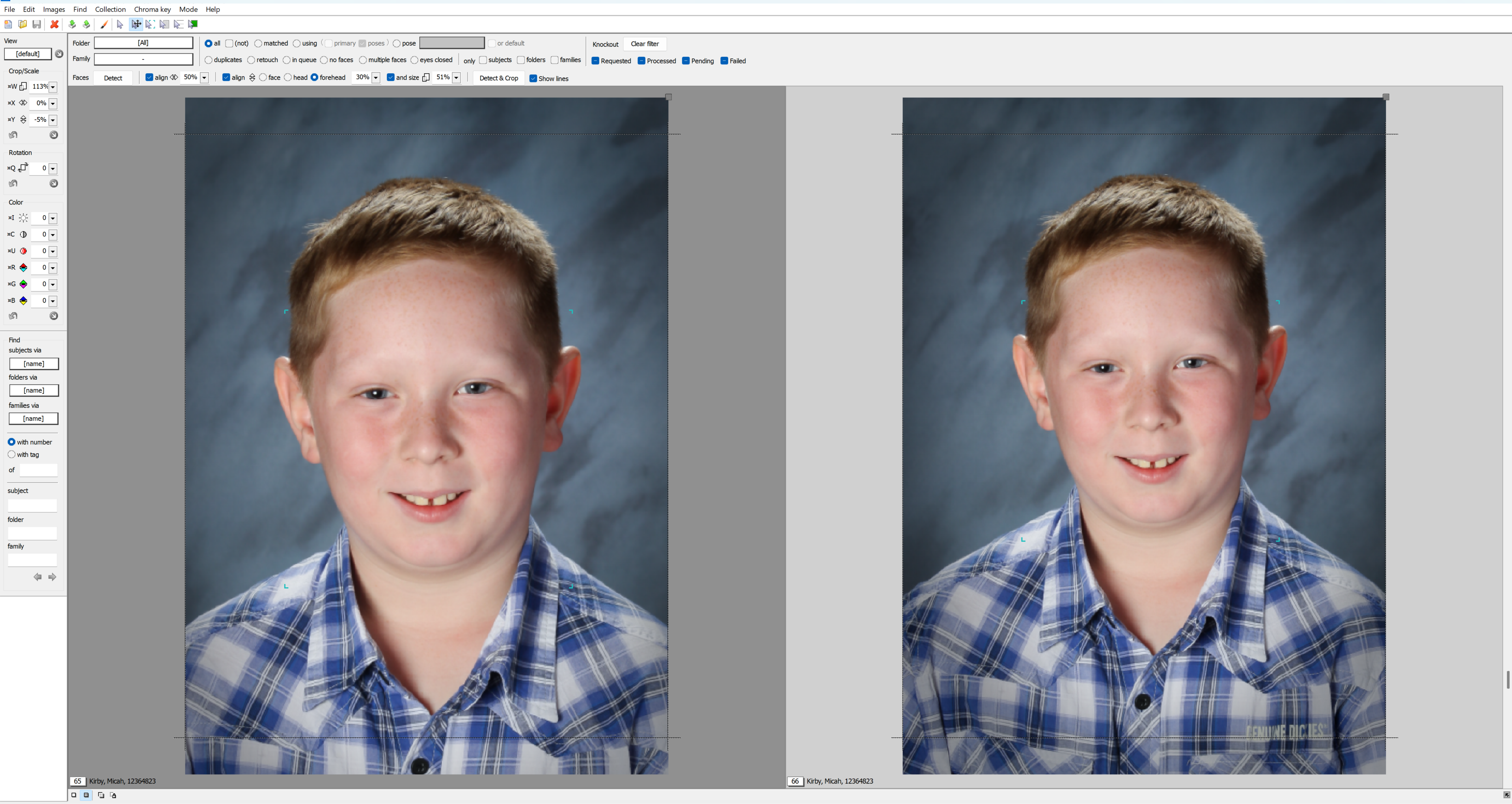
Figure 6: The Results of Duplicating an image
NOTE
Duplicating images duplicates the image preview only. It does not duplicate the original image file.
FAQ
Will the duplicated subject have the same Unique field value and Key as the original?
The duplicate subject will have the same Unique field value (ID) as the original, but it will be considered a separate subject, and therefore, be assigned a new, different subject key from the original, as a subject key must remain unique.
Does an image have to be matched before it is duplicated?
No, you can duplicate unmatched images.
Are crops and other image edits duplicated with the image?
No, image edits do not duplicate.
What happens to the images when I duplicate a subject?
If a subject has images matched to it, all images will be duplicated unless you choose to duplicate without images.
Can I duplicate an image independently of its subject?
Yes, images can be duplicated independently of their subjects, and edited, cropped, assigned a separate pose, or subsequently rematched to a different subject entirely.
Does duplicating an image duplicate the original image file?
No, duplicating images only duplicates the image preview within Timestone Software, not the original image file. Both the original and the duplicate image will reference the same image file.
If I duplicate an image, can I rematch it to a different subject?
Yes, once an image has been duplicated, the duplicate(s) can be assigned independently to different subjects. This allows users to create as many copies of an image as needed to “match” the same image file to multiple subjects within a job.