By default, the real-time protection provided by Microsoft Defender and other virus scanning software scans all files accessed from a remote location, such as a network drive.
Since most users store their resources (images, templates, and graphics) on network locations rather than on their local computer, scanning these files can severely slow down the software's tasks and create instability.
Some examples of where the software needs to access these resources are listed below:
Opening a job (templates)
Importing images
Merging TNJ files into the database (images, templates and graphics)
Printing (images, templates and graphics)
Virus scanning of these files impacts all of these tasks before they can be completed.
It is strongly recommended that the Timestone Software processes (i.e., the application .exe files) are excluded from Windows Defender and any other virus scanning software you use.
How much difference does it make?
The speed and stability improvements gained by not scanning a job's resources will vary depending on many factors such as the number and size of the files accessed, network speed, and specifications of both the local computer and the file and MySQL servers.
Anecdotally, some users have reported jobs that took several minutes to open drop to a matter of seconds, while printing speeds and application stability have also improved greatly.
Adding exclusions to Microsoft Defender/ Windows Security
Exclusions do not carry over from one workstation to another, and will need to be completed at each computer.
The following instructions may vary slightly depending on the operating system and virus protection enabled on a given machine.
Exclusion types
It is recommended that both the application processes as well as the file types be excluded from virus scanning
Excluding the application processes
The application processes are simply the full name of the Timestone Software programs executable file.
To add a process exclusion to Microsoft Defender
Open the Windows Security application
Select Virus & threat protection from the tabs on the left
Under the Virus and threat protection Settings, click Manage settings
Find the Exclusions section and click Add or remove exclusions
Select + Add an exclusion and select Process from the list
Add an exclusion for each Timestone application used on the computer
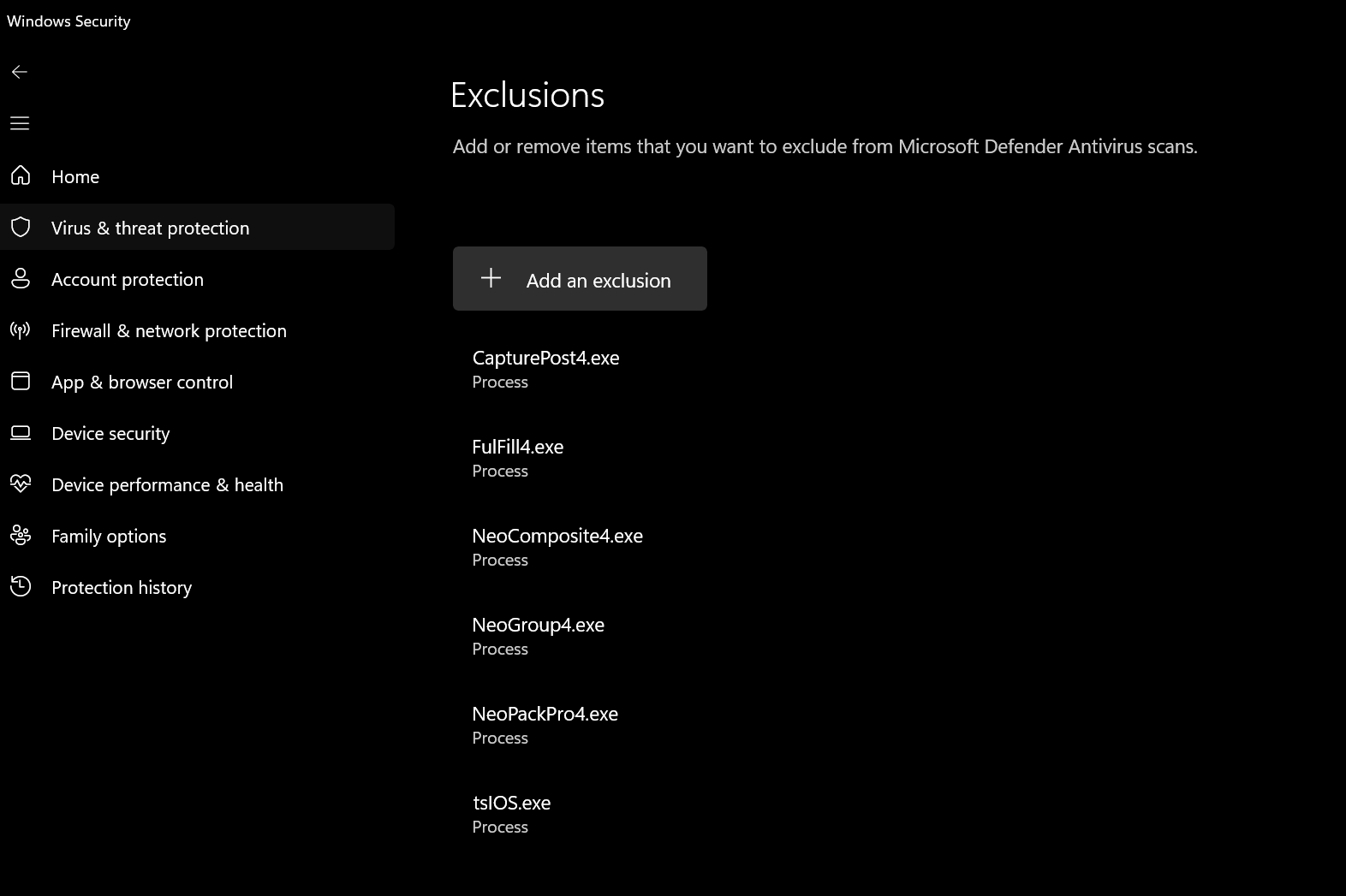
Figure 1: Excluded processes in Microsoft Defender
The process name is simply the name of the executable file (exe) as listed below:
NeoPackPro4.exe
NeoComposite4.exe
NeoGroup4.exe
CapturePost4.exe
Fulfill4.exe
tsIOS.exe
PackBuilder4.exe
CompositeBuilder4.exe
GroupBuilder4.exe
OutPost4.exe
DataPost4.exe
Excluding file types
In addition to excluding the application processes it is also recommended to exclude the files that the applications use.
To add a file type exclusion to Microsoft Defender
Open the Windows Security application
Select Virus & threat protection from the tabs on the left
Under the Virus and threat protection Settings, click Manage settings
Find the Exclusions section and click Add or remove exclusions
Select + Add an exclusion and select File Type from the list
Add an exclusion for each type of file the applications use
The file types are all the different type of files used by the software. Broadly these will be image files, templates and graphics as listed below:
jpeg
jpg
png
plt
pit
pst
cpt
cst
cbt
tgt