Subject, Folder, or Family-level data can each be exported as a text file from within Details Mode.
Exports can include any user-defined fields, as well as a wide range of “special” fields, application-defined fields, flags, and image settings.
Further Reading: List of ‘Special’ and Predefined Fields
In addition to any custom user-created fields, there are many “special” fields that Timestone Software has built in and made available to the user in details mode; these fields may be exportable, called into templates via @code, and/or appear in various reports.
Exporting a text file
To export a text file from Details Mode:
With the desired job open, navigate to the applicable Menu option (Subject, Folder, or Family) and select Export text file…
In the Text file to export window, navigate to the desired output file location and name the file
Click Setup to define the fields to be included in the export and access export settings (more details in the next section)
Click Save to Export the selected Data as a text file
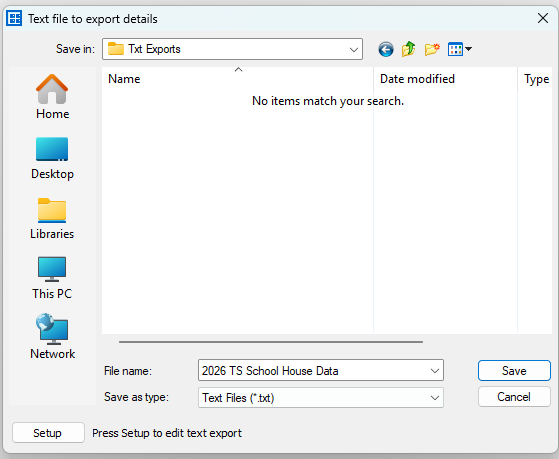
Figure 1: The Text file to export details window
Export Setup Options
The Fields included in a Text export, along with other settings, are established in the Setup details for text file export window.
NOTE
The setup window will remember the last combination of fields and settings used to export a file, though it is good practice to confirm the settings with each export.
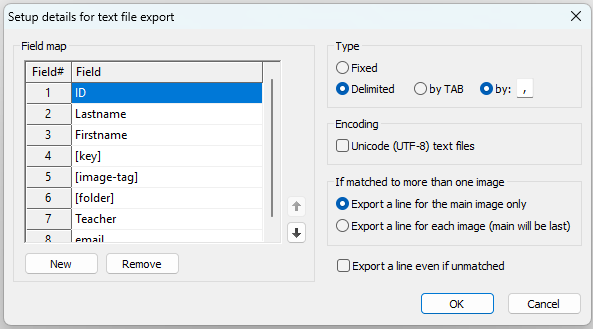
Figure 2: The Setup details for text file export window
In the Field Map area to the left of the window, the user selects which fields to include and the order in which they appear. Commonly included fields are ID, Firstname, Lastname, Key, Folder, and Image-Tag.
NOTE
Certain fields are not able to be exported such as the Preorder(s) and Fulfill columns, or have different options such as Image-tag, Image-filename, and Image-path-filename.
Additional settings are available on the right side of the Setup details for text file export window. These include:
File Type: Choose from Fixed, Delimited by TAB, or delimited by a user-defined character
Encoding: Optionally check to export Unicode (UTF-8) text files
For subjects matched with multiple images, choose between:
Exporting a single line per subject using the Main image only, or exporting a line for each image matched to a subject (the primary image will be last)
Optionally include subjects without images, “unmatched.”
FAQ
What types of data can be exported from Details Mode?
Subject, Folder, or Family-level data can be exported via the applicable menu in Details Mode.
Can I include custom fields in my export?
Yes, exports can include any user-defined fields as well as a variety of special fields.
Are there any fields that cannot be exported?
Yes, certain fields, such as the Preorder(s) and Fulfill columns, cannot be exported.
What export settings can I customize?
You can customize file type, encoding, and options for subjects matched with multiple images.