For a given folder of subjects, it is possible to create multiple group pages identified via a 'version'. The different versions can be ordered independently, selectively printed in NeoGroup, called onto a NeoPack template, or ordered online.
Key points:
For any folder, multiple group pages can be formed, with each page using a different template. These are referred to as versions
The first group formed is referred to as the 'default' version
The additional groups are given a version code
Functionality exists elsewhere in the software to make use of different group versions
The concept of group versions is perhaps best illustrated by way of example. Consider a school where each class is offered a 'standard' named group. The template used to create this product is 8"x10" and is simply called 8×10group.tgt. However, for each class, another group is also needed for use in yearbook production called “5×7GroupYB.tgt”. This group is to be only 5"x7" in size and is a completely different design from the standard group. This can be accommodated with group versions. This version will use the same subject/group information, just in a secondary layout.
Further Reading: The Difference Between Subtypes and Versions
The reader must understand the difference (and similarities) between versions and subtypes. To this end, it is highly recommended that the reader consult the following document.
Creating multiple versions
Extra versions for groups are created in the Form Pages Mode of NeoGroup and GroupBuilder. This can be performed at any time, although it is most commonly done after names have been assigned in Names Mode.
Different versions of groups will contain the same names in the names list - it is not possible to change the subjects' rows and positions from version to version (nor does it make sense to do so). However, it is possible to format the names differently as described below.
To create a version of a group
Enter Form Pages Mode (F7)
Select the group or groups as desired. It is possible to select multiple groups at once
From the menu select Edit>New version, click the New version icon on the toolbar, or use the Shift+Ctrl+D keyboard shortcut
The Group Page Version window appears. Give the version a code and select the required template
Optionally give the version a description, format the names, and elect whether to exclude this version from online ordering
Click OK to create the extra version
Repeat if further group versions are required
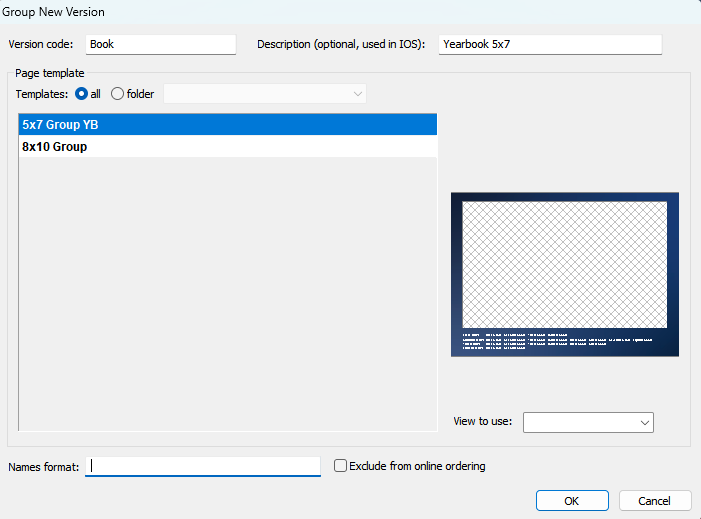
Figure 1: The Group Page Version window
As can be seen from the screen grab above, the Group Page Version window performs four functions:
Assign a version code. The version code may not be left blank
Select the template to be applied to the group
Optional name formatting and description
Optional description to be used in IOS and an option to exclude this version from online ordering
When selecting the default group, the Group Page Version window allows for entry of a subtype rather than a version.
Once versions have been formed, the group's name is prefixed with an expandable + symbol. Click the symbol to reveal the different versions of the group
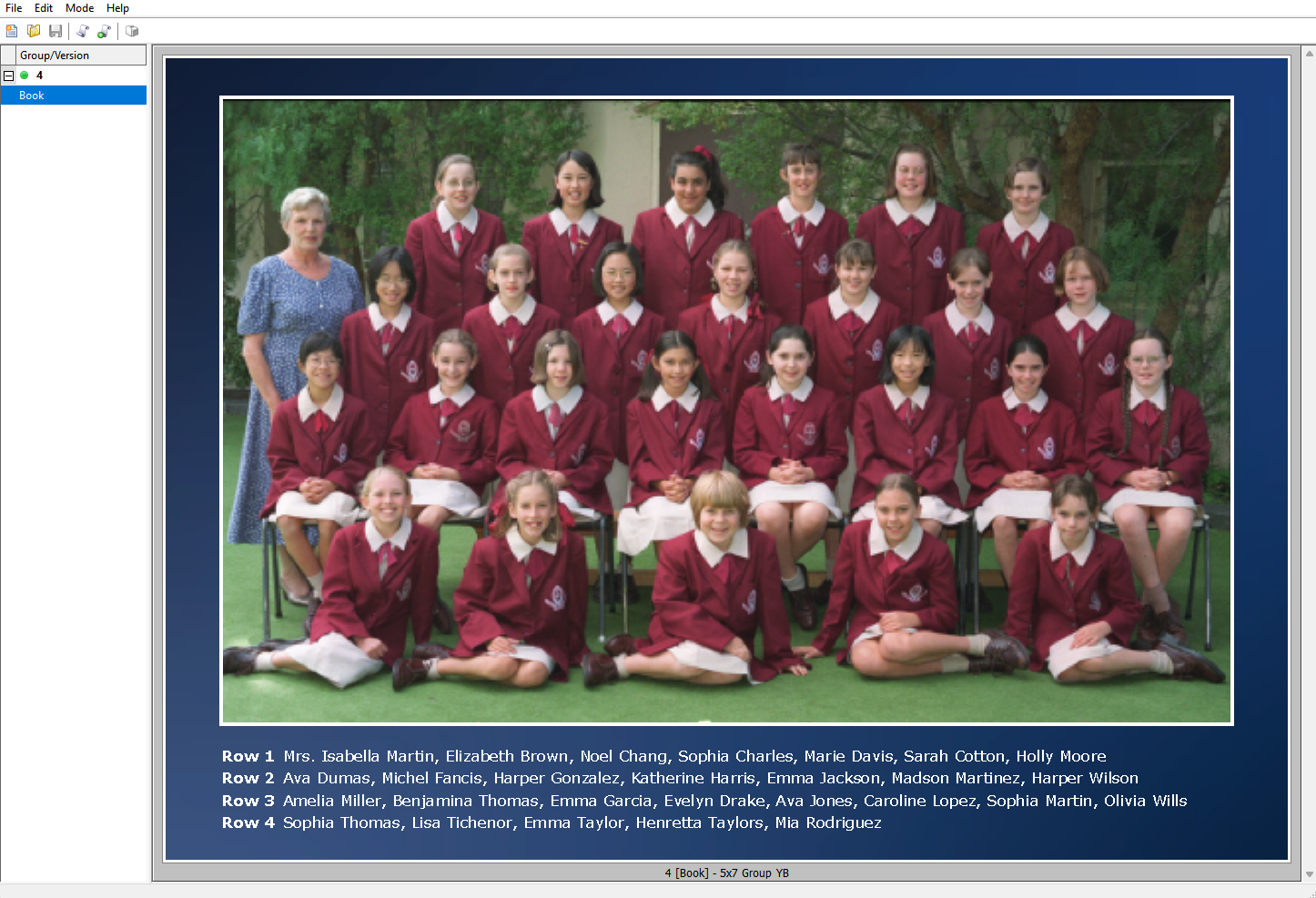
Figure 2: The Form Pages Mode showing the ‘book’ version for the Fourth Grade (4)
Note the 'default' group does not have a version as per the screen grab below
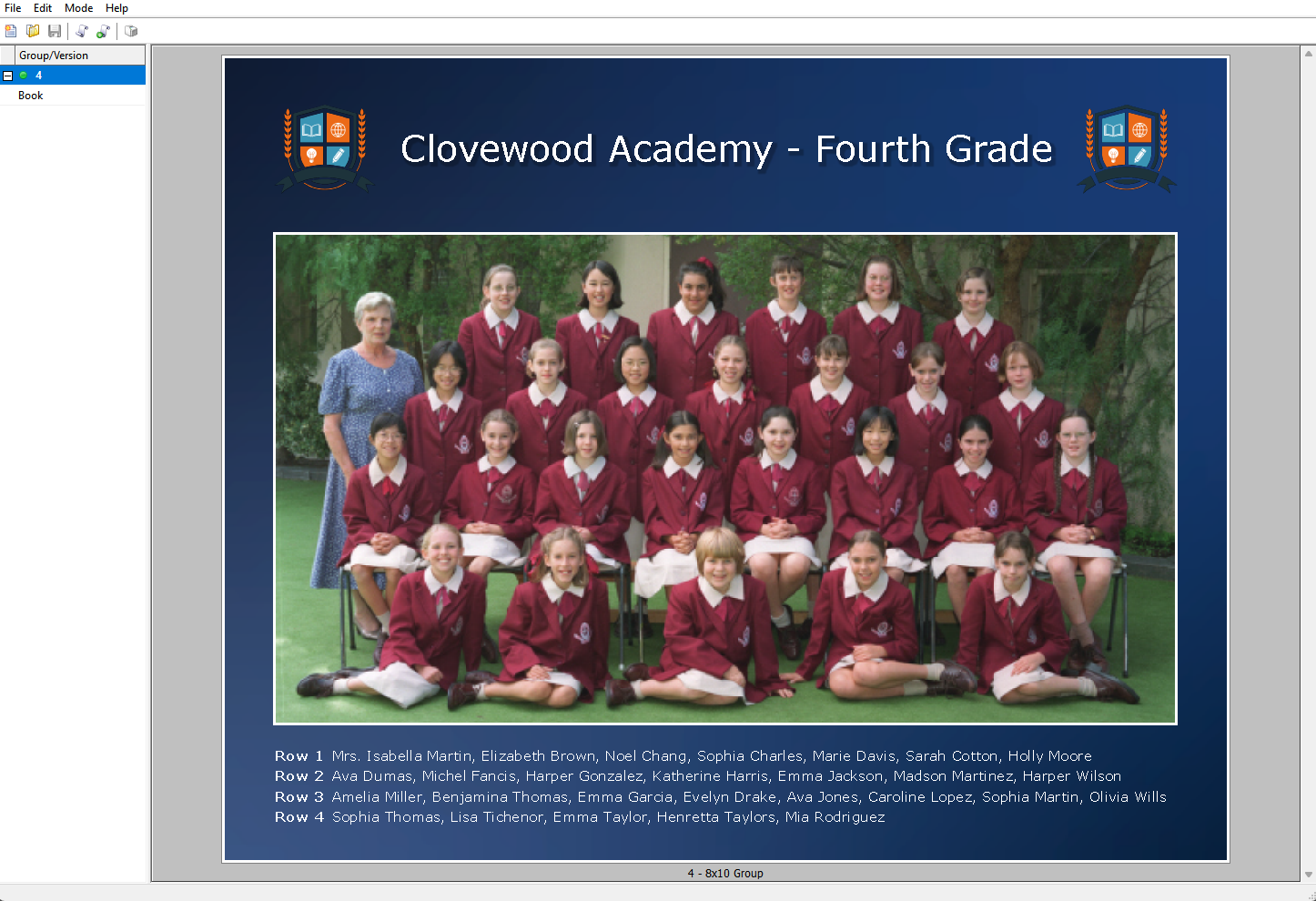
Figure 3: The Form Pages Mode showing the ‘default’ group for the Fourth Grade (4)
Name formatting and versions
Since it may be desirable to format names differently in different versions, this functionality is accessible in Form Pages Mode and the Group Page Version window.
NOTE
The use of prefix and suffix for name formatting remains a function of the name list itself and therefore remains in Names Mode.
Further Reading: Formatting Names in NeoGroup
When naming subjects in a traditional group photo, the names will by default appear in the conventional format - firstname plus lastname separated by a space. Successive names in a row are then separated by a comma and a space.
Printing versions in NeoGroup
The print window in Version 4.6 of NeoGroup was modified to take into account group versions.
The drop-down version selector indicates folders with that version by turning their name bold
Print copies options can be set in the Print Window (and hence for each version)
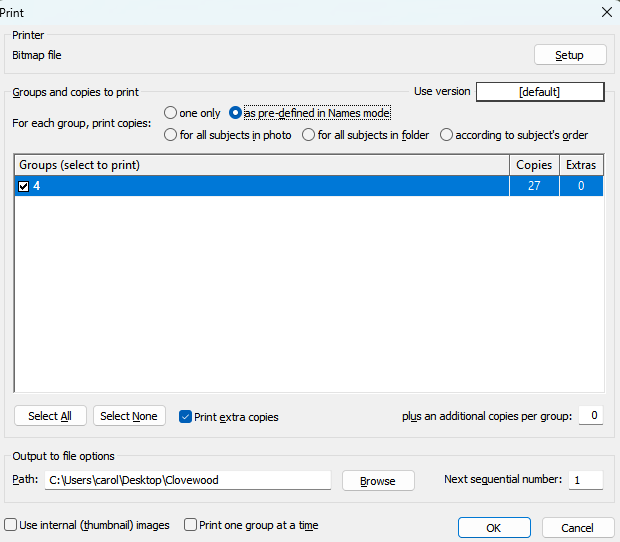
Figure 4: The Print window in NeoGroup
Although for the most part, the print copies options are self-explanatory, they are described below:
Option | Description |
|---|---|
Only one | prints a single copy of the group |
As pre-defined in Names mode..... | uses the copies options set in Names Mode>Edit>Set copies to print |
For all subjects in photo | prints a copy for each subject added to the group's name list |
For all subjects in folder | prints a copy for all subjects in the folder, regardless of whether they appear in the name list |
According to subject's order | sets the number of copies as ordered for the subjects in the group |
NOTE
For each of the copies option (apart from 'one only') it is possible to specifically add extra copies with the 'plus extra copies per group option'
Ordering group versions
The most common of the above options is possibly 'according to subject's order' since group pages are only printed for subjects who have ordered a group. With this in mind, it is important to understand the different ways of ordering specific group versions:
Ordering with a version-specific product
The Timestone Administrator (tsAdmin) allows group products to be given a version in the same manner as a portrait product is given a Template Key. In fact, the same column is used in tsAdmin, as can be seen in Figure 5 below.
Since the different group versions are now different products, they may be added to an offer and ordered in the normal way. In NeoGroup, the group pages are formed for each version and given version codes that match the version code set for the products in tsAdmin.
Note that the first product is a generic group, and the second and third have Versions assigned
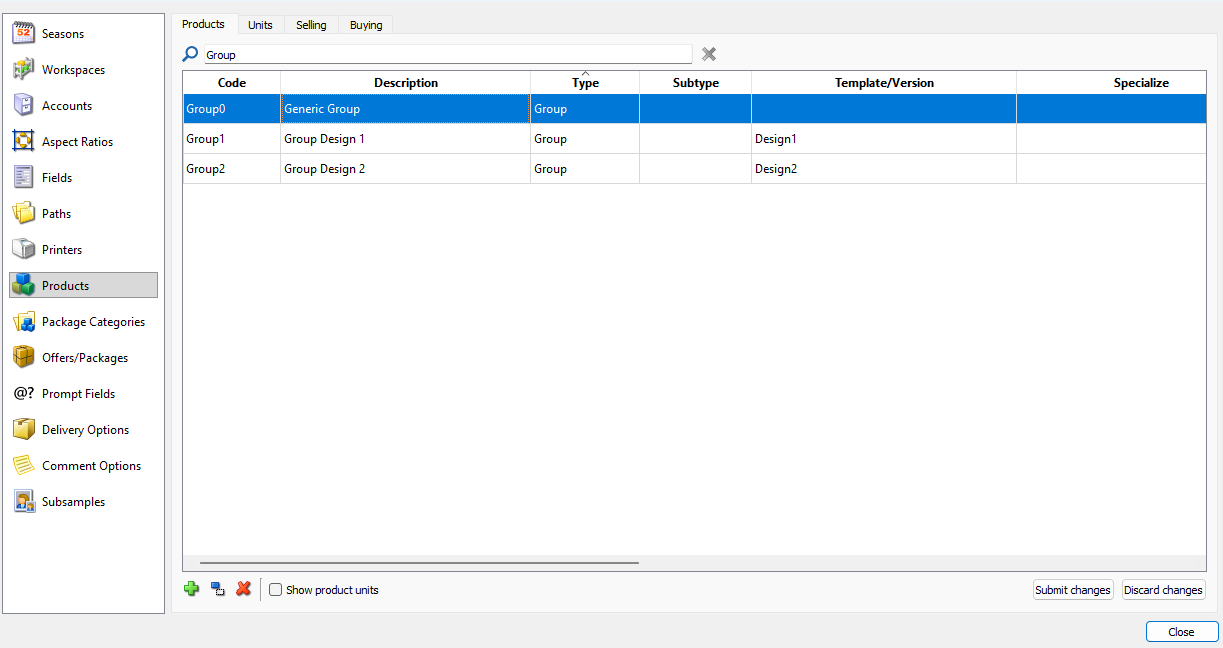
Figure 5: The products table in tsAdmin.
Ordering with a generic group product
The previous method requires additional products to be added to tsAdmin that match the version code given to the group pages in NeoGroup or GroupBuilder. Alternatively, the user can use a single Generic product to order the Default group, or combine it with Manual order entry options, such as Barcodes or keyboard entry, to designate the desired version.
Ordering Via Barcode
Sticky Barcode
/%O$/G2version code
Scan before a package or a set of packages
Stays active until turned off with another sticky barcode
/%O$/G2design1 orders a group version 'design1'
/%O$/G2yearbook orders a group version 'yearbook'
Non-Sticky Barcodes
/%O+/G2subtype
Scan after a package or for the current package
/%O+/G2design1 orders a group version 'design1'
/%O+/G2yearbook orders a group version 'yearbook
FAQ
What are group versions in NeoGroup?
Group versions are multiple group pages created for a folder, each identified by a unique version code, allowing for different layouts and templates while maintaining the same subject/folder information.
Which Group Page Version is the default?
The first group formed for a folder is referred to as the 'default' version.
Can I format names differently in different group versions?
Yes, you can format names differently in each version using the Group Page Version window. However, you cannot change the subjects included or their rows or positions.
Is it possible to print different versions independently?
Yes, different versions can be printed independently using the print functionality in NeoGroup. The Versions can also be ordered as unique products or called into other NeoPack templates.
Can I order group versions online?
Yes, group versions can be ordered online, either through version-specific products or generic group products.
What is the purpose of the version code?
The version code is used to identify and differentiate between the various group versions created within a folder and can be used to create unique products in tsAdmin or call up a specific version on another template.