Overview
When uploading jobs to the Timestone Internet Ordering System (IOS), choices are available with respect to whether to upload all or just some subject images.
These options are selected in the Image Handling section of tsIOS and are set on a job by job basis.
This document discusses subject images - the options available when uploading subject images.
For a discussion of Package image options refer to the article:
Subject, Folder, and Family images
Four options are available with respect to which subject, folder, and family images are uploaded and displayed.
None
All images
Primary image only
Primary image(s) or with poses
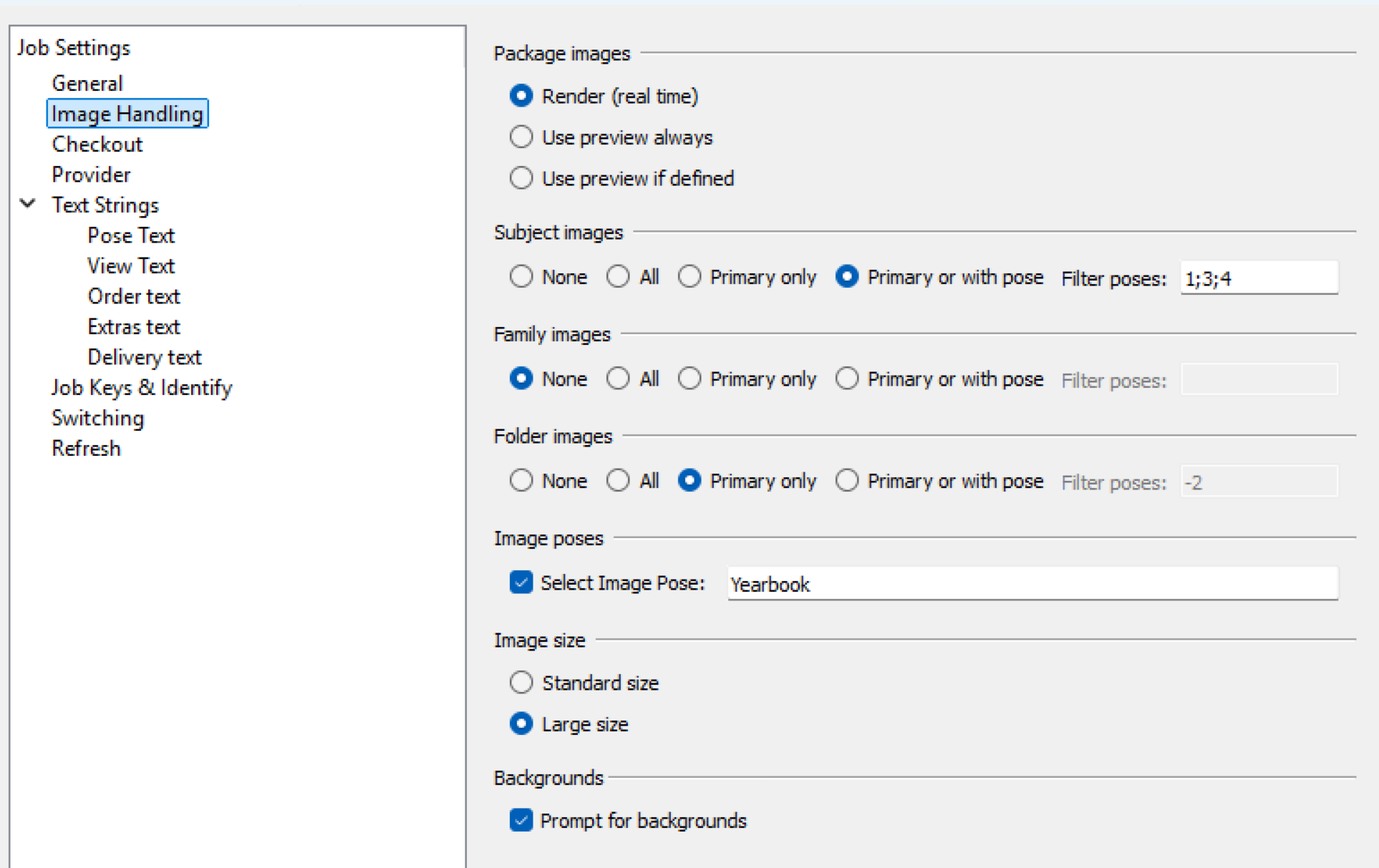
Figure 1: Image handling options in tsIOS
The Primary or with Pose option also allows the user to filter poses, allowing further control over which poses are uploaded for customer view.
By default, the filter is blank, allowing all images with poses and the primary image, with or without a pose assigned, to be uploaded. Enter the Pose number or label into the field to only upload that particular pose. Multiple poses can be added using a semicolon “;” as a separator. Additionally, single poses can be excluded from uploading by preceding them with a minus “-”.
For example, if a user wanted all poses except for pose “2” to upload, either of the phrases below would accomplish the goal:
1; 3; 4; Yearbook
-2
NOTE
If the Primary image is also assigned a pose it will be uploaded regardless of the pose numbers inclusion in the Filer pose field
Case study
The options are perhaps best explained by way of example.
Consider a subject with 6 matched images; of those, 3 have been assigned poses. The primary (main) image is one of those poses.
The three options will result in the following:
Uploads all subject images.
In our case study above, all 6 matched images will be uploaded and displayed.
Images will be displayed in image number order - the same order they appear in the software.
Uploads only the subject's primary (main) image.
In our case study above, only one image will be uploaded and displayed - the main image.
Uploads only images that have been assigned a pose, along with the primary image, regardless of whether the primary image has been assigned a pose or not.
In our case study above, 3 images will be uploaded and displayed.
Images are sorted alphanumerically by pose.
Preventing a subject’s images from being displayed
If the User wishes to prevent all subject, folder, or family images from being uploaded and displayed, simply select None from the appropriate section.
To prevent the images for a particular subject from being uploaded and displayed, it would be necessary to unmatch the images before uploading or refreshing.
Using Folder or Job Keys
In the absence of switching, the default behaviour when using folder keys and job keys is to display all images matched to all subjects in the respective folder or job.
In these cases, images are displayed in image number order - the same order they are in the software.
FAQ
What options are available for uploading subject images in the Timestone Internet Ordering System (IOS)?
There are three options: upload all images, upload the primary image only, or upload the primary image along with images that have poses.
How are images displayed when all subject images are uploaded?
All subject images are displayed in image number order, which is the same order they appear in the software.
Can the image filename be displayed with the images?
Yes, this is a site configuration option that can be activated by Timestone staff.
What happens when I choose to upload only the primary image?
Only the subject's primary (main) image will be uploaded.
Can I prevent a subject's images from being displayed?
Yes, you can prevent the images from being uploaded and displayed by unmatching the images before uploading or refreshing.
What is the default behavior when using folder keys and job keys?
The default behavior is to display all images matched to all subjects in the respective folder or job, in image number order.
What does the option 'Primary image or images with poses' mean?
This option uploads the primary image along with any other images that have been assigned a pose, regardless of whether the primary image has a pose.
When using poses, can the pose numbers be displayed?
Yes, this is a site configuration option that can be activated by Timestone staff.
Are the images sorted in any specific order when uploaded?
Yes, when uploading the primary image or images with poses, they are sorted alphabetically by pose.
Why are my images not showing online?
Several settings may cause images to display (or not) depending on what has been selected. To display images:
Images must be matched to a subject, folder, or family
The Image Handling option in tsIOS must not be set to None
The Package preview option is set to either Render (real time) or Use preview if defined. The latter of these options allows for Package or static previews to be displayed but also allows the site to render live image previews.
Please ensure that all images are matched to the appropriate record and that you are using the correct key. Job keys with Identify ordering enabled will not display images.