Images can be matched to families in much the same way as images can be matched to a folder.
Once an image has been matched to a family, it can be ordered by the customer in any of the normal methods.
Matching in Match Mode
In the same manner as matching an image to a subject or folder, Match Mode can be used to match an image to a family
Select the family image
Enter the family name into 'Match image with - family'
When the correct family is displayed, press Enter to accept the match
An image matched to a family is displayed with a blue bar enclosing the family name
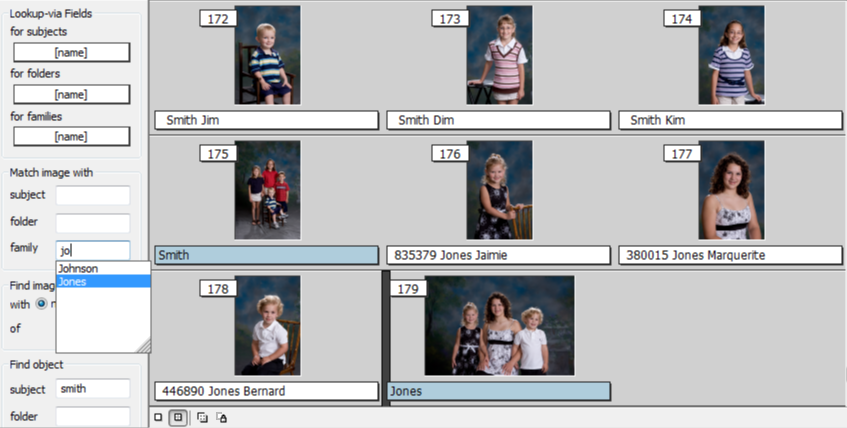
Figure 1: Matching the Jones family
Matching an image to a family via a text file
The procedure for matching an image to a family via a text file is essentially the same as that used when matching to a folder.
When matching an image to a family, the key difference is that the word "family" is used in the text file instead of "group" or "folder".
In the sample text file below, the word Family has been entered into the lastname field for the image to be matched to the family.
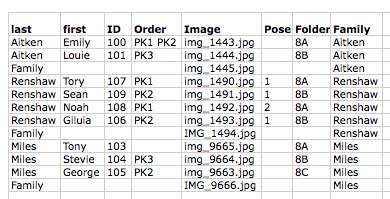
Figure 2: A text file matching images to families
Further Reading: Importing images via text file
When importing subject data, it is possible to simultaneously import images and automatically match them with the subjects, folders, or families.
Matching an image to a Family using QR codes
Similar to matching a subject, Family images can also be matched via a QR Code.
The encoding of the QR code can be either
/%H{familyname}
/%K{familykey}
.. where {familyname} is the name of the family and {familykey} is the family key.
Further Reading: QR Codes for Family Images
In a similar way to matching images to subjects, QR codes can also be used to match images to families.
Matching an image to a Family using Facial Recognition
Face Detection can be used with families in two ways:
Where a family already exists, Face Recognition can associate (copy) the subjects into the family
Where the family does not yet exist, Face Recognition can be used to create the family, match the image to it, and associate the subjects
Using Facial recognition to create families using existing subject information, the system will use the last name of the associated subjects to name the family, combining them when multiple are present. In situations where subjects are not associated, the name defaults to using the family image's filename as the family name.
Further Reading: Using Face recognition with families
Face recognition can be used to recognize and create families more quickly than the traditional “drag and Drop” method. This article also includes a video.
FAQ
Can I match more than one image to a family?
Yes, in the same way as subjects and folders can be matched with multiple images, so can families.
How do I get the family image onto a template?
When adding the image hole to the template, select the ‘Family Image’ option in the ‘Fill hole with’ section. Alternatively, a labelled image holder can be added to the template with the label @family.
Is it possible to match images to families using QR codes?
Yes, you can match family images using QR codes by encoding them with either /%H{familyname} or /%K{familykey}.
Can facial recognition be used to create families?
Yes, facial recognition can be used to create a family if it does not already exist, and it can also associate subjects into an existing family.