Queue mode in NeoPack offers the user additional functionality when printing orders, including an expandable order 'tree' to select different groups of orders, the ability to sort or filter orders by a variety of criteria, search for products by subject, family, customer, and order, and the preview of the products formed from the orders.
Products formed in NeoComposite and NeoGroup, once ordered, will also appear in NeoPack’s Queue Mode, thus giving the user the ability to print and package all products from one location.
The Queue mode window can be divided into 4 main areas:
The Find and Print with Area
The Order Tree
The Filter Area
The Preview Area
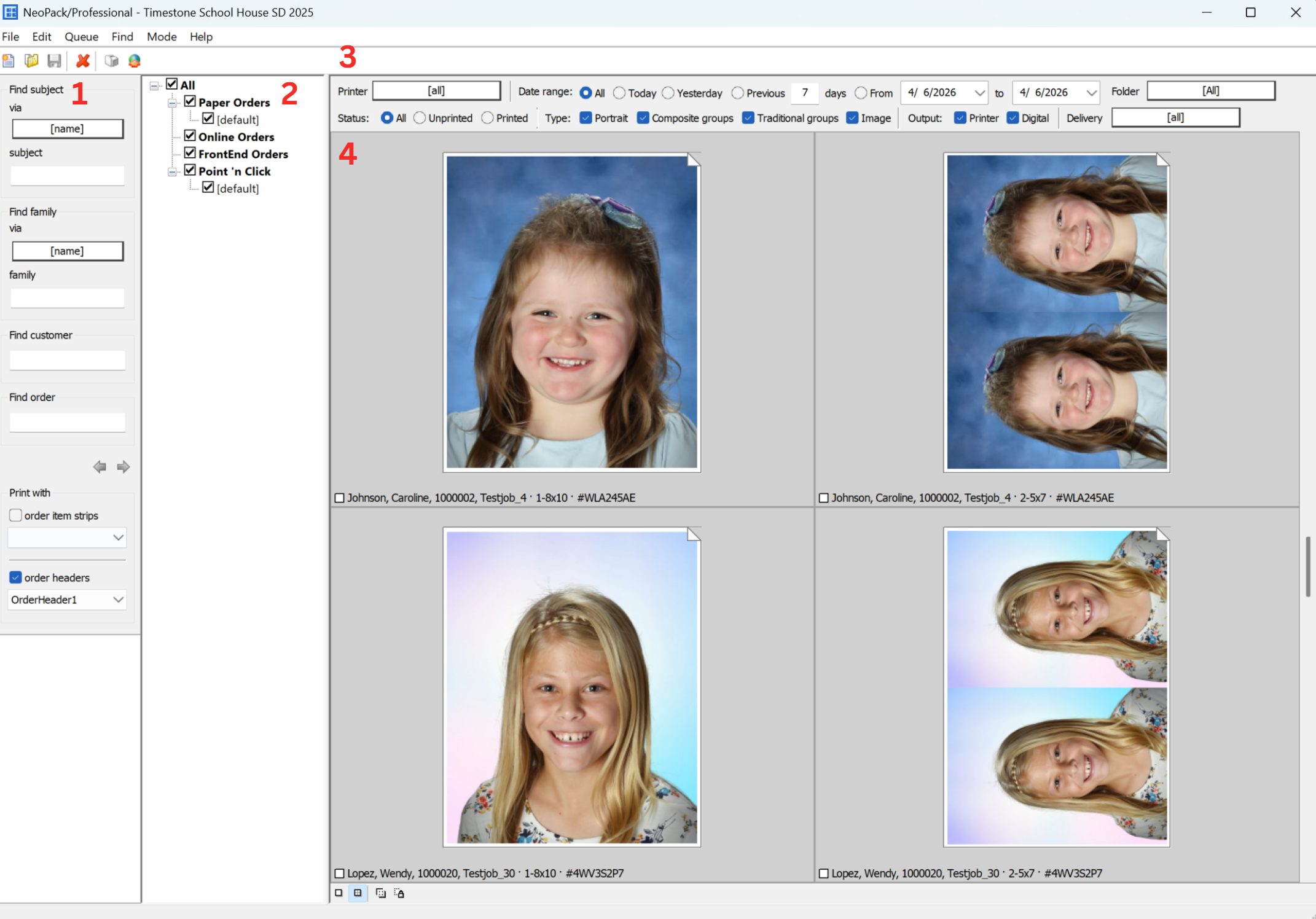
Figure 1: Queue Mode with numbers indicating the main areas of the window
The Orders Tree
The Orders Tree provides an easy, visual method for selecting the products for printing.
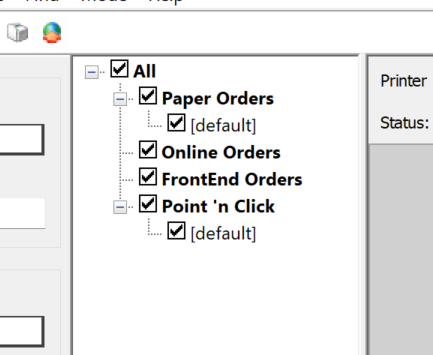
Figure 2: The expandable order tree
Paper Orders are orders that are entered as part of data in either Details Mode or Orders Mode. They include:
Orders scanned from a barcode
Orders imported by text file
Orders entered by keyboard (F3)
The Paper Orders branch includes any Order Sets as defined in Orders Mode as sub-branches. Checking the Paper orders object automatically checks any Order Set branches.
The Online Orders branch displays pre-orders downloaded from the Timestone Internet Ordering System.
These orders are downloaded into 'Orders Mode>Orders>Download online orders' from jobs uploaded with the "process as pre-orders" option. Note that online orders processed through Fulfill do not appear in NeoPack’s Queue Mode.
Online orders do not have sub-branches.
Pages added manually in Point 'n Click Mode (formerly Form Packs Mode) are displayed in the Point 'n Click branch. Pages added in Point ‘n Click Mode are not orders. They are not part of subject or customer data, do not receive an order key, and do not appear in reports.
Sub-branches display any queues that have been added in Point 'n Click Mode.
No longer used
Sorting and filtering the Queue
By default, all ordered pack templates are displayed in the queue according to order key; however, it is possible to filter and sort the queue to refine the products displayed and in what order they appear in the queue.
The Queue can be filtered using any combination of the Orders Tree, printer, date range, folder, status (printed/unprinted), Product type, output, and delivery method.
Further Reading: Sorting and Filtering the Print Queue
Located in Queue Mode, the print queue shows all printers and outputs and is sorted by order key by default. However, it is possible to sort or filter the queue before it is printed.
Searching the Queue
It is possible to search for specific products within the currently displayed area, either in the “Find Area” or by navigating to Find and the desired search criteria. Products can be searched by:
Subject - via any subject field
Family - via any family field
Customer - the customer key or name
Order - the order key
If multiple products are found by the search, it is possible to toggle through the resulting products using the left/right arrow keys.
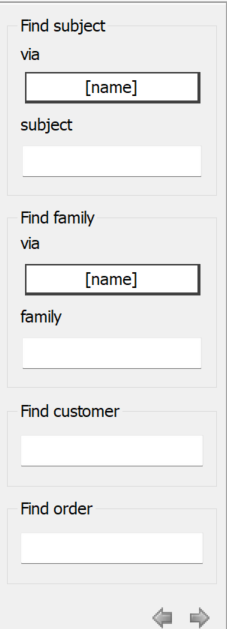
Figure 3: The Find Subject Area
NOTE
The Search will only display results for the currently displayed products. For example, if the order tree only has 'Point 'n Click' orders checked, the search will not find any products in the Paper Orders branch. Likewise if the queue is filtered for a certain printer or for digital products only it cannot display pages outside of these filters.
Controlling the page description
The page description, below a preview of the ordered product, shows subject information, the PLT template description, followed by the order key and email when applicable for a given product.
The subject-specific information can be changed to show information in a custom order or limit the displayed information through the use of As Tags. The template description will either display the template name or the template description, which can be edited from the File>Properties of the Template Designer.
Order Keys are only given to Online and Paper Orders, though products added via Point ‘n Click Mode are not considered orders and are not given order keys. Only digital products include the intended recipient's email address, trailing all other information.
Further Reading: Using As Tags
There are many places in the software where subject data is displayed, including various windows, dialog boxes, and drop-down lists. At these locations, the user will usually select the subject or subjects and perform an action such as forming a composite page, assigning a pose, matching an image, and lots more.
Order Headers and Item Strips
Located below the Find area are the options for printing order headers and item strips with the products in the queue. Order headers are a type of custom order summary template and are exclusively used for customer-based orders, typically online orders.
To print an item strip or order header, simply check the associated box and select the appropriate template from the adjacent dropdown list
Caution
Order Headers print at the change of an order; therefore, if the queue is sorted by order as it is in fulfill this will naturally result in one order header printed per order.
However the Queue in NeoPack the queue is often sorted by folder and subject. If an order contains, say, three subjects in three different folders, they will be in different parts of the queue. In this circumstance, three order headers will be printed for this order.
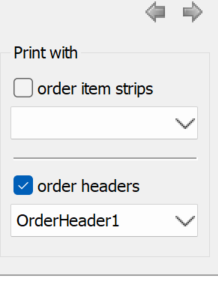
Figure 4: The Print With Area
Further Reading: Order Headers
Order Headers can be considered as an order summary sheet, optionally printed in Fulfill and (less commonly) in NeoPack. They are used exclusively with customer-based orders - be they online orders or customer Paper orders. They are not used for subject-based paper orders.
Deleting pages from Queue Mode
Only Point ‘n Click pages may be deleted in Queue Mode. Pages resulting from Paper Orders or Online Orders cannot be deleted without removing the entire order, as this would result in 'orphan' orders with no products, with implications to reports, statistics, etc.
To delete a page resulting from a Paper or Online Order, delete the order itself in Orders Mode.
Further Reading: Removing Orders
It is possible to remove orders from Neopack or from Fulfill that are no longer wanted for whatever reason, though the method differs for paper orders versus online orders.
Holding Packs
By default, when a Pack enters the queue, it is assigned the status “Unprinted,” represented by a white box in the lower left of the pack preview. When the pack is printed, the status will change to “printed,” and a gray triangle will appear in the white box icon.
At any time, the User can choose to hold a single pack or a selection of packs by navigating to the Queue > Hold selected packs, or by using the keyboard shortcut Crtl + H. When a package is held, the icon in the lower left will change to a box with an X, and held packs will not be printed. If the user has only held packs selected when attempting to print, the error message “Nothing to print” will appear.
To release a pack or packs simply, select the desired pack(s) and navigate to Queue > Release selected packs or use the keyboard shortcut Ctrl + Shift + H.
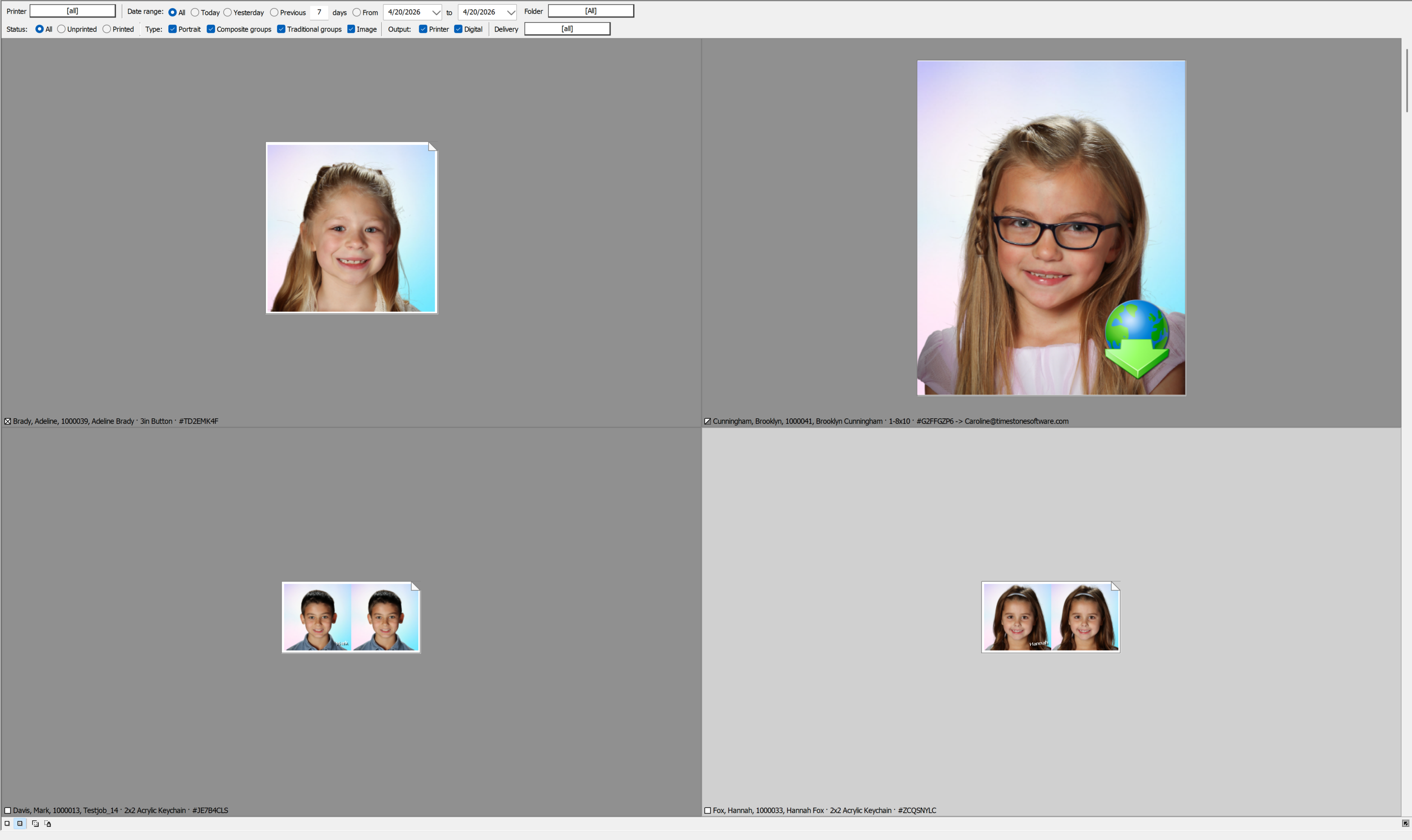
Figure 5: Packs in the queue, each with a different status icon
NOTE
Held packs cannot be filtered for, unlike Subjects “held” for Retouching, and retain the “unprinted” or “printed” status had by the pack at the time it was held.
Further Reading: Retouching
In general terms, retouching can be handled in one of two ways: flagging a subject as requiring retouching, or Ordering a package containing a retouch product.
Queue Statistics
Various statistics are available about the packs in the queue via the Queue Statistics window. Access to the queue statistics is available by navigating to Queue > Statistics in either Queue Mode or Point ‘n Click Mode.
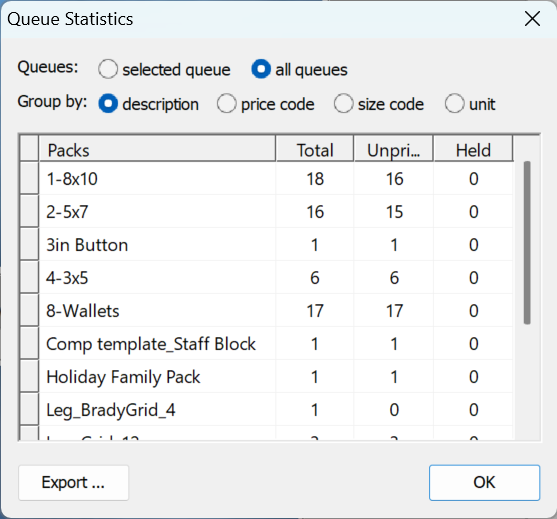
Figure 6: The Queue Statistics window
As seen in Figure 6, the Queue Statistics window displays a list of packs with their complete totals, the total still unprinted in the queue, as well as the total being held. By default, this list contains all items in the queue; however, the user can optionally show only those items from the currently selected queue. This list of Packs can be grouped by Description, price code, size code, or unit.
The packs in the queue are specifically the individual PLT templates being ordered, meaning that if a product associated with the PLT template is being used as part of multiple packages, all of that PLT will appear together in the statistics.
FAQ
Can I delete Paper Orders or Online Orders in Queue Mode?
No, you cannot delete products from Paper Orders or Online Orders in Queue Mode. Only Point 'n Click pages may be deleted.
How can I find a specific product in the print queue?
You can search for specific products by subject, family, customer, or order key within the currently displayed area.
What statistics are available about the products in Queue?
The queue statistics provide information about the packs in the queue, including totals, unprinted items, and the ability to group items by description, price code, size code, or unit.