Located in Queue Mode, the print queue shows, by default, all Products and is sorted by subject last name alphabetically.
Various filters are available to display only certain products while three levels of sorting make it possible to sort the queue before printing.
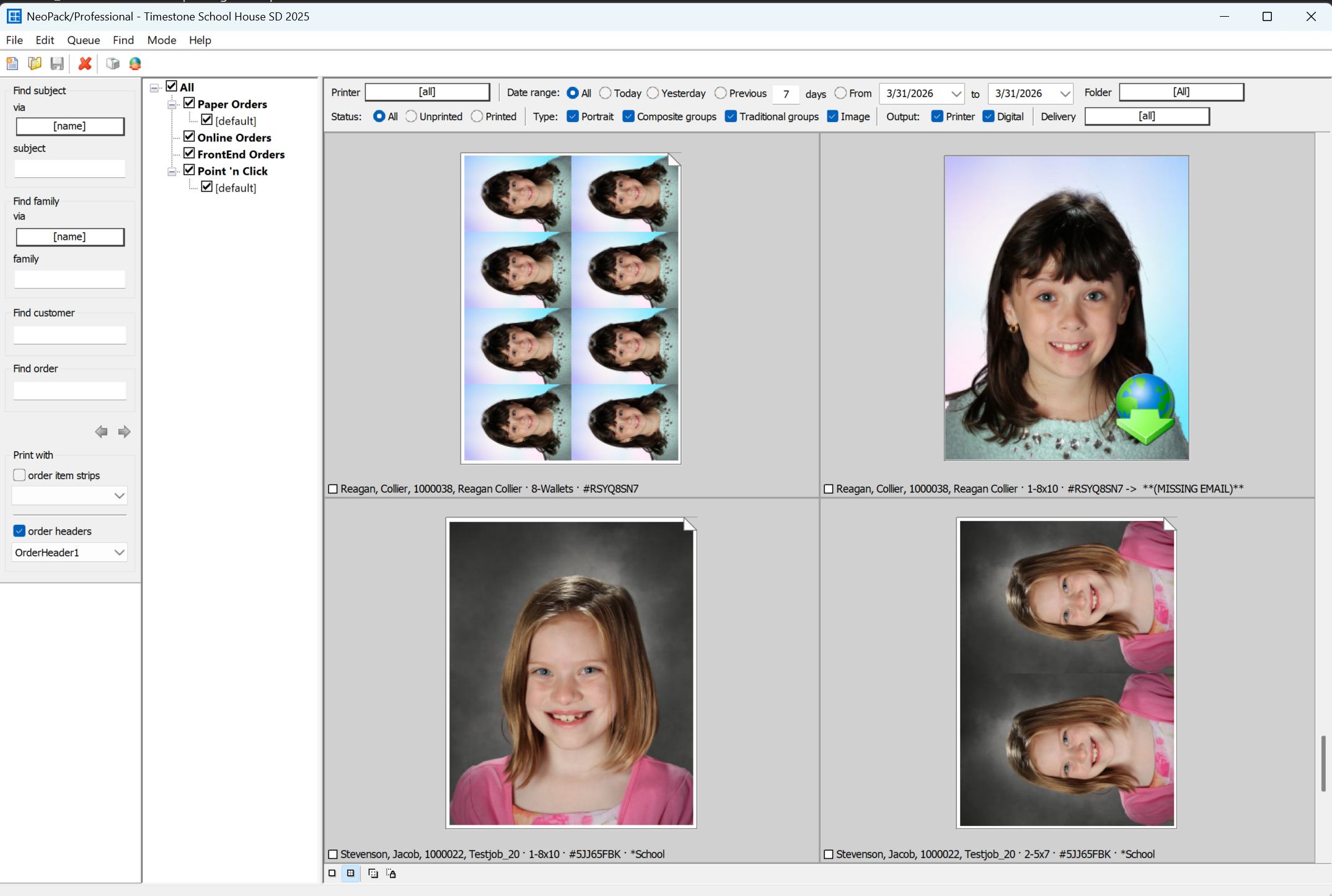
Figure 1: Queue Mode
Sorting the Queue
To sort the print queue, navigate to Queue > Sort …
Three sorting levels are available, and each level may be sorted in ascending or descending order according to one of the following criteria:
Subject - sorts according to any subject field or the subject name
Folder - sorts according to any folder field or the folder name
Pack - sorts according to the template name, size, or price code, the sequence in which packages were added to the queue, or their print status
None - “remove” a level of sorting
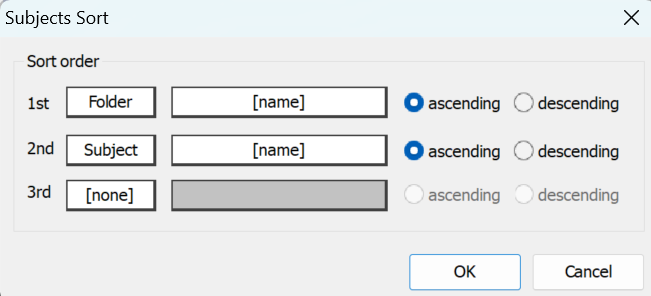
Figure 2: Sorting the Queue
Filtering the Queue
In addition to filtering the queue by the origin of the order (all, paper orders, online orders, frontend orders, and point ‘n click) from the “order tree” on the left of the preview area. The Queue can also be filtered by a variety of criteria, including:
Printer - all or a specific printer
Date - all, today, yesterday, previous # of days, or date range
Folder - all or a specific folder
Status - all, printed, or unprinted
Product type - portrait, composite group, traditional group, and/or image
Output - printer and/or digital
Delivery - all or a specific delivery option
These options can be combined to see a specific filtered preview of only the qualifying packs.
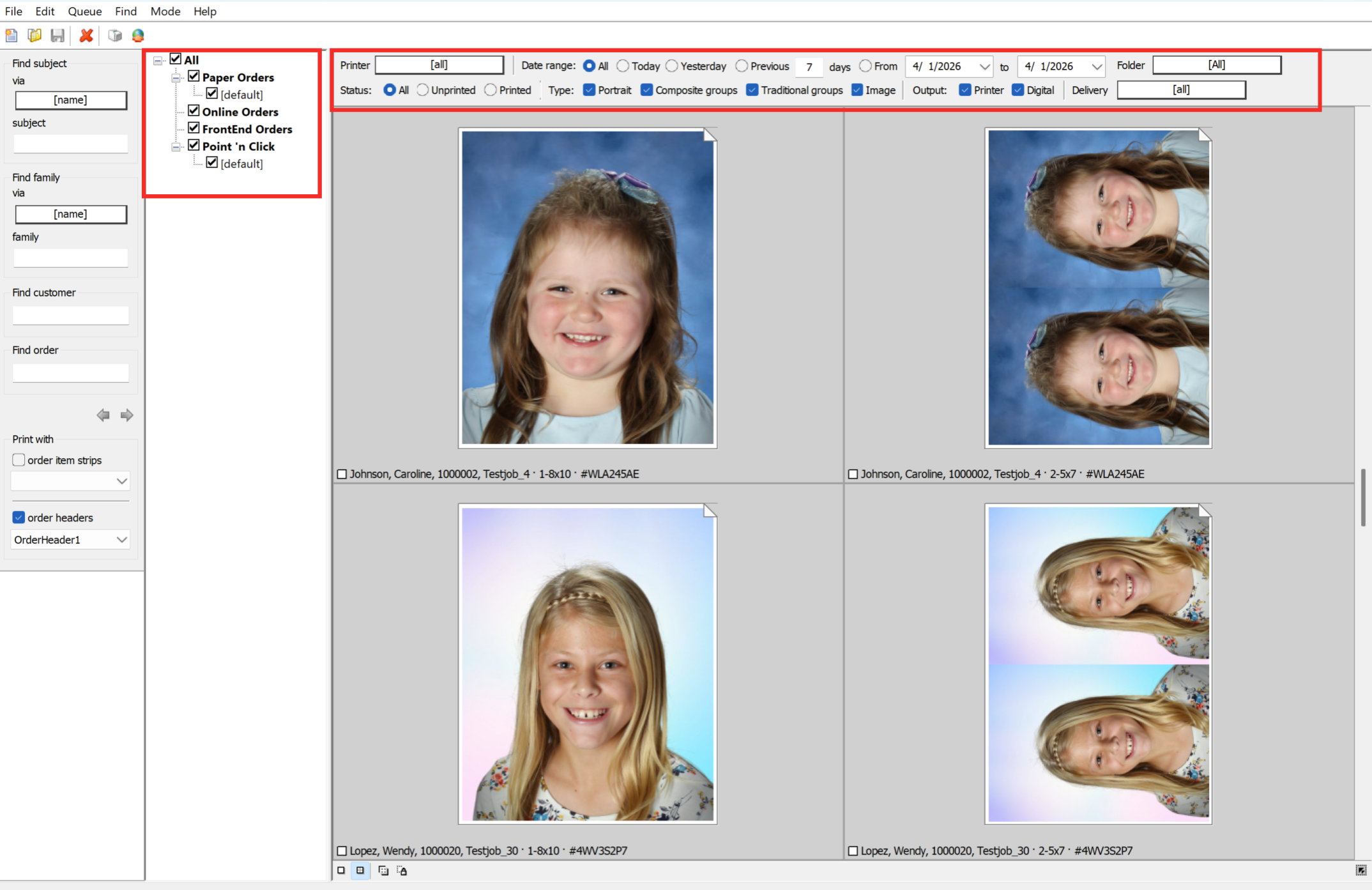
Figure 3: Queue Mode with the Filter areas marked in red
Order Headers
Since Order Headers print at the start or each order, the queue will need to be sorted by order (Pack>Order). Additionally, order headers do not appear in the queue, but are optionally printed allong side the orderd product.
Further Reading: Order Headers
Order Headers can be considered as an order summary sheet, optionally printed in Fulfill and (less commonly) in NeoPack. They are used exclusively with customer based orders - be they online orders or customer Paper Orders. They are not used for subject based paper orders.
Case Studies
Consider the following examples:
A multi-level sort - by Grade, Teacher, and Name (folder, subject field, and subject name)
A single-level sort - by Pack description
Filtering the Queue - by Printer
Filtering the Queue - by Digital products only
Sorting By Subject information - A multi-level sort
Commonly, the user desires to print the packages in order by grade, teacher, and student name. The data has been arranged into folders, and each folder is a grade. Each student, of course, has their name and homeroom teacher as subject-level fields.
The first level of the sort is the folder name, since each folder is a grade. The next level is by subject and the homeroom fields. The last level of the sort is by subject and name.
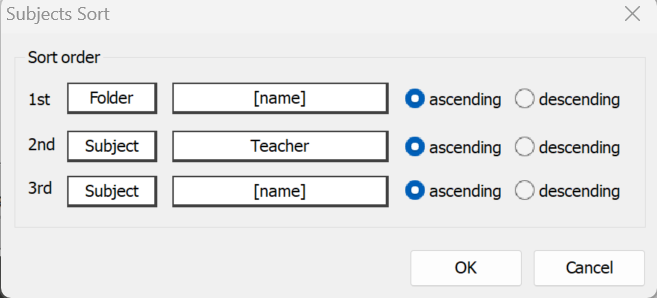
Figure 4: Sorting the Queue by Folder and Subject-level information
Sorting By Pack Description - A single-level sort
Consider a print queue for a large sports shoot. The print queue contains packages of various paper sizes, including buttons and magnets, which will need to be printed to bitmap separately from the rest of the packages; therefore, the user may wish to sort the print queue according to template name so that all the buttons and magnets can be easily selected.
The first level of the sort is Pack and description, which will sort the print queue according to the template name (or description if defined). Second and third-level sorts are optional.
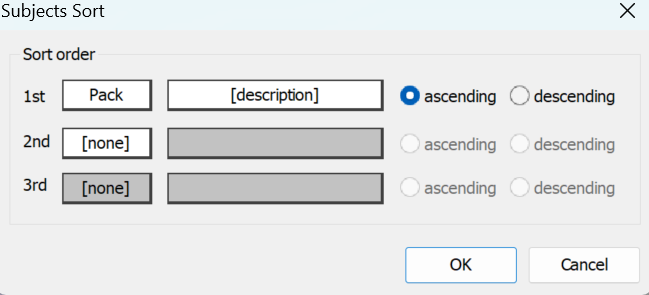
Figure 5: Sorting the queue by pack description
Filtering the Queue by Printer
Using the same Sports job from the previous example, where the print queue contains packages that include trinket items, such as buttons and magnets, which will need to be printed to a bitmap separately from the rest of the packages. As an alternative to sorting the queue, those button and magnet products can be assigned to a different “Trinket” Printer in tsAdmin, and simply the queue can be filtered to view only that printer.
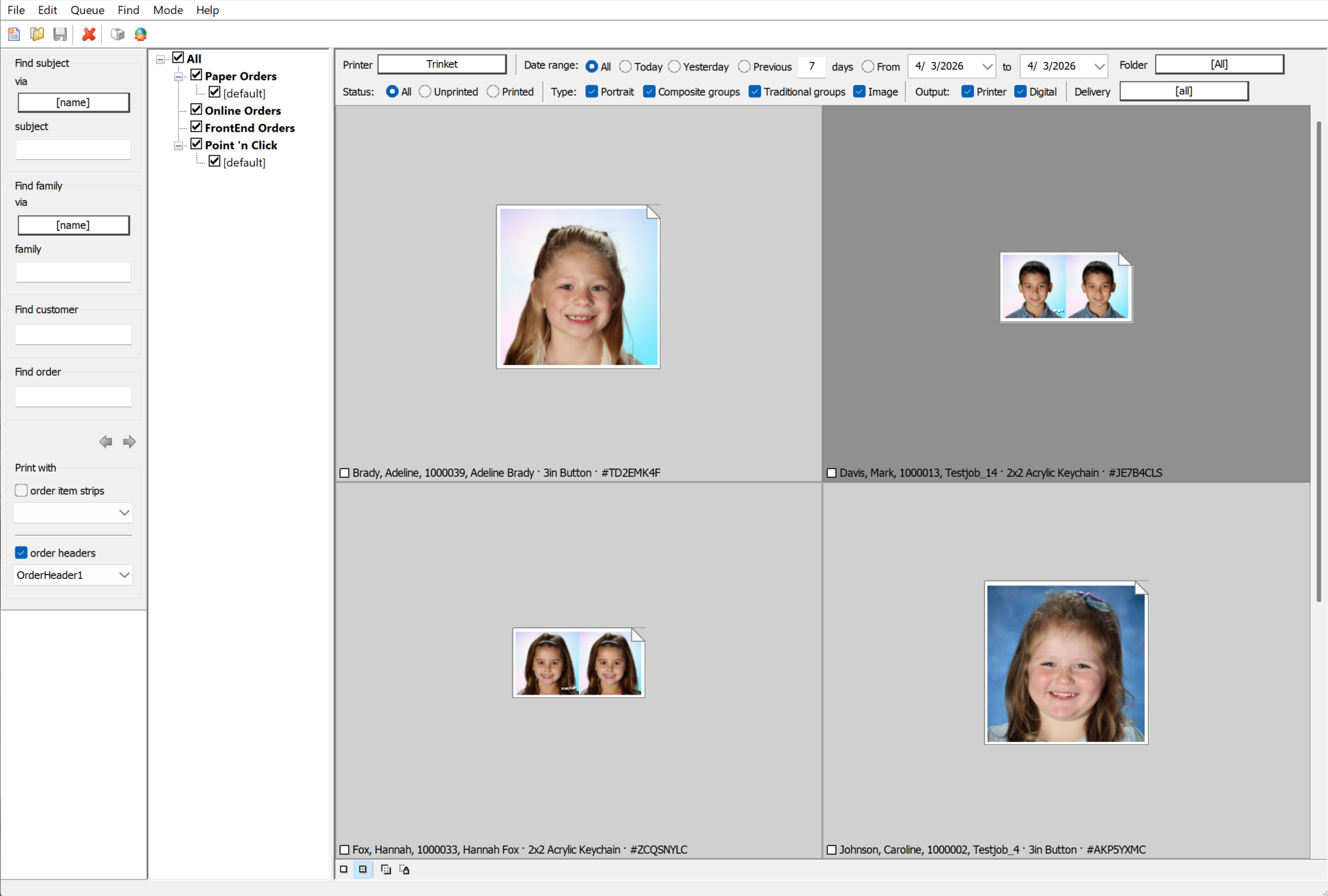
Figure 6: The queue filtered for the “Trinket” printer
Filtering the Queue for Digital Products only
In many workflows, digital products are sent in bulk, either at the start of printing or when the bulk job is delivered. In such cases, the queue can be filtered to display only digital items by checking only Digital from the output options. This filter may also be used in combination with additional sorting or filtering criteria to further refine the selection of digital products in the queue.
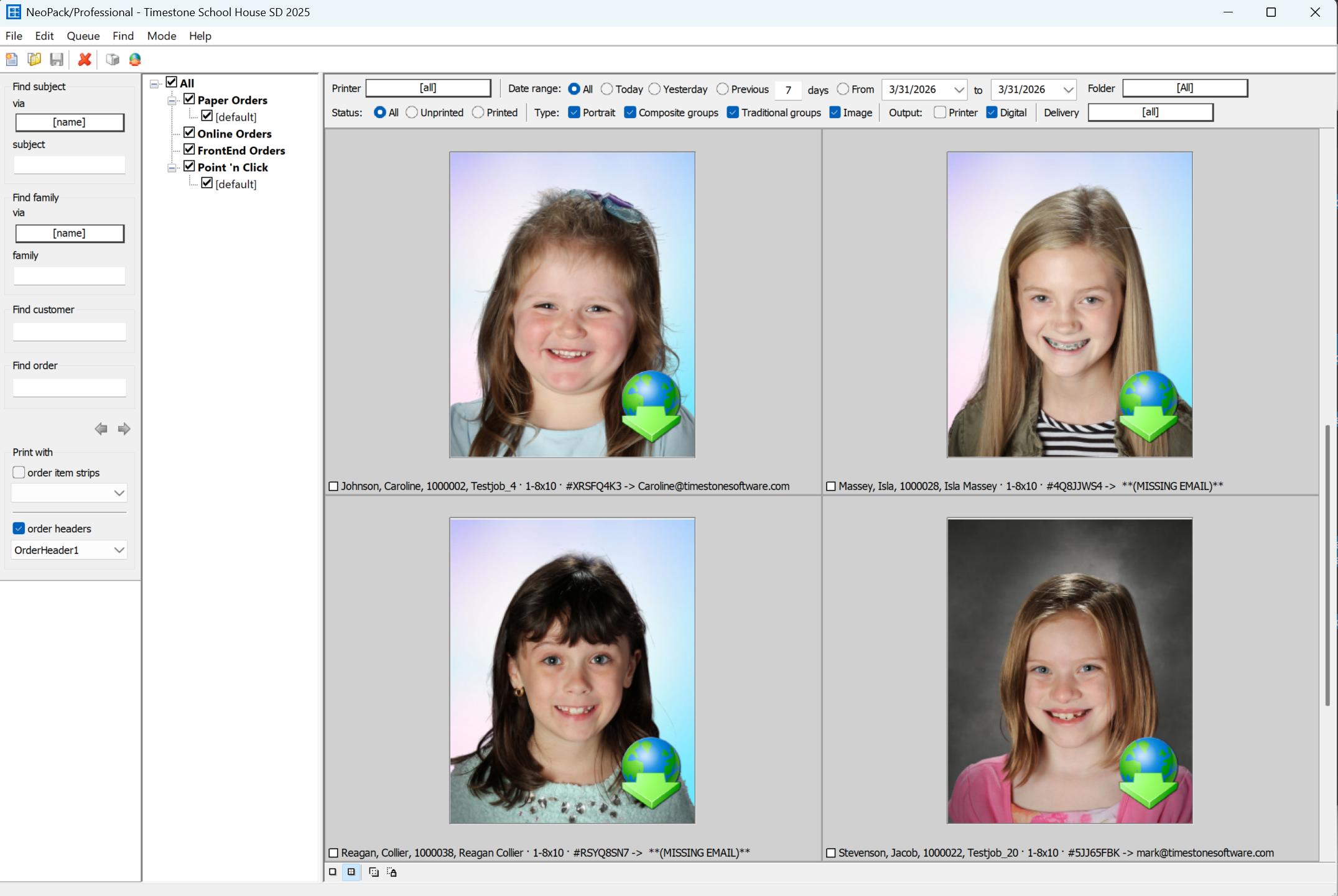
Figure 7: A queue filtered for digital products only
FAQ
What sorting options are available for the print queue?
You can sort the print queue by Subject, Folder, Pack, or remove a level of sorting with 'None,' returning the queue to alphabetical order by last name.
Is it possible to combine filtering options?
Yes, filtering options can be combined to see a specific filtered preview of qualifying packs. The results could then be sorted to appear in a desired order.
Can I sort the queue by multiple levels?
Yes, you can perform multi-level sorting, such as by Grade, Teacher, and Name, or a combination of pack, folder, or subject data.