PDF files are often needed when printing to ‘press’ printers. Additionally, the ability to produce multi-page PDFs allows the user to create products such as photo books and desktop calendars.
Click the link below to download the templates used in this article.
Selecting PDF printing
PDF printing is selected in the Print Setup window. Printing to PDF produces a flat PDF in RGB with a default resolution of 300 DPI.
The path for the output PDF files is set in the Path field of the Print window.
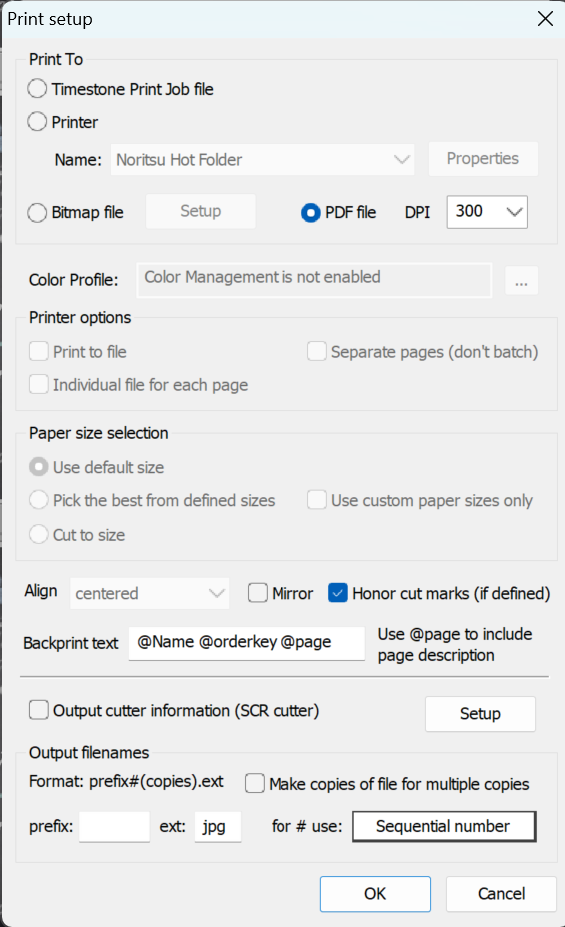
Figure 1: Selecting PDF printing
PDF files and batch printing
Since PDF files possess the ability to be 'multi-page', the user can control which pages in the queue are to be combined into a PDF. This is achieved with the batch printing controls in the Print Window.
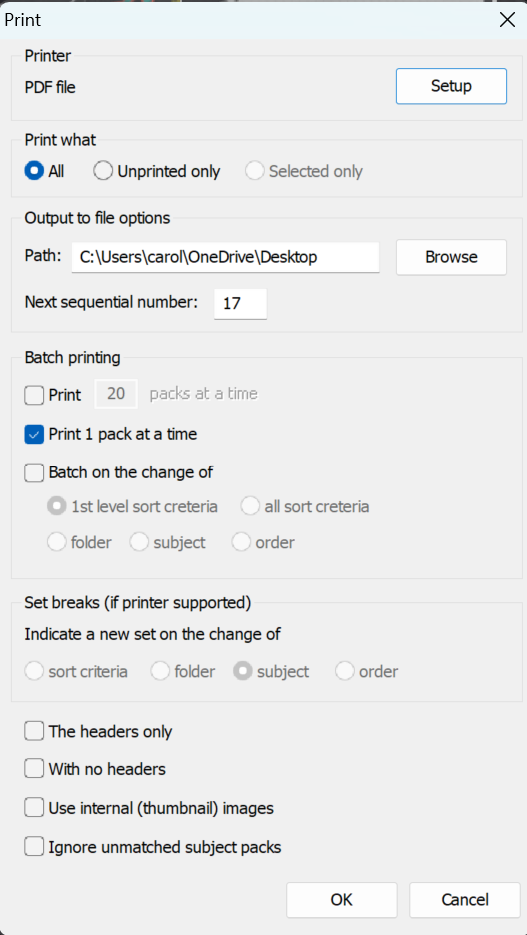
Figure 2: The print window showing the Batch printing options as well as the output path
PDF file names
Since PDFs can contain pages from multiple subjects, it is not possible to apply subject-specific filenames unless the PDF contains pages belonging to a single subject. If the queue sort and batch printing options are set as described above (e.g., when printing photo books), the PDF files are prefixed with the job name followed by the subject name.
When the PDF files are not subject-specific, they are named by combining the job name with a unique number.
Example
Consider a print run with 100 individual pages in the queue for 50 subjects, with each subject having two pages in the queue. The subjects belong to 4 different folders. The table below illustrates how the various batch options (including not selecting a batch option at all) affect the result.
Batch printing option | Result | Example |
|---|---|---|
None selected | All pages in the queue are combined into a single PDF file | A single PDF file with 100 pages |
Print 'n' pages at a time | Combines 'n' pages into a PDF, then the next 'n' pages into a new PDF, and so on. | A batch of 5 will result in 20 PDF files with 5 pages in each |
Print 1 pack at a time | A separate PDF file for each page in the queue | 100 PDF files with a single page in each |
Batch on change of sort criteria | The batch criteria is the queue's primary sort criteria | Depends on the sort criteria |
Batch on change of folder | All pages for a given folder are combined into a single PDF | 4 PDF files will be printed (one for each folder) |
Batch on change of subject | A single PDF is printed for each subject | 50 PDF files will be printed with 2 pages in each |
Printing layouts with cut marks
A very common application of PDF printing is in the production of double-sided products such as photo books, desktop calendars, and more. Invariably, these products are printed to 'press' type printers that require PDF files.
These multi-page products are normally created via a single pack layout template containing hard cut marks that effectively split the layout into multiple pages. The screen grab below depicts a pack layout used to produce a 4-page photo book.
NOTE
This template contains three cut marks (represented by the red lines) that split the layour into four seperate pages.
Cut-marks are added to the layout via Edit > Cut Marks ... in the Template Designer.
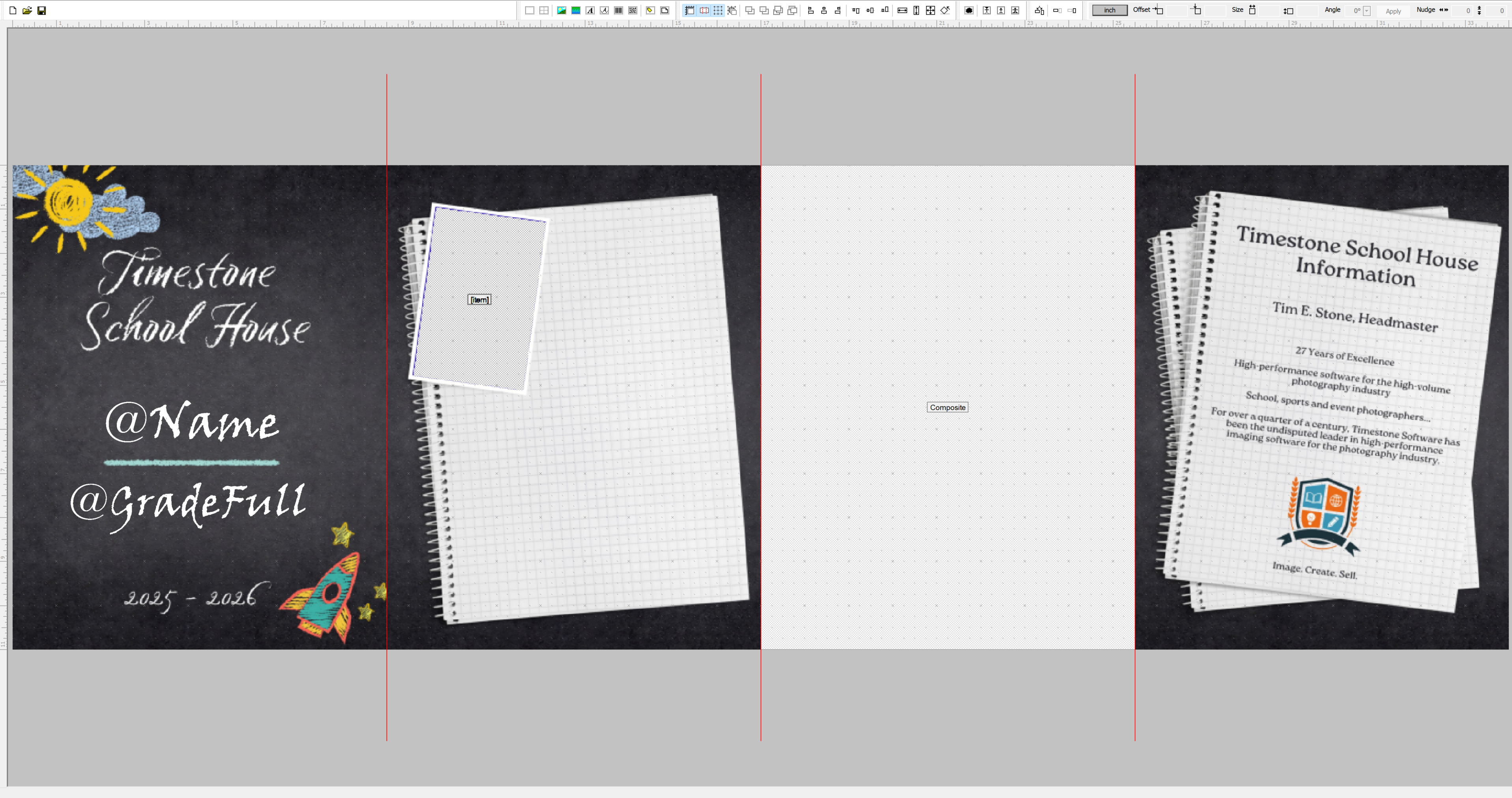
Figure 3: A template for a 4-page photo book
Printing the queue
Using the template illustrated above results in a single page in the print queue. When printed via bitmaps or a printer driver, each page is split into four separate pages; however, when printed to PDF, a single PDF file is produced containing four pages inside it.
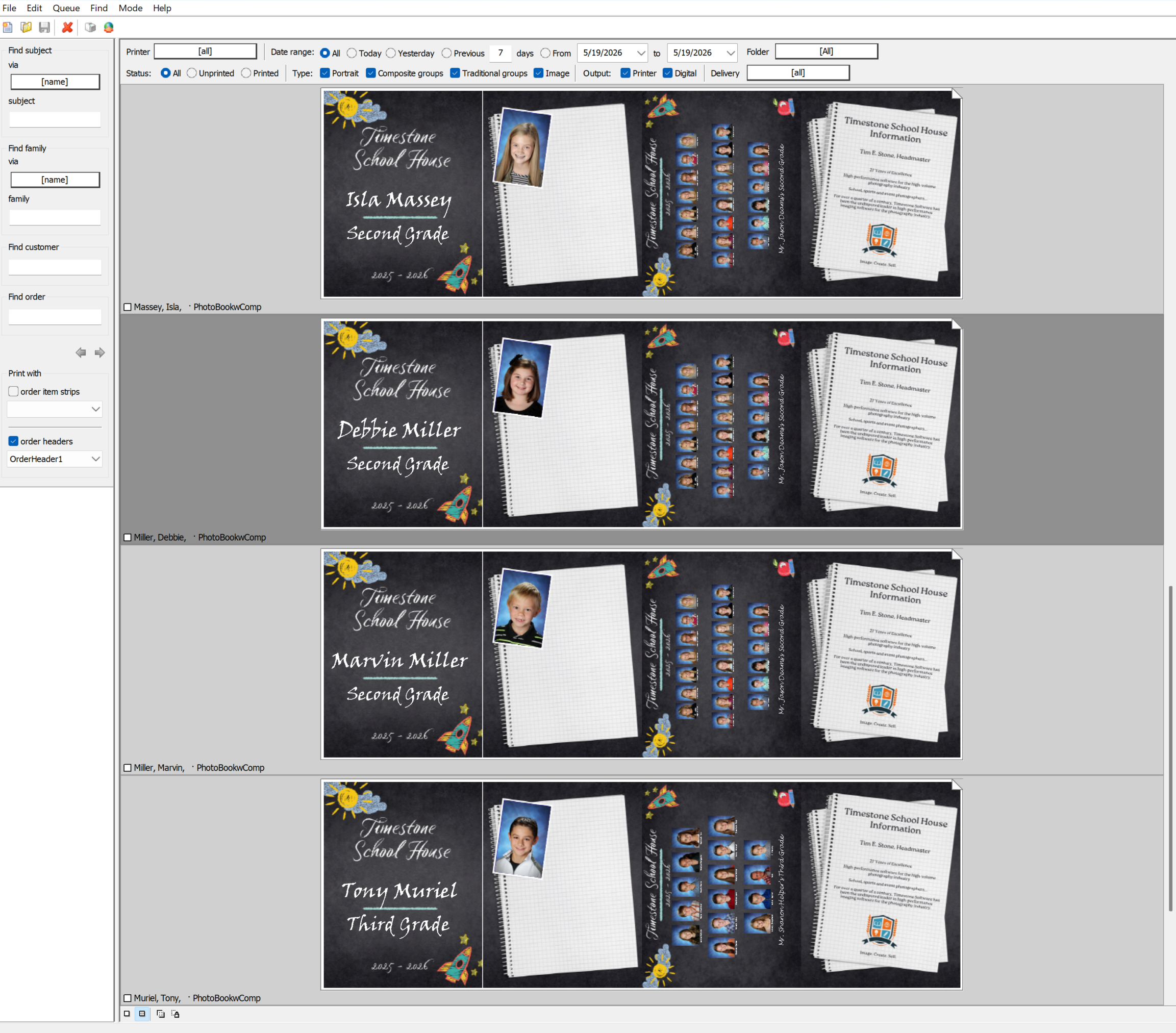
Figure 4: The resulting print queue. Each page in the queue is split into four pages when printing. PDF printing combines those four pages into a single PDF
Using the batch printing options when printing photo books
Due to the nature of printing such products, it is foreseen that the queue would be printed with the Print 1 page at a time batch option. For example, if the print queue contains photo books for 100 subjects, printing to PDF with the Print 1 page at a time batch option would result in a single PDF file per subject. Each PDF file would contain four pages.
FAQ
Can I create multi-page PDF files using Timestone applications?
Yes, Timestone applications allow you to produce multi-page PDF files.
Is it necessary to print to JPEG before creating a PDF?
No, there is no need to print to JPEG first; you can print directly to PDF. However, some users prefer to use third-party PDF creators, and so they print to JPEG first.
What is the default resolution for PDF files created in Timestone applications?
The default resolution for rendered PDF files is 300 DPI, but it can be customized.
Can I control which pages are combined into a PDF during batch printing?
Yes, you can control which pages in the queue are combined into a PDF using the batch printing controls by using the following options:
No option selected- all pages will be in a single PDF
Print “n” pages at a time- places the set number of pages into a PDF
Print 1 pack at a time- separate PDFs for each page in the queue
Batch on change of the Queue sort Criteria, folder, or subject - PDF will separate based on the selected parameter