By default, customers can freely type a comment or note for an order as part of the checkout process. These comments are downloaded with the order and can be viewed in Fulfill, can be printed onto Order Headers, and form part of the Checked and Delivered reports.
Comment Options enable the photographer to instead offer a selection of pre-set comments for the online customer to optionally append to an order.
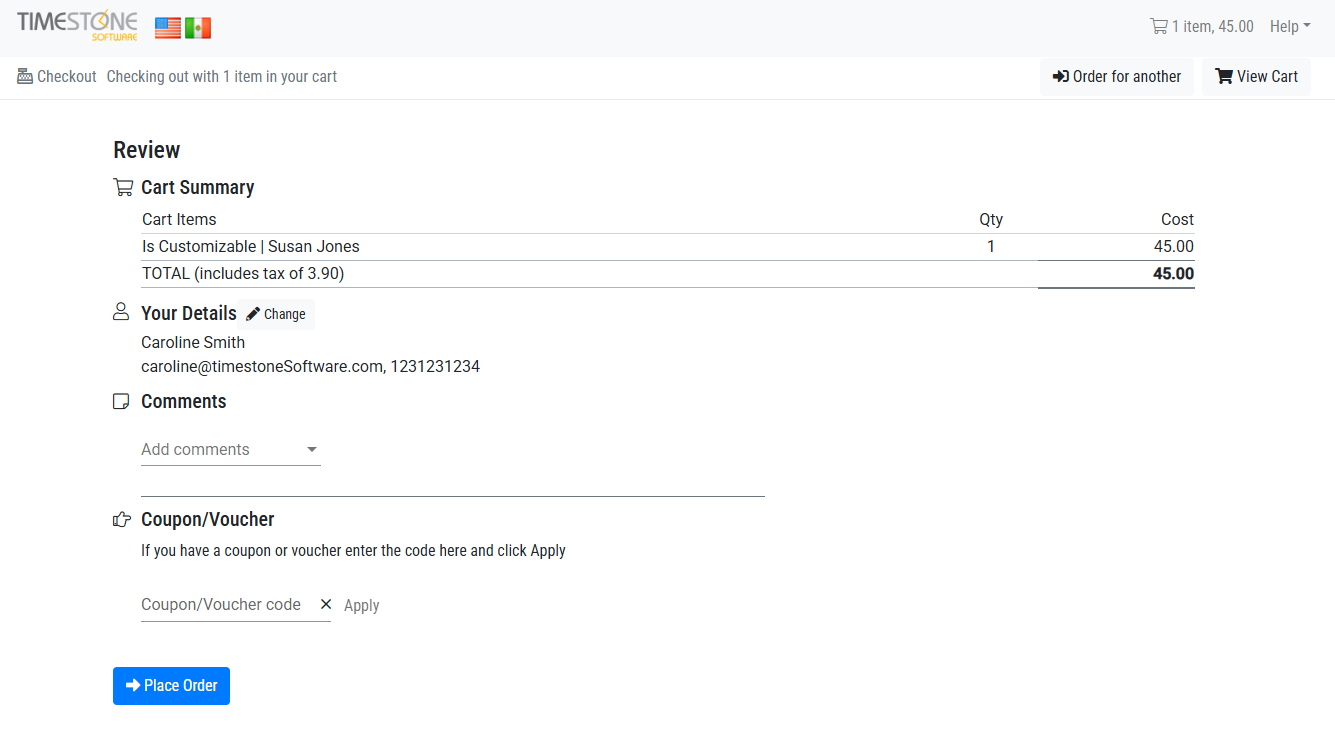
Figure 1: The online checkout page with Comment Options enabled
NOTE
Order Comments, where the online customer can freely type a comment, can be turned off entirely by contacting a member of Timestone Software’s support staff.
Applying a Comment Option Set to a job will override the setting for the selected job only, not the site as a whole, even if a site has order comments turned off.
Creating a Comment Option Set
Comment Options are created and managed in tsAdmin under the Comment Options object.
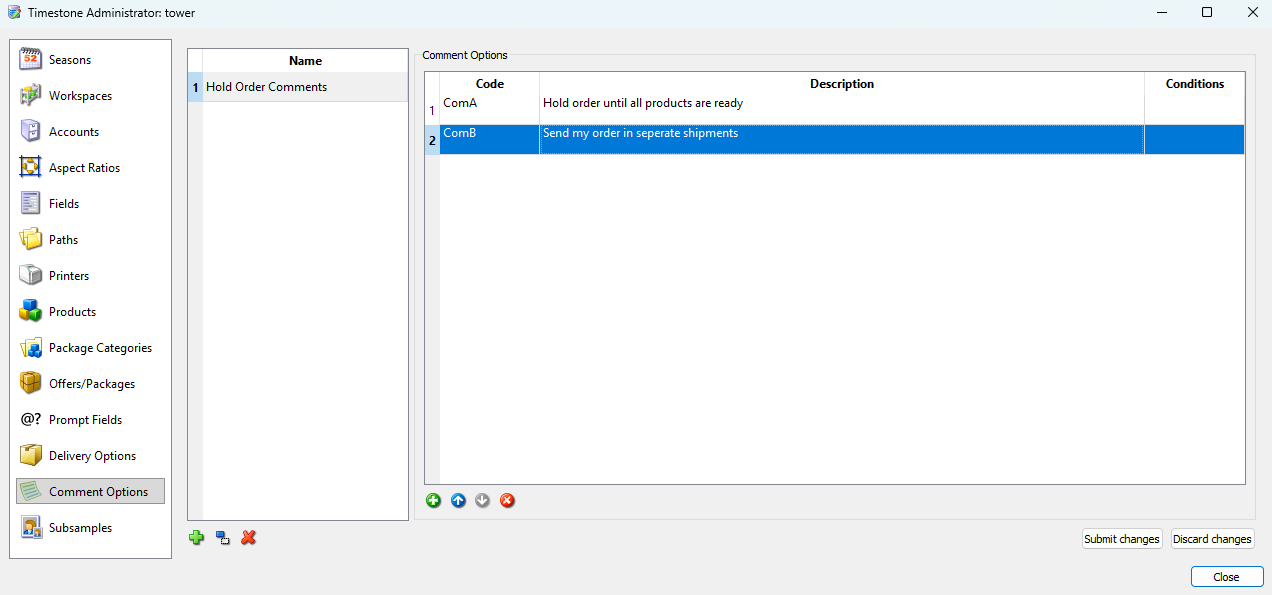
Figure 2: Creating Comment Options in tsIOS
Similar to Delivery Options, the user first adds a Comment Set by clicking the Green Plus icon under the Name column. The name of the set will be displayed for the user when applying Comment Options in tsIOS.
To create the Comment Options
Click the New Comment button, represented by a green circle with a white plus icon
Add a Code for the comment. This will be displayed within the apps only and not visible to customers.
Add a comment Description. The Description is what will be presented to the customer online.
Optionally add a Condition code that will trigger the comment option to be displayed only when certain parameters are met.
Further Reading: Conditions and the Control Panel
Created and controlled in the Site Control Panel, Conditions are highly customizable, and can trigger options, price lists, packages, snippets, and a variety of other elements of the IOS system. Control Panel
Applying a Comment Set to a job
Comment sets are applied to a job in tsIOS as part of the upload process.
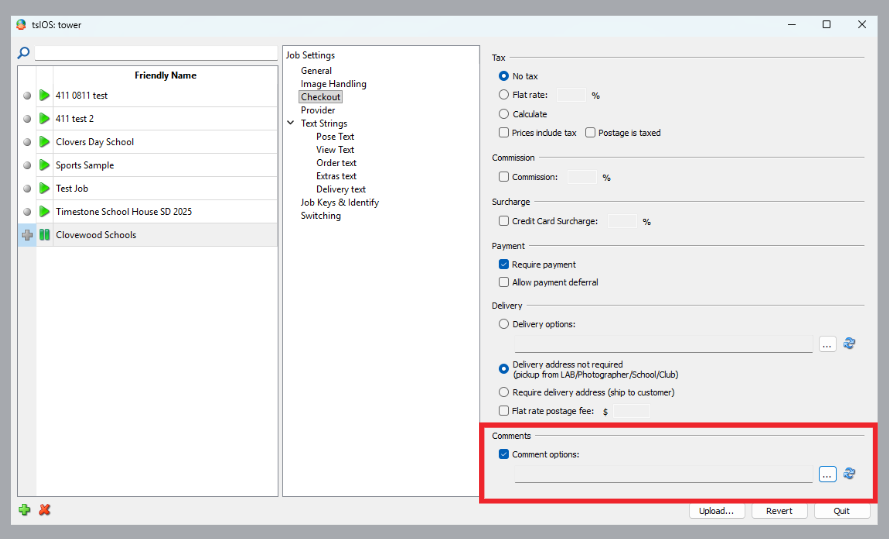
Figure 3: Adding a Comment Option set to a Job in tsIOS
To apply a comment set to a job:
Navigate to the Checkout options tab for a given job in tsIOS
Find the Comments Section
Check the box next to Comment Options
Click the “…” icon to open the Select Comment Option Set window
Select the Desired Comment Options Set from the list
Click OK
Click Upload to apply the comment set to the job online.
Comment Options online
When a customer places an order online, they can select from the available comment options by checking the box next to the desired comment(s).
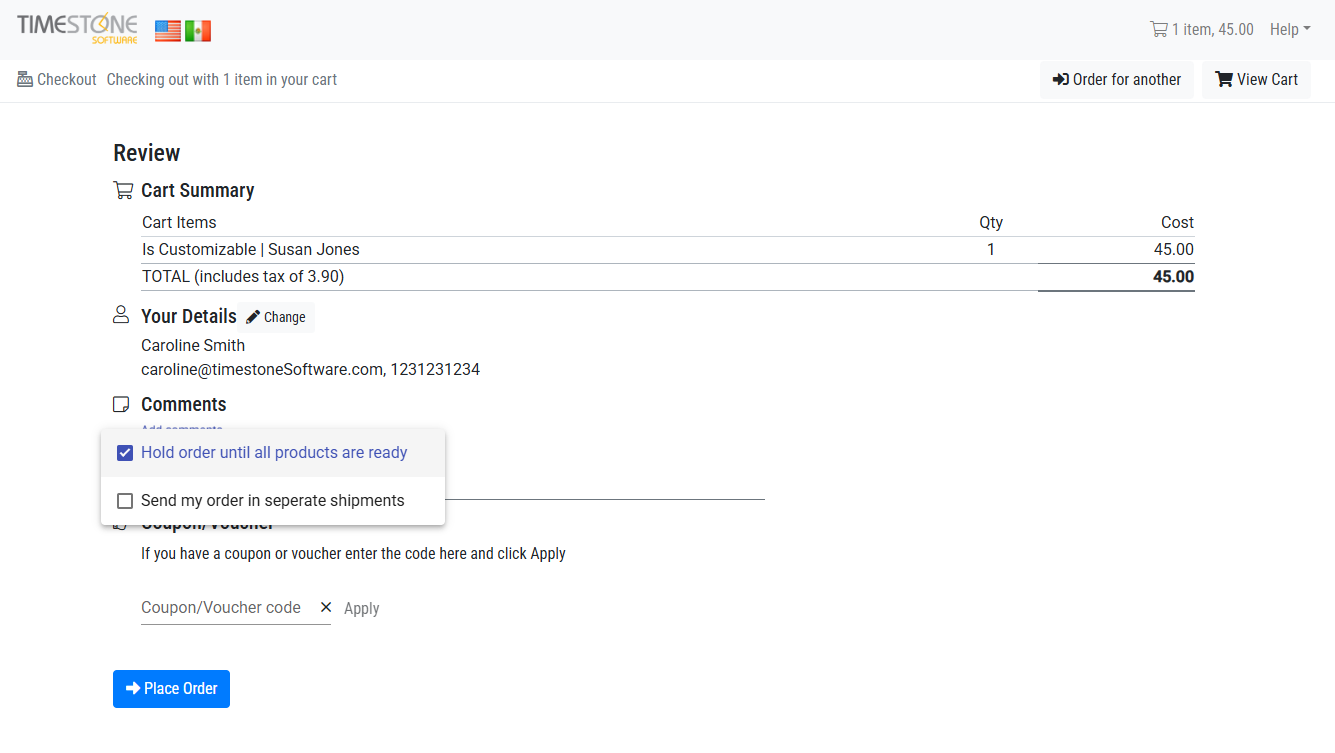
Figure 4: Comment Options Online
FAQ
Can I stop customers from freely typing comments on their orders?
Yes, by default, customers can freely type comments or notes on their orders; however, this option can be toggled off entirely by contacting a member of Timestone Support or can be bypassed by presenting the customer with a comment set to choose from.
I don't see comment options in my tsAdmin or tsIOS?
This feature was introduced in Version 4.11.251113 and is not compatible with previous versions of the software. Please update to the latest version of the software to have access to these options.
Where can I see the Comments left on an order?
Order Comments are downloaded with an order and are visible in Fulfill. They can be printed on Order Headers and visible in the Checked and Delivered reports.
Can customers still freely type a comment when using Order Comment sets?
No, when using Order Comment sets, the customer can only select from the comments available. They cannot free-type a comment.