The Timestone Software Knockouts system can be used in CapturePost to extract subjects from their backgrounds when printing ‘instant’ ID cards with CapturePost.
Instant ID card printing
At the time of writing, CapturePost only supports Knockouts when printing. The Print command will trigger the Knockout procedure for the currently selected image.
Further Reading: Knockouts
It is assumed the user is familiar with the Timestone Software Knockouts system. To this end, the following documents are recommended.
Laptop requirements
The CapturePost computers will need to meet the following requirements:
CapturePost 4.11 or later
Internet connection
The Timestone Cloud Agent is installed and configured
Activating Knockouts in CapturePost
With the Timestone Cloud Agent installed, the following steps will subsequently ‘turn-on’ Knockouts.
In File>Cloud Agent …, enter the address of the Cloud Agent. Since the Cloud Agent computer and the CapturePost computer are one and the same, the address is simply http://localhost:8080
In File>Setup … check the options Knockout background before printing and, if desired Make knocked-out default as shown below.
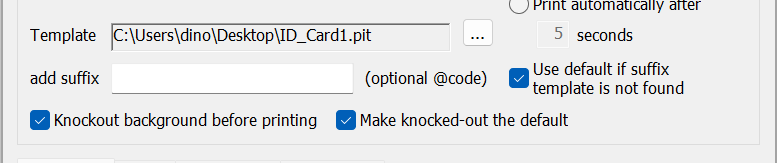
Figure 1: Checking options in File>Setup to activate Knockouts
The workflow
With the preparatory work above done, the photographer works in the normal way.
Find a subject and take photos as normal
Select the image to be used in the ID card
Initiate printing with ID Card>Print now or F10
Initiating printing will send the image for Knockouts. Once the PNG has returned, the ID card will automatically print.
Further Reading: Printing IDs in CapturePost
A feature of CapturePost has been its capability to print small items like ID cards directly on site during the photography session, making the system particularly suitable for events such as registration days, for instance.
After photography
The TNJ file is imported into a SQL job in the usual way. No special handling or procedure is required.
FAQ
How long will the PNG file take to come back so the ID card prints?
This will primarily depend on the internet speed. Our testing showed about 50 seconds for very slow connections (4mb/s) and 25 seconds for faster connections (100 mb/s)
Where is the PNG that is returned saved, and how is it named?
It is saved in the CapturePost jobname#images folder with the same root name as the jpg.
Do I need an internet connection to use CapturePost with Knockouts?
Yes, an internet connection is required to use CapturePost with Knockouts.
Do I set up the Cloud Agent for CapturePost in the same way as we did in the lab?
Yes, follow the same installation procedure and use the same account credentials we sent you
I don’t see the option for Knockouts in CapturePost?
Knockouts are only available in the final (non-beta) release of CapturePost 4.11. Please check your version of CapturePost via the Help> About CapturePost menu option, and that you properly installed and configured the Timestone Cloud Agent.