Overview
It is possible to combine a site name and one or more access (shoot) keys into a single link.
Following the link takes the customer to the site and automatically enters their Shoot Key in one step. The link may also be used in a QR code for the customer to ‘flash’.
Single shoot key
Most commonly, the link will contain a single key, in the format below:
https://{{site}}/ordering/with?key={{shootkey}}
The two variables in the above are:
{{site}} - the site name
{{shootkey}} - the Access Key
Example
Consider the IOS site acmephoto.orderphotos.online and the access key 98M2M8W5. The two can be combined into one link as:
https://acmephoto.orderphotos.online/ordering/with?key=98M2M8W5
Multiple shoot keys
Multiple shoot keys, up to a maximum of 10, can be combined into a single link. In this case, each entity will appear in IOS as a switch, enabling the customer to switch from entity to entity (typically subjects).
The format is as follows. Compared to the single key format, note the word key is now keys, and each shootkey is separated by a comma.
https://{{site}}/ordering/with?keys={{shootkey1,shootkey2,shootkey3,shootkey4…}}
Example
Consider again the site acmephoto.orderphotos.online and a set of access keys 98M2M8W5, MYMZXLZM, GSNCF8WM, Q9WMM64D, and 8XWP96C9. The link to load all keys simultaneously is
https://acmephoto.orderphotos.online/ordering/with?keys=98M2M8W5,MYMZXLZM,GSNCF8WM,Q9WMM64D,8XWP96C9
Limits to prevent abuse
Several measures are in place to prevent an attacker from randomly entering multiple shoot keys ad infinitum in order to gain unauthorized access.
Amongst others, these measures include:
A maximum of 10 shoot keys
Blocking IP address after 3 failed attempts in a 10 minute period
A failed attempt is defined as 60% or more of the keys in the link being invalid.
Access key links in QR codes
Consider a proof sheet or second chance card that the user wishes to add a QR code element that will allow the customer to see their gallery using the link above. A variable access link can be encoded into the QR code object on the template by replacing the access key in the link “formula” above with @key, as seen below, so that the system automatically adds the appropriate subject key into the URL along with the image and other subject information.
https://{{site}}/ordering/with?key=@key
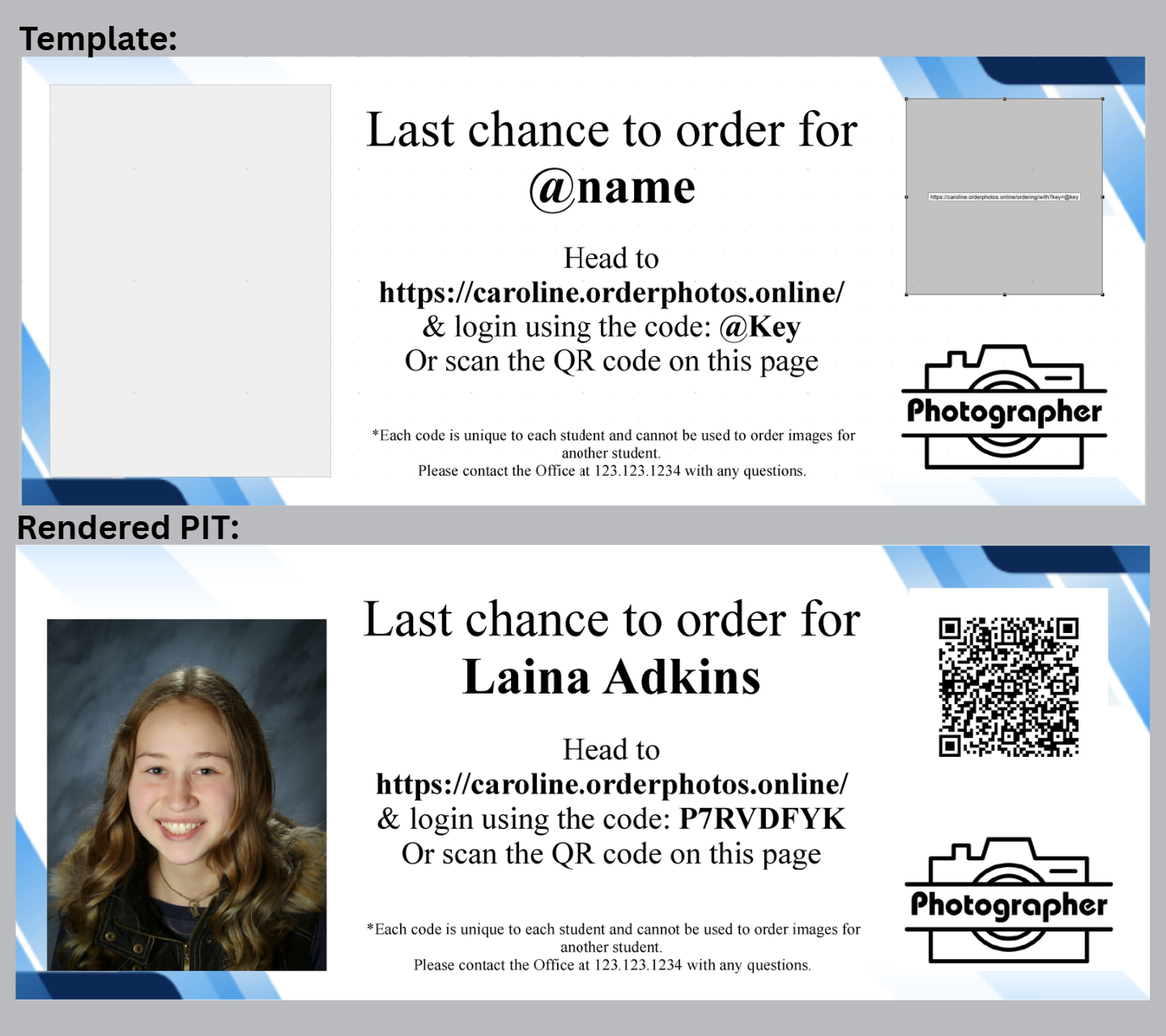
Figure 1: A proof card for a subject with a custom site access QR code.
CAUTION
Remeber when using QR Codes the tempalte should be a Fixed Size Item template or a Pack Layout template since both traditional and 2D barcodes (QR Codes) requires a specific dimension to be accurately scanned.
The PIT template used in the example above can be downloaded below.
Further Reading: Using QR Codes on Templates
The most common 2D barcode is a QR code. 2D barcodes are inserted almost identically to traditional barcodes.