Composite subtypes allow different composite pages to be treated as different products. This means it is possible to order different composites in a manner analogous to ordering different products in NeoPack. Examples of the use of composite subtypes include:
Offer customers a choice between rotated and non-rotated composites
Allow customers to order from a variety of different composite designs
Differentiate between 'class' composites, 'year level' composites, and 'whole school' composites
Control how composites are offered and presented online with IOS
NOTE
It is important the reader understand the difference (and similarities) between versions and subtypes.
Further Reading: Subtypes & Versions
Subtypes are a classification or branch of a product types, for composites examples include ‘grade’ and ‘wholeschool’. Where Versions are typically the same composite layout offered at different sizes, a whole school composite for a 16×20” for the school wall and a 8×10” for sale to customers, for example.
The concept
A composite page, once formed, may be assigned a Subtype - an alphanumeric label up to 256 characters in length.
CAUTION
Although up to 256 characters is allowed, it is recommended that the subtype labels be kept small, especially if they are to be ordered by barcodes.
Once a composite page has been labeled with a subtype, it can be ordered in two ways:
By creating a composite product in tsAdmin with a matching subtype and adding this product to a Package in the normal way.
By scanning barcodes suitably encoded to order the subtype.
Assigning the subtype
A composite page is labeled with a subtype in the 'Subjects to include' window of the Form Pages Mode of NeoComposite and CompositeBuilder.
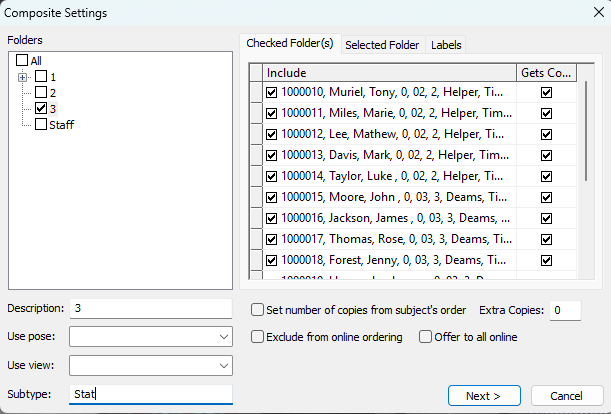
Figure 1: Assigning a subtype of “Stat” to a composite page
Ordering the subtype
Once a Composite has been labeled with a subtype, it can be ordered through standard methods, either by using a product assigned the appropriate subtype or via a matching barcode.
For example, a photographer offering both static and rotated composites—labeled as 'stat' (as seen in Figure 1) or ‘rot’ respectively—would need to create two products with the corresponding subtypes or use two properly encoded barcodes to order the applicable composite pages.
NOTE
It is important to realise once a composite page has been labeled with a subtype, special handling is then required to order the page. It must be ordered via a product with matching subtype or with a suitably encoded barcode.
Ordering via a matching product
Prior to the introduction of subtypes, it was only ever necessary to have a single composite product in tsAdmin, and this product was added to any packages requiring a composite page. If the subject was in multiple composite pages, no distinction could be made between them.
With subtypes, it is possible to add multiple composite products, each with a unique subtype. The key principle is that the product subtype in tsAdministrator 'matches' the composite page subtype in NeoComposite or CompositeBuilder. The different composite products may then be added to packages to order the desired composite page.
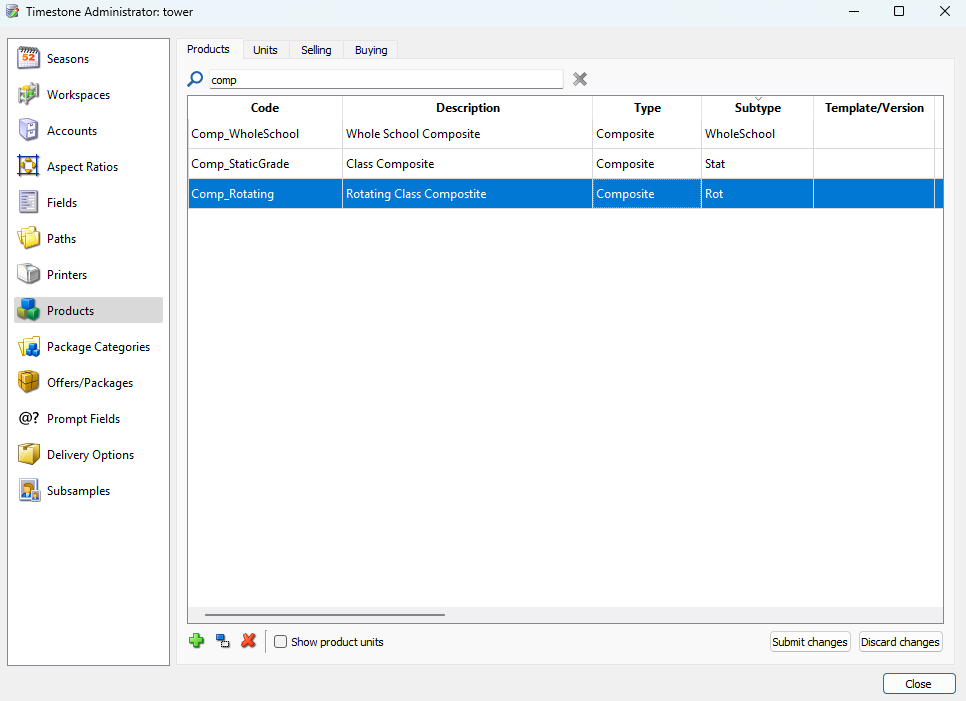
Figure 2: Composite products with different subtypes in tsAdmin
The screen grab above shows an excerpt of the product’s section of Administrator; Each product is labeled with a different subtype and will be used to order rotated, static, or whole school composites.
Once the different products have been defined in tsAdmin, they can be added to a package in an offer in the usual way. The screen grab below shows an offer with several packages - “Package 1” is ordering the static composite product with a variety of other print products.
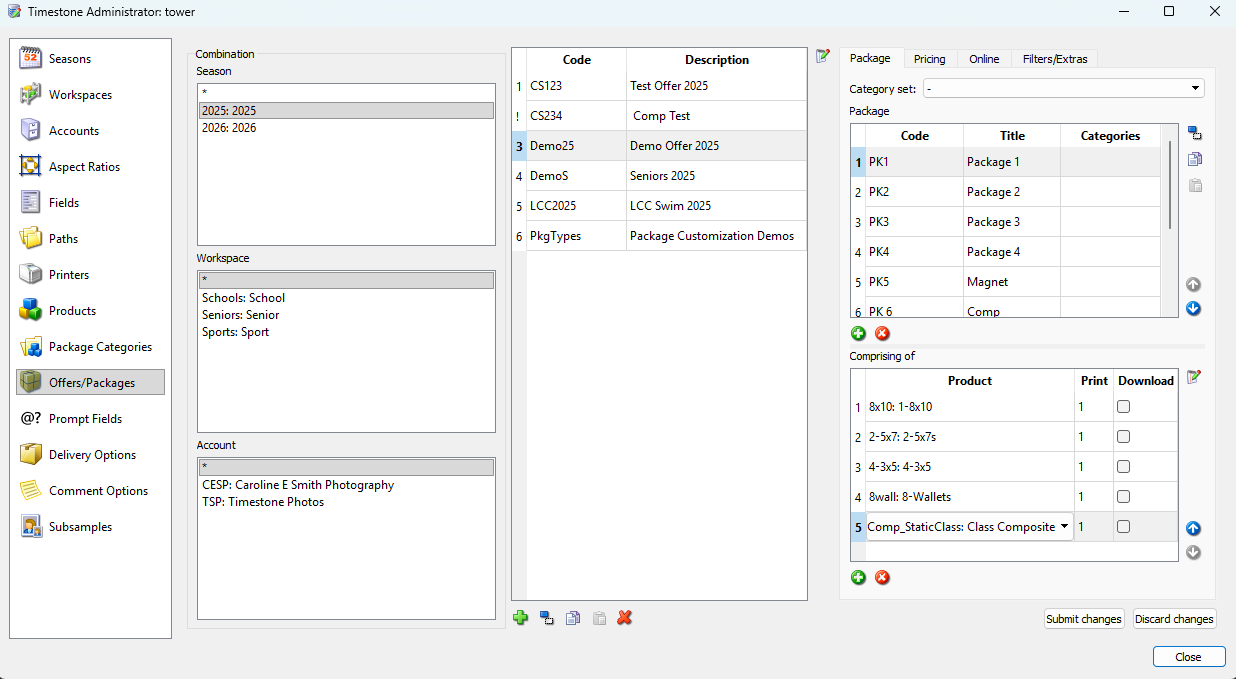
Figure 3: An offer with a composite product
Ordering with barcodes
The method above requires additional products to be added to tsAdmin that match the subtype label given to composite pages in NeoComposite or CompositeBuilder.
An alternate method is to continue with a single composite product in the tsAdmin, but then use barcodes to order the appropriate composite subtypes. 'Sticky' or 'non-sticky' barcodes can be scanned with a package barcode to order the appropriate composite subtype.
Sticky barcode
/%O$/C1subtype
Barcodes should be scanned before a package or a set of packages. Sticky barcodes will stay active until turned off by scanning another sticky barcode.
/%O$/C1year orders a composite subtype 'year'
/%O$/C1rot orders a composite subtype 'rot'
Non-sticky barcode
/%O+/C1subtype
Scan after a package or for the current package
/%O+/C1design1 orders a composite subtype 'design1'
/%O+/C1design2 orders a composite subtype 'design2'
Ordering online
Composite subtypes are supported by the Timestone Internet Ordering System (IOS)
Further Reading: Composites Online
A key feature of the Timestone Internet Ordering System (IOS) is the ability to order composite group photographs. Moreover, with live rendering, the customer sees the subject's actual composite - not a generic, static graphic. This includes rotated composites where IOS will display the subject's personalised page.
FAQ
What are composite subtypes?
Composite subtypes allow different composite pages to be treated as different products, enabling customers to order various composites similarly to ordering different products.
How can a composite page be labeled with a subtype?
A composite page can be labeled with a subtype in the 'Subjects to include' window of the Form Pages Mode of NeoComposite and CompositeBuilder.
Is it possible to order composites by subtype?
Yes, composite subtypes can be ordered using suitably encoded barcodes, or assigned to unique products/packages in tsAdmin, then ordered via paper or online order.
What should be considered when labeling subtypes?
It is recommended to keep subtype labels small, especially if they are to be ordered by barcodes.