A key feature of the Timestone Internet Ordering System (IOS) is the ability to order composite group photographs.
Moreover, with live rendering, the customer can see the actual composite page - not a generic, static graphic. This includes rotated composites where IOS will display the subject's personalized page.
CAUTION
Live rendering of composites can only work if the composite page has been formed in NeoComposite or CompositeBuilder.
The composite product
For customers to order a composite product online, a product of type Composite must be included in a Package within the job’s assigned Offer.
Like other Products, a composite product is defined in the Products tab of tsAdmin.
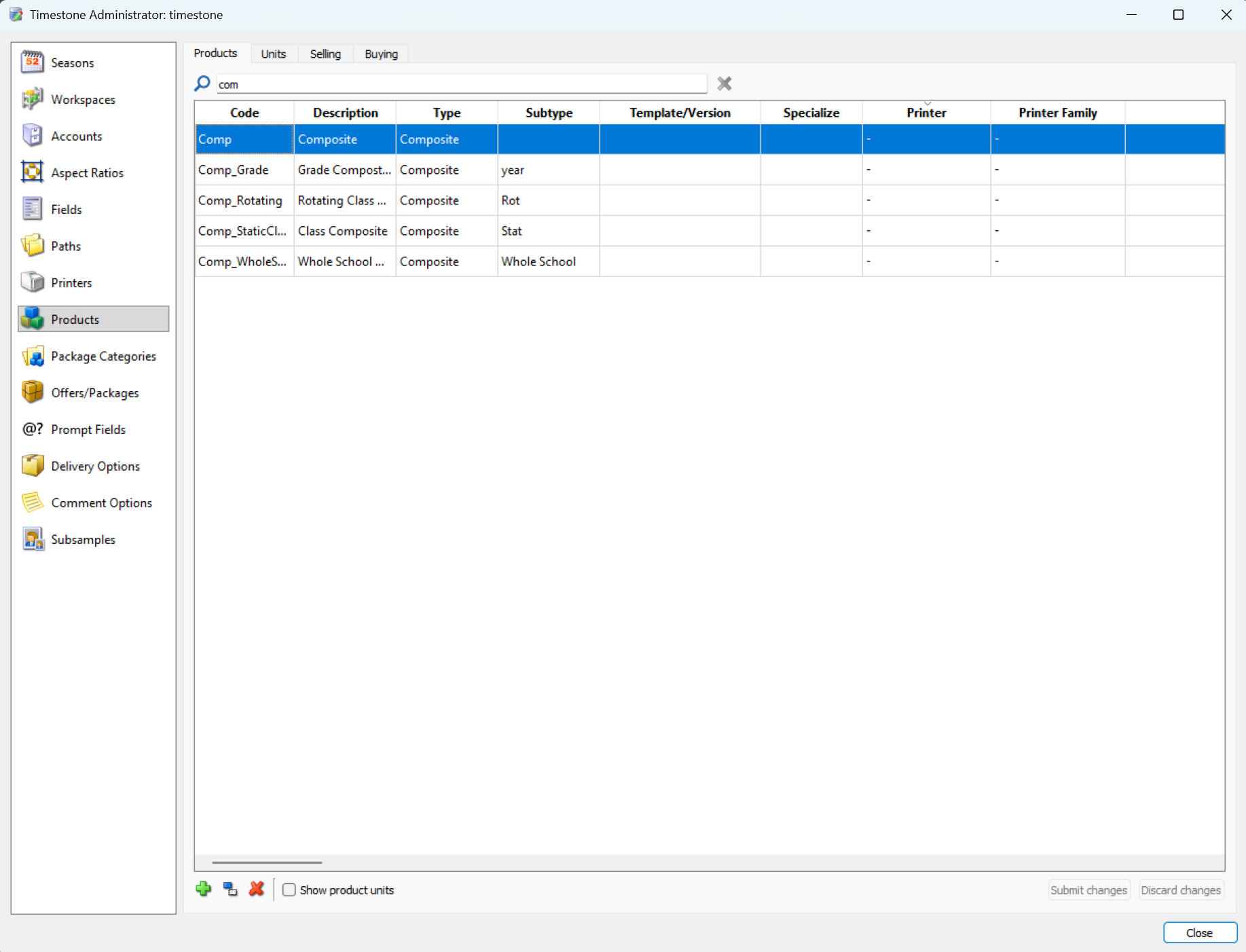
Figure 1: Composite Products in tsAdmin
Multiple composites for the same subject
There are many circumstances where a subject can be included in two or more composites. A simple example is where a subject is part of the regular class composite photo, together with a year-level composite. In these situations, it is possible to control whether IOS displays all the composites, just one or some composites, or none at all.
Consider the scenario where a subject belongs to both a year level composite and a class composite. The job is uploaded with an offer that has a package with a single composite product.
The default behaviour - show all composites
By default, IOS will display each composite page the subject is a member of, even though there is only a single composite product in the offer.
In Figure 2 below, note the two composites showing online and the single composite package and product in tsAdmin.
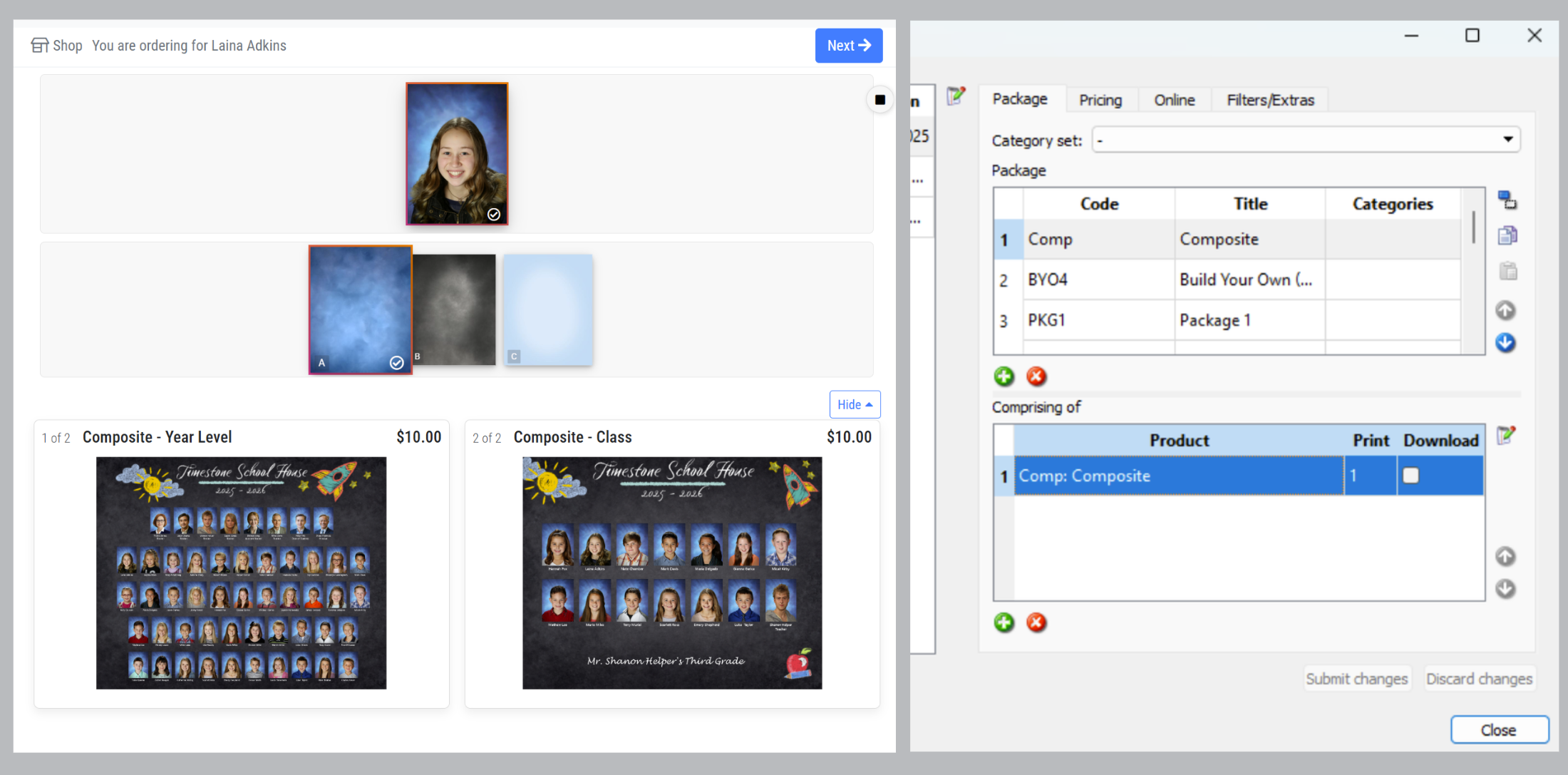
Figure 2: Multiple composites for a single composite package
By default, IOS will display each composite that a subject is included in.
Note
The description entered on the Composite Settings window will display alongside the title of the product entered in tsAdmin in the case that there is more than one composite without a Subtype being offered.
Excluding composites from online ordering
In some situations, a subject may belong to multiple composites, but not all of them are intended for online sales in IOS.
For example, a year-level composite might be provided by the school as a gift to students, requiring it to be created and printed in NeoComposite but not made available online. In this case, checking Exclude from online ordering on the Composite page settings window in Form Pages Mode will not display the composite page online and prevent it from being offered and ordered
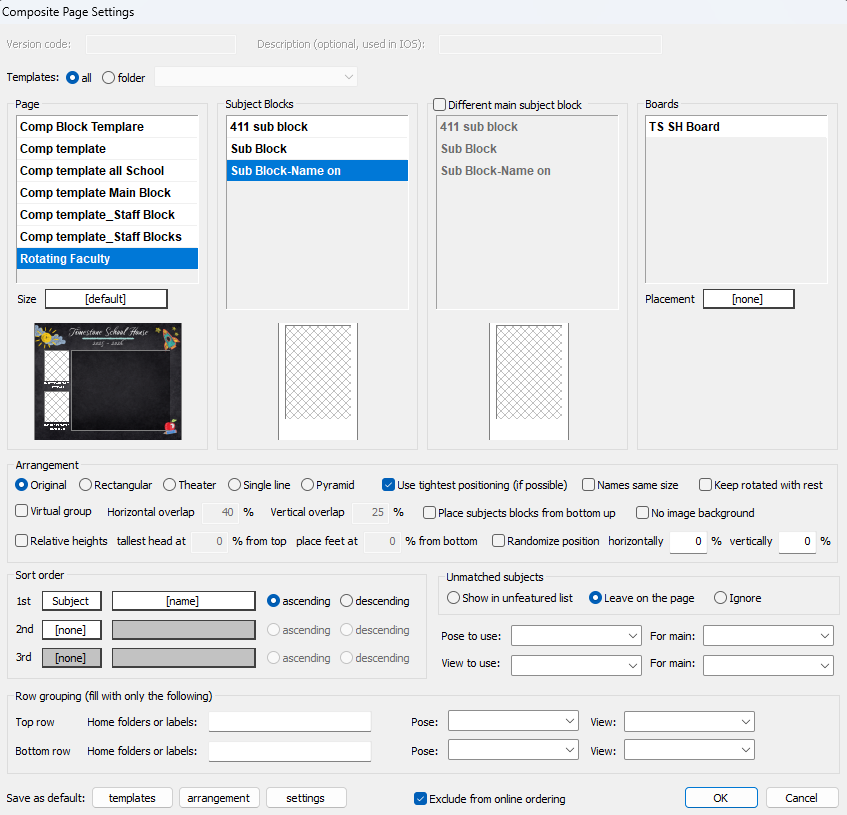
Figure 3: Excluding a Composite from Online Ordering
NOTE
There is an additional location to exclude from online ordering on the Composite settings window shown in Figure 4 below.
Offering composites to all subjects
In some cases, a composite may need to be offered to all subjects in a job, even if a subject is not a member of the composite page. This can be achieved by selecting Offer to all online in the composite settings window.
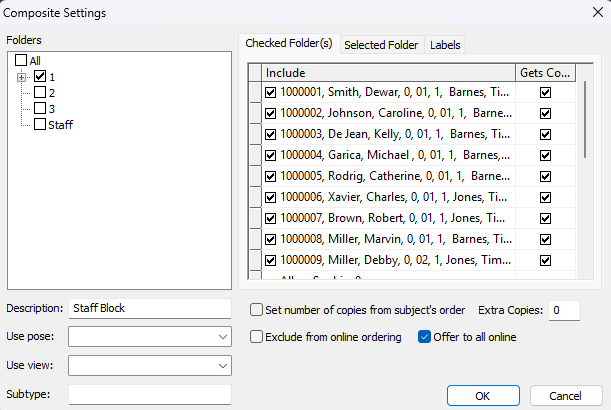
Figure 4: Including a composite for all subjects in online ordering
Further control with subtypes
There are situations where a subject is a member of multiple composites, but the composites need to be handled differently. Consider the following two examples.
Situation: The photographer offers both a class composite and a year-level composite. The class composite is to be included in a 'Value Package' where it is bundled with a set of portrait prints. The year level composite is to be offered as a separate package.
Default behaviour: The default behaviour would duplicate the Value Package with one containing the class composite and the other containing the year-level composite
Subtypes: Two different composite products are created, one of subtype Class and the other with subtype Year. The Value Package would contain the Class composite product, and the Yearbook package would contain the Year composite product. When forming the pages in NeoComposite, they would be assigned the matching subtypes - Class and Year, respectively.
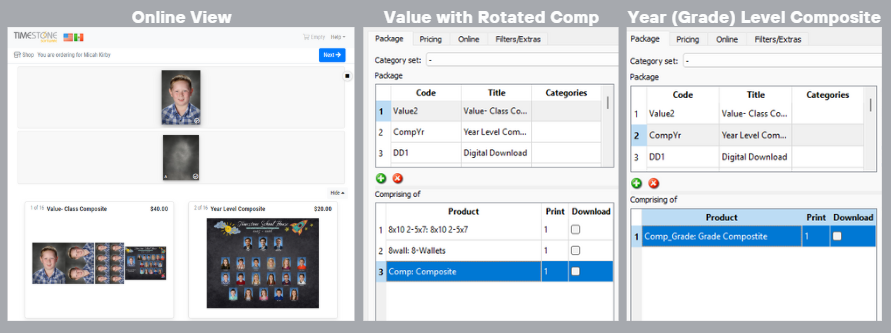
Figure 5: Year level and class composite in separate packages
Situation: The photographer wishes to offer both a static and a rotated composite, but at different prices. They therefore need to be different Packages.
Default behaviour: A single composite product in each package would display both the static and rotated composites in each package, whereas the photographer wants one package with the static and another with the rotated composite.
Subtypes: Two composite subtypes are created, one with the subtype of Stat and the other with subtype Rot. One package then contains the Stat product, and the other contains the Rot package. In NeoComposite, the pages are assigned matching subtypes.
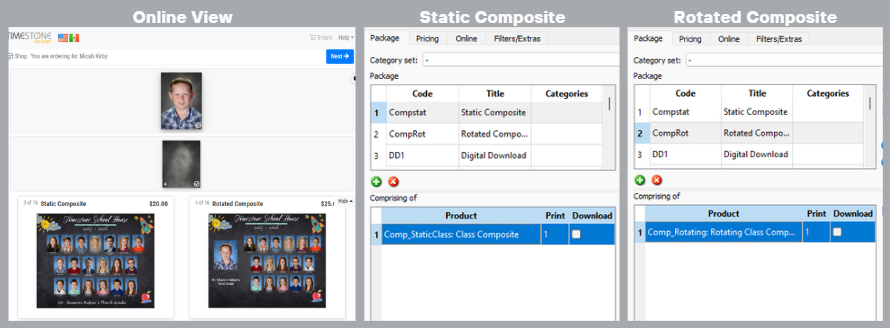
Figure 6: Static and rotated composites in separate packages
As seen in the two examples above, when subjects appear in multiple composites, subtypes allow the different composites to be handled as different products, which then allows them to be added to packages independently.
Composite subtypes allow different composite pages to be handled as different products
Further Reading: Subtypes
Composite subtypes allow different composite pages to be treated as different products. This means it is possible to order different composites in a manner analogous to ordering different products in NeoPack
Assigning the subtype
A composite is labelled with a subtype in the 'Select subjects to include' window of Form Pages Mode in NeoComposite.
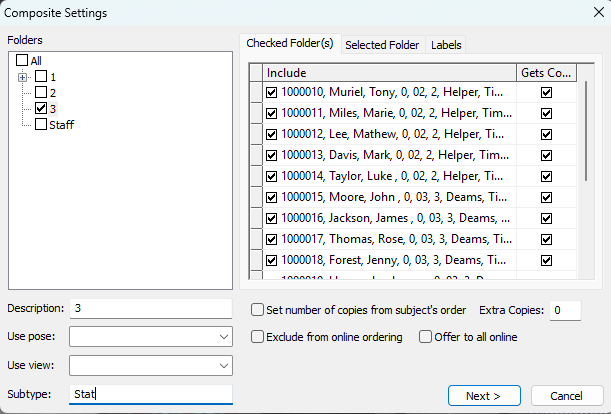
Figure 7: Assigning a subtype to a composite page
CAUTION
Once a composite page has been given a Subtype, it can only be used with a product of the same Subtype.
The product is assigned a subtype in Timestone Administrator.
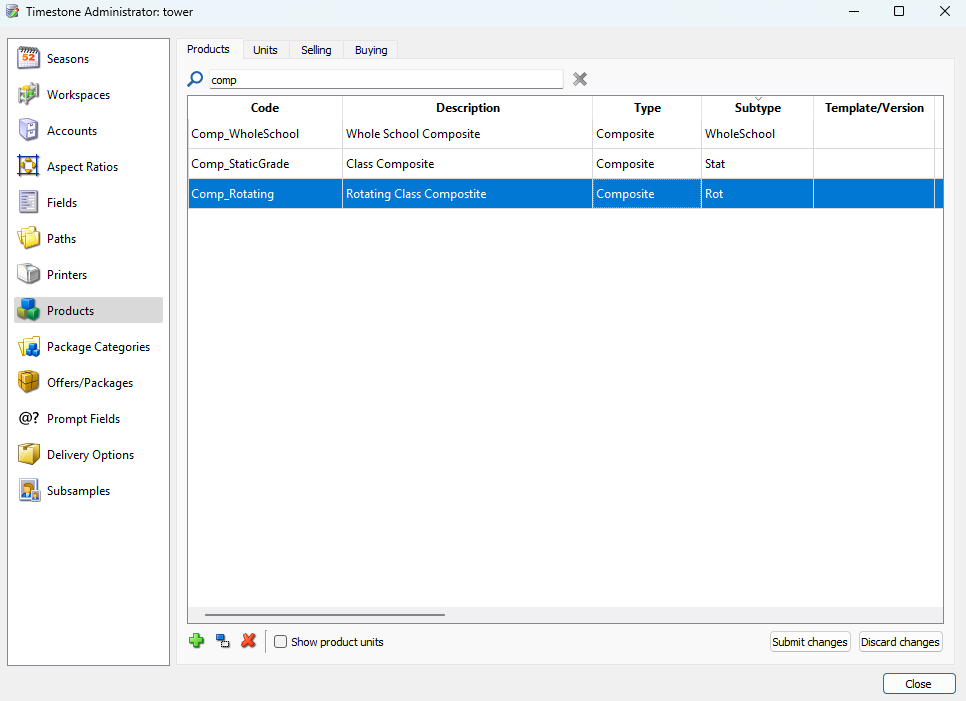
Figure 8: Assigning a subtype to a product
CAUTION
Once a composite product has a Subtype, it will only display composite pages with the same Subtype.
The previous two screen grabs show a composite page labelled with a subtype "Stat" and a matching composite product in tsAdmin, also with the subtype "Stat".
FAQ
I have Multiple types of composite I want to offer: Homeroom, Grade, Whole School, etc. Can I offer them all as products to be ordered online?
Yes, a subject can be included in multiple composites, and IOS can control the display of these composites, either with one default composite product or via subtype-specific products.
I only have one composite product, but I have several different composite pages showing online?
By default, IOS will display all composite pages that a subject is a member of, even if there is only one composite product in the offer, provided that no subtype has been assigned to the product or the composite page.
Is it possible to only offer specific composites for online ordering?
Yes, you can exclude composites on a page-by-page basis from online ordering by checking the 'Exclude from online ordering' option in the Composite page settings or Composite settings windows.
Can a composite be offered to all subjects in a job?
Yes, you can offer a composite to all subjects by selecting the 'Offer to all online' option in the composite settings window.
Can a composite product display pages with different subtypes?
No, a composite product will only display composite pages that have the same subtype. A composite product without a subtype will display all composite pages that do not have a subtype.