Images can be exported from within CapturePost. The options and procedure are almost identical to those when exporting an image from Images Mode in the other Timestone Software apps.
Important
Images can only be exported if they are matched.
Further Reading: Exporting images from Images Mode
All, filtered, or a selection of images can be exported at any time from Images Mode.
To export images:
Navigate to Images> Export…
In the Export images window, configure the desired settings (discussed below)
Click Start to begin the export
Optionally use Stop to pause or cancel the export.
When the export is complete, click Exit to close the window
Export settings
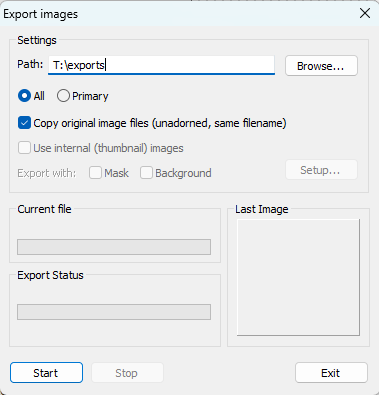
Figure 1: The Image export window.
In the pop-up dialogue menu, the user gains access to the following settings:
Export location: Choose the destination folder by clicking Browse
Scope: Select which images to export using the appropriate ratio button:
All - Exports all matched images.
Primary - Exports only the primary images.
File Options:
Copy original Files (unadorned, same file name). If this option is selected, the following options are unavailable.
Use the internal (Thumbnail) images
Export with Mask and/or Background
Setup. This opens the Images Export Setup window, Figure 2, with additional options for file naming, folders, extensions, file size, etc.
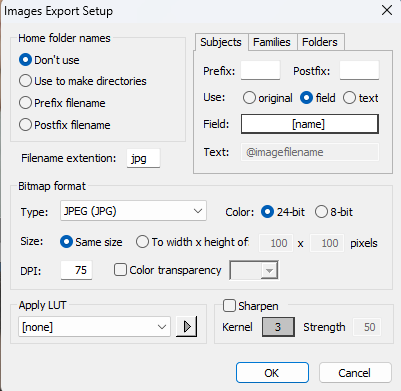
Figure 2: Images Export Setup Window