By default, the Data Pane of CapturePost displays data fields for the currently selected subject.
The Folder List is an alternative view that lists the subjects in a selected folder. This view is popular amongst photographers who do not wish to use barcodes or QR codes to find a subject, nor do they wish to search for a subject by keyboard lookup. Instead, they switch to the Folder View, select a folder, and select the desired subject from within the list.
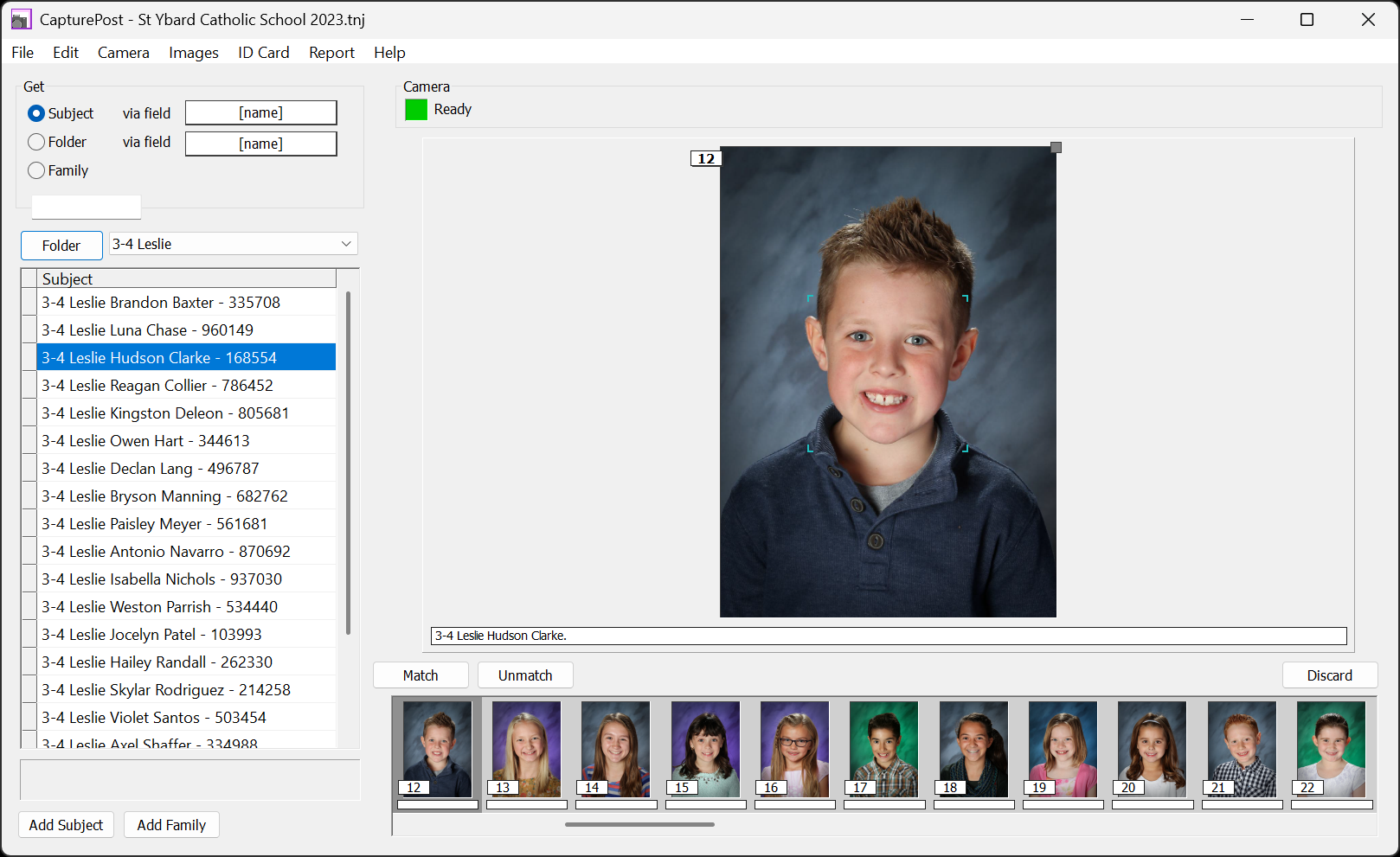
Figure 1: CapturePost in Folder List view
Toggling views
To enter or exit Folder List view, either:
Click the Details/Folder toggle button
Navigate to Edit> Folder List and select Toggle View
Use the keyboard shortcut Shift + Ctrl + F3
Note
If a subject is selected in the Subject Details view, toggling the view will automatically bring the photographer to the folder of that subject.
If a subject is selected in the Folder List view, switching the view will automatically bring the photographer to the record of that subject.
Selecting a Folder
Once in Folder List view, the desired folder can be selected by either:
Selecting the folder from the drop down list adjacent to the Details/Folder toggle button
Navigating to Edit> Folder List and choosing Folder Select
Using the Ctrl +F3 keyboard shortcut
Additional options
The Folder List menu also includes the following options, each with a keyboard shortcut:
Select next subject (F3)
Select previous subject (Shift + F3)
These options allow the photographer to move sequentially to the subject immediately preceding or following the currently selected subject.
Controlling the order of the subjects
By default, the subjects appear in order by their ID field. This order can be customized through the use of As Tags, as defined in NeoPack’s Details Mode. This setting controls which data is displayed across multiple locations in the software and is saved in the TNJ file.
Further Reading: As Tags
In many cases, subjects are displayed using ALL of their data - all data in all fields. Since this can be undesirable, the As tags feature is used to control which subject fields are used when displaying subjects.
FAQ
What is the Folder List view used for?
The Folder List view lists the subjects in a selected folder, allowing photographers to select subjects without using barcodes, QR codes, or keyboard lookup.
How can I toggle between the Details and Folder List views?
You can toggle views by clicking the Details/Folder toggle button, navigating to Edit > Folder List and selecting Toggle View, or using the keyboard shortcut Shift + Ctrl + F3.
Can I edit subject information from the Folder List view?
No, to edit subject information, you must toggle back to subject view. However, if the desired subject is selected when the view is toggled, then the subject will automatically be pulled into the data pane.
Is there a way to control the order of subjects displayed?
Yes, subjects are displayed by default in order of their ID field, but this order can be customized using As Tags in NeoPack’s Details Mode.