Scope
In addition to Legacy Products, it is possible to use Historical Job Collections to export a subject’s images across the jobs in the collection. These images are referred to as Legacy Images.
Legacy Images
With Legacy Image Exports, it is possible to collect all the images for a subject from different jobs, different years.
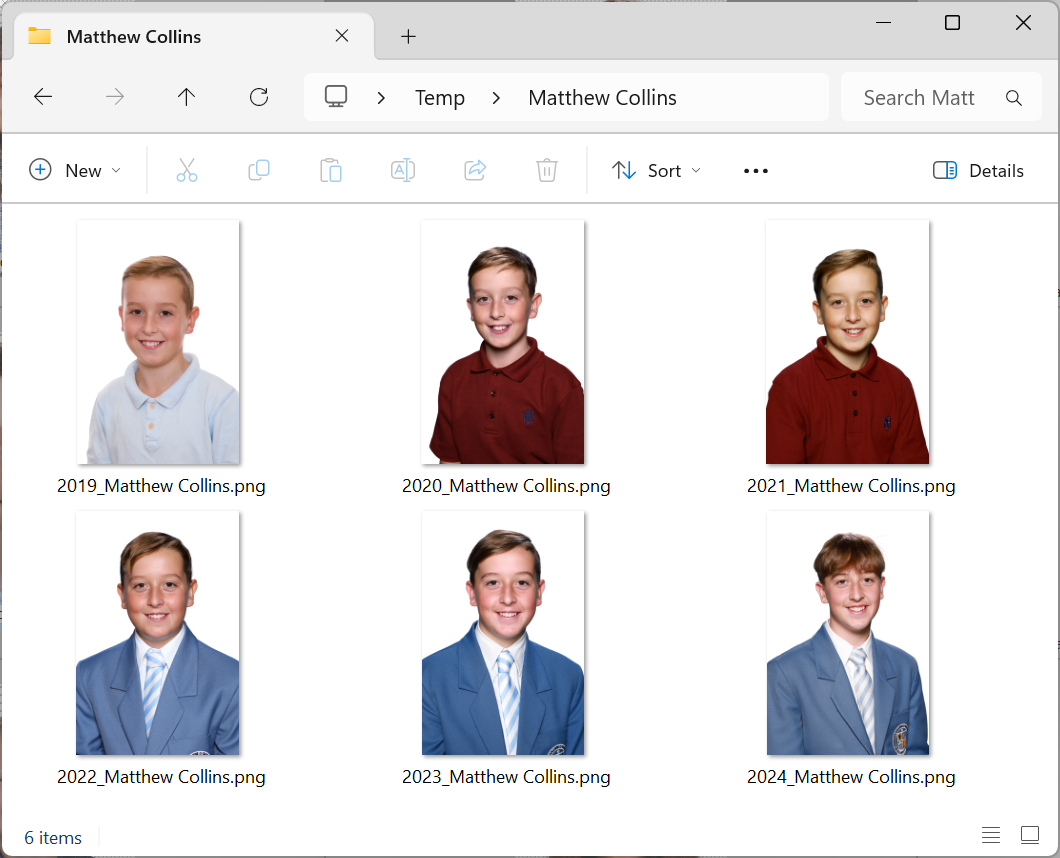
Figure 1: A set of Legacy Images for a subject
Prerequisites
Legacy Image Exports can only be performed with jobs that are part of a Historical Job Collection. Furthermore, if subjects are to be found across jobs by virtue of Face Recognition, the action Collection > Legacy identify faces ... should have been performed.
Procedure
Exports are performed in Images Mode via Images > Export folder/legacy ….
The user then selects which folders and which images to export, along with options pertaining to how folders and files should be named. @codes are available to control folder and file naming, including special ‘Collection’ @codes that retrieve data pertaining to the Job Collection.
To export Legacy Images
Navigate to Images Mode > Images > Export folder/legacy …
From the Window, select an output path and other options
Be sure to check the option Export Legacy Images, as shown below
.png)
Figure 2: The Export Folder/Legacy Images window
Click the Setup… button
Select options with respect to file type and size
Use @codes and/or fixed text to control file and optional folder naming as demonstrated below
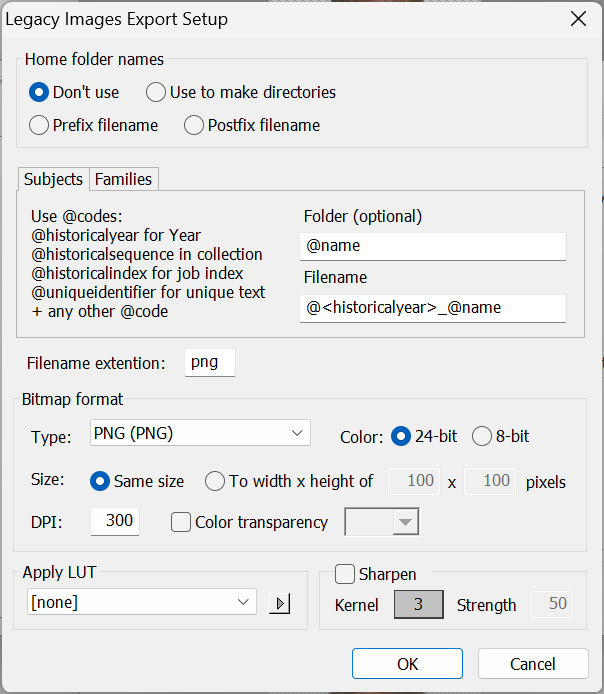
Figure 3: Setting file and folder naming
Click OK to exit the Setup window and Start to begin the export
The naming options in the screen grab above were used for the export shown in Figure 1.
@name was used to create a folder with the subject’s name.
@historicalyear_@name was provided filenames composed of the job’s Year in the Collection together with the subject’s name.
Naming options
Several options are available to the user with regard to naming the exported files, along with any folders.
Home Folder names
Uses the subject’s home folder for the currently open job, the job from which the exports are being performed. These options are identical to those in the regular image exports performed through Images >Export.
Option | Description |
|---|---|
Don’t use: | Ignore the subject’s home folder name. |
Use to make directories: | The subject’s home folder name will be used to make a subfolder in the exports directory, and the subject’s images will be saved therein. |
Prefix filename: | The subject’s home folder will prefix the exported image’s filename. |
Postfix filename: | The subject’s home folder will append the exported image’s filename. |
Folder and file naming with @codes
Legacy images can be exported into folders created by using @codes (or fixed text). Likewise, file names can be controlled by using @codes, including @codes that are specific to Legacy Image Exports.
@code | Description |
|---|---|
@historicalyear | The value of the Year field for each job in the Job Collection |
@historicalsequence | The sequence number of each job in the Job Collection |
@historicalindex | The index for the subject in each job with 1 being the first job they belong to, 2 being the second and so on. |
@uniqueidentifier | The internal identifier that matches each subject |
Other @codes
Apart from the @codes mentioned above that are specific to Legacy Images Export, regular @codes such as @name, @jobname and @imagetag are also supported
Examples
The use of @codes for folder and file naming is explained well in the following two common use cases.
Case Study 1
The photographer wishes images for each subject to be exported into a folder for each year, each job in the collection. The image files are then to be named with the year, the subject’s name and the original filename.
The solution
Use @historicalyear as the Folder naming option and @<historicalyear>_@<name>_@<imagetag> for filenames
The result
A subfolder is created named according to the Year for each job in the collection. The subjects for each job are saved to the folder and named as per the @codes. The screen grab below shows Legacy Subject Images for the 2024 Year. They are in a folder 2024.
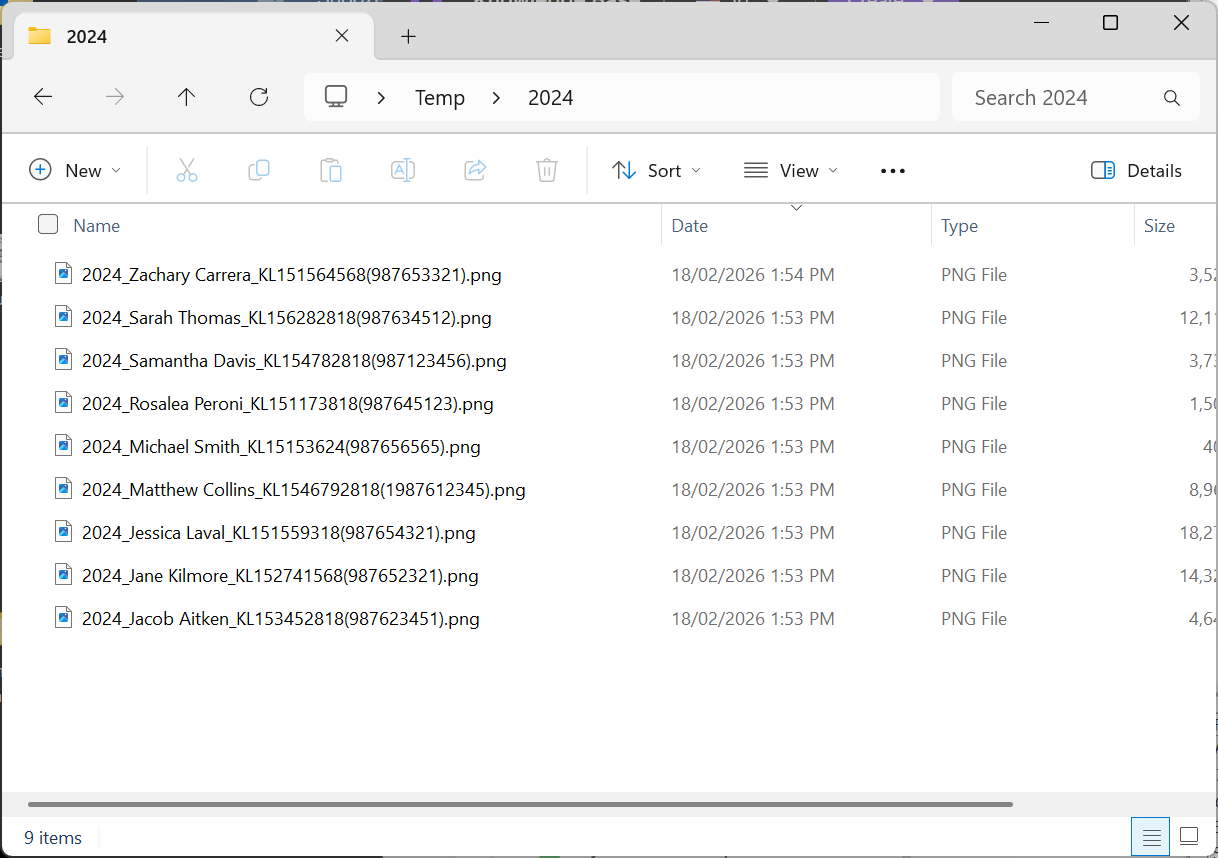
Figure 4: Legacy Images exported into an @historicalyear folder
Case Study 2
The subfolder is to be the subject’s name. The file names are to be Year followed by the subject name followed by the subject’s unique ID. The unique ID should be enclosed by parentheses.
The solution
Use @name as the Folder naming option. Use the sequence @<historicalyear>@<name>(@<ID>) to give the results shown below.
The result
Each subject will have a subfolder with their images. The images will be named in a manner to identify them and with their ID in parentheses similar to the CapturePost file naming.
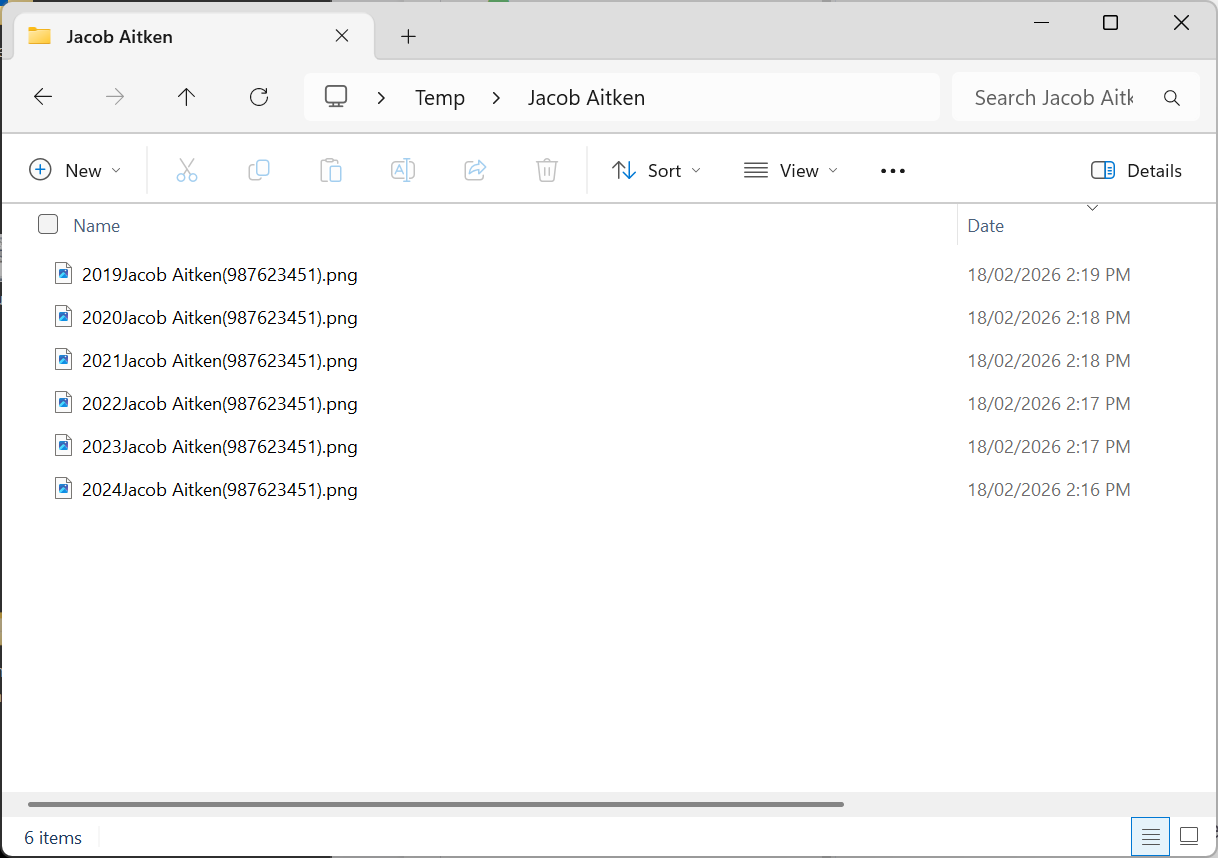
Figure 5: Legacy Images exported into a folder per subject and named similarly to CapturePost naming