When uploading a job to the Timestone Software Internet Ordering System (IOS), the user has a choice as to where orders for that job should be downloaded for processing and printing.
NeoPack (such orders are often referred to as ‘pre-orders’)
Fulfill
Why download into NeoPack?
Most commonly, a user will elect to have orders downloaded into NeoPack so they may be batch handled, printed, and delivered back to the school or league. They may also wish to handle these orders together with any Paper Orders for the job.
Setting up orders to download into NeoPack
Broadly speaking, three steps are required for orders to download into NeoPack.
Upload the job with the correct Order Processing option
Enter the IOS login credentials to enable NeoPack to connect to the site
Trigger the download of orders via the appropriate menu option
Uploading the job
For orders to download into NeoPack, the job must first be uploaded with the appropriate option.
In tsIOS, the user should select Download as pre-orders into NeoPack, PackBuilder, DataPost, etc to inform the system that this job’s orders should be processed via NeoPack.
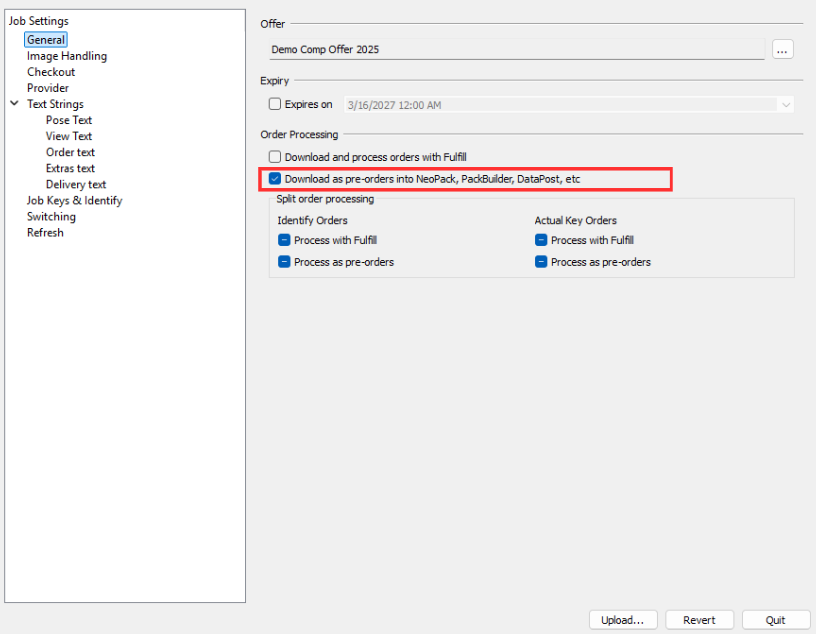
Figure 1: The tsIOS General tab, with a job set to download orders into NeoPack.
Connecting NeoPack to IOS
Before downloading orders, the site’s IOS login credentials must be entered in the File > Options window, under the Portal tab. These are the same credentials used in the connect/log in windows of tsIOS and Fulfill, and when accessing the Control Panel and Service Module.
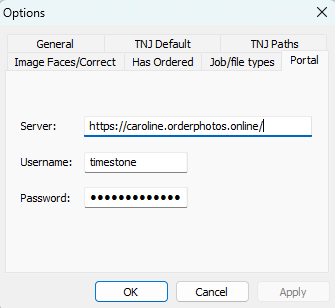
Figure 2: The Portal tab in the Options window
Downloading Online Orders
After the job has been uploaded, orders have been placed online, and the NeoPack portal connection has been established, the orders can be downloaded and processed in NeoPack.
Online orders processed through NeoPack are automatically resolved into their products and added to Queue Mode.
Online Orders are always processed based on the Offer that was uploaded with the job at the time of purchase. Once an order has been placed, it cannot be reprocessed using a different offer.
To Download Orders in Orders Mode, navigate to the Orders> Download Online Orders menu.
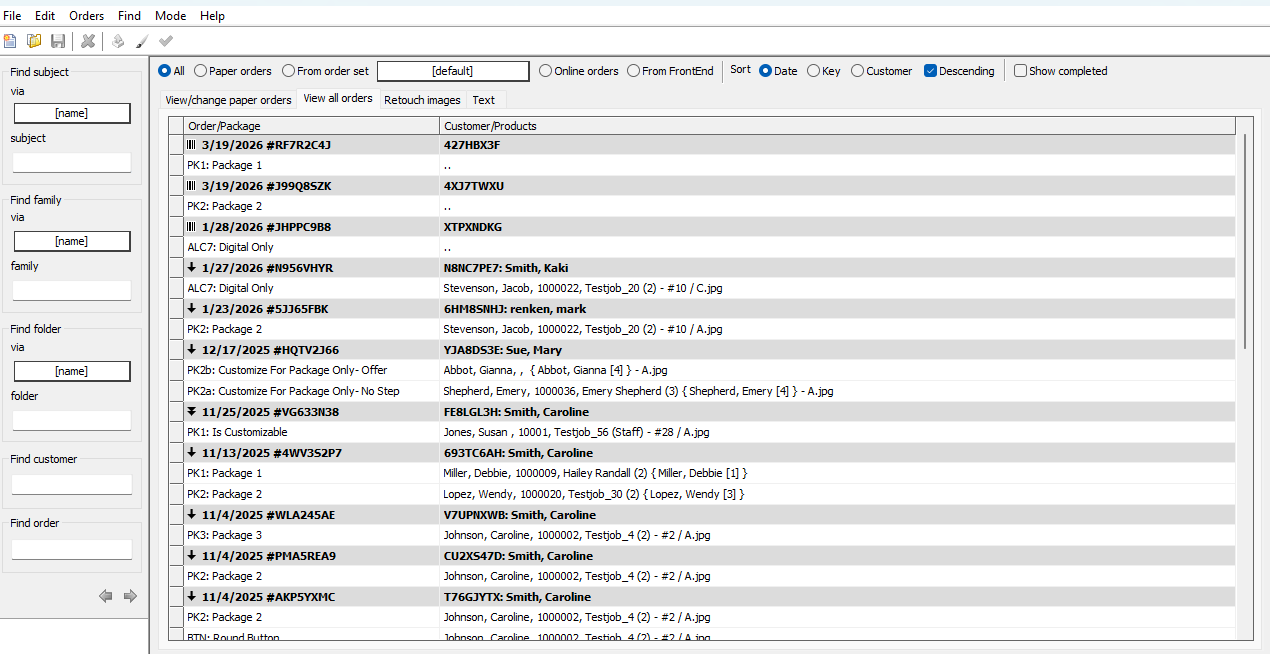
Figure 3: Orders in NeoPack’s Orders Mode
The Orders Mode window
All orders, regardless of their origin, will display in Orders Mode. The source of the order can be identified by the icon next to the order date
A single arrow: online orders processed through NeoPack
A double arrow: online orders processed via Fulfill
A barcode: paper orders
Further Reading: Digital Products in NeoPack
Whereas digital products are most commonly the entity images, any product, such as composites, groups, memory mates, calendars, and bookmarks, may be offered as digital versions.
FAQ
Where can online orders be downloaded?
You can choose to download online orders into NeoPack or Fulfill.
How do I download orders into NeoPack?
To download online orders into NeoPack:
1) Upload the job with the correct Order Processing option: Download as pre-orders into NeoPack, PackBuilder, DataPost, etc
2) Ensure IOS login credentials are in NeoPack under the Portal tab in File> Options
3) Download orders via Orders> Download Online Orders in Orders Mode
When I attempt to download orders, I get the error “invalid URL.”
The Invalid URL error when attempting to download orders into NeoPack indicates that no IOS credentials were added under the Portal tab in File> Options.
Can online orders be reprocessed using a different offer after they have been placed?
No, once an order has been placed, it cannot be reprocessed using a different offer.
I dont see an online order? I accidentally deleted an online order?
If you do not see an online order in Neopack or it has been deleted accidentally, it can be redownloaded from the site's Service Panel. Simply find the desired order, click the key to open the order details. Under Processing, ensure that Pre-order is displayed for the order to download into NeoPack. Then select Mark to ReDownload from the Status dropdown.
In Neopack, manually download orders via Orders> Download Online Orders in Orders Mode, and the Order will be redownloaded. Please note that any changes to customer-provided information in NeoPack will be reset to the original information entered at the time the order was placed.
Further Reading: Re-downloading Online Orders
Can I change orders from NeoPack so they go into Fulfill instead?
Yes, you can go to the Service Panel, find the order, and set it to redownload into Fulfill.