With high-DPI screens and changes to Microsoft’s automatic scaling options, Timestone Software’s desktop applications may scale various text and icons irregularly.
Several factors affect how the app scales, including the monitor’s display settings and which monitor is designated as the main display in a multi-monitor setup.
An example of this improper scaling is shown in Figure 1 below; please note the strange size of the toolbar and the icons within the window.
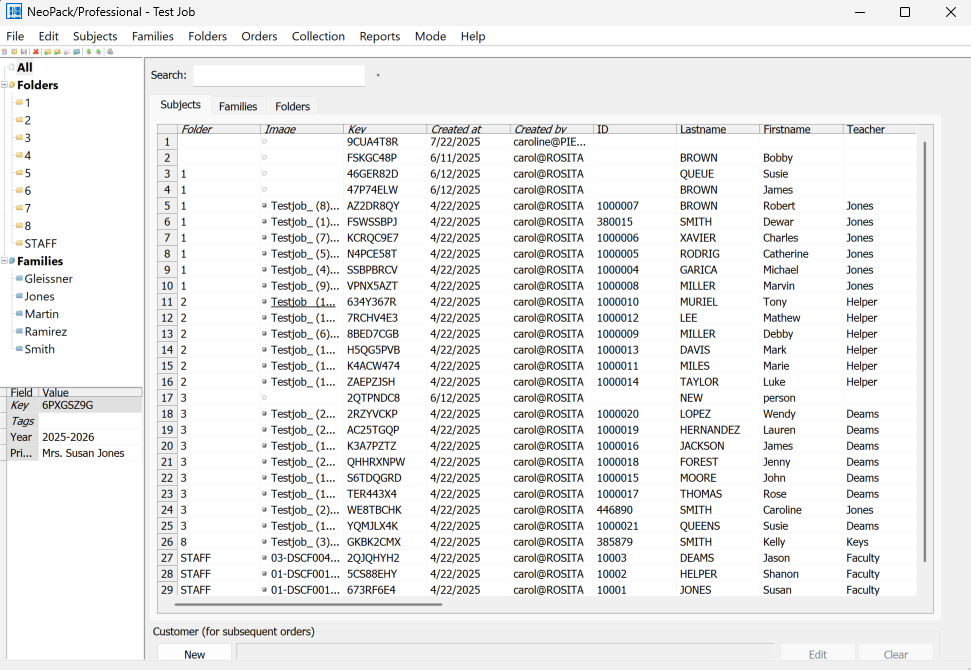
Figure 1: A NeoPack Window with improper scaling
To fix High DPI App Scaling:
Ensure that the computer is set to the recommended display settings in the Microsoft Display Settings window
In the file viewer, locate the program’s executable file (.exe) for the application in question. Timestone applications are located in C:\Program Files (x86)\Timestone Software
Right-click on the application file (e.g., NeoPackPro4.exe) and open the Properties menu
Locate and select the Compatibility tab
Under the Settings section, click the Change High DPI settings button
Under the High DPI Scaling override area, check the box for override high DPI Scaling behavior, select the System option from the dropdown list, and click OK.
Click Apply, and then click OK to accept the changes
Relaunch the application to see the appropriately scaled version.
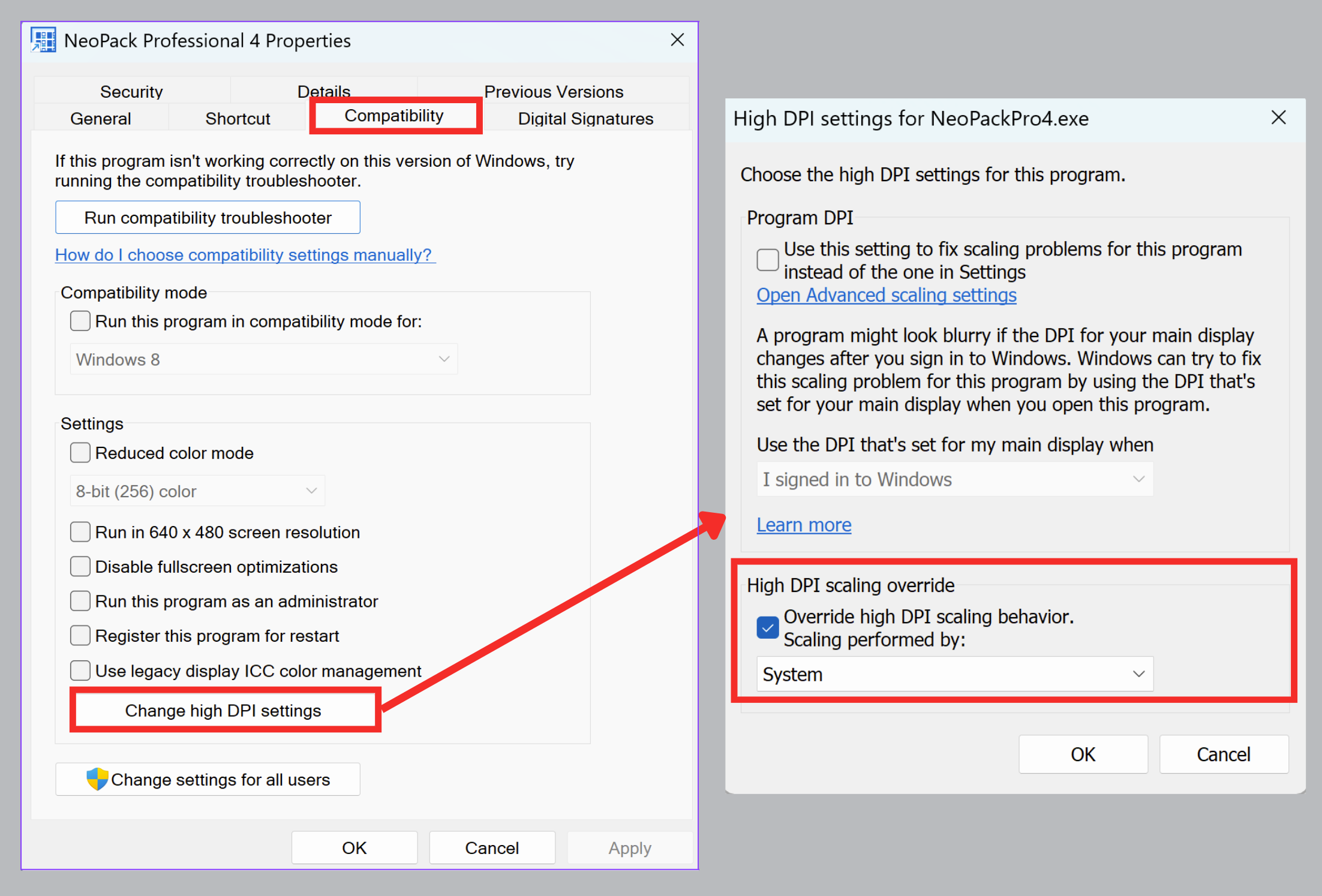
Figure 2: The Application Properties window on
the compatibility tab & the High DPI Settings Window