Below is a list of questions asked by our customers. The most recent questions are at the top.
Does Timestone Software support Mac OS?
Timestone Software is designed to run on Microsoft Windows operating systems and does not natively support macOS.
Some customers have successfully run Timestone Software workstations on Mac computers using Windows emulation or virtualization software, such as Boot Camp. However, these configurations are not officially supported by Timestone Software, and we cannot guarantee compatibility or provide technical support for issues related to the emulation or virtualization environment.
For the best performance and full support, we recommend running Timestone Software on a Windows-based computer that meets the recommended system requirements.
Does Timestone Software have minimum system requirements for workstations and server computers?
Most Windows-based computers are capable of running Timestone Software as a workstation, including laptop computers. However, some features, such as Face Tools, the Timestone Cloud Agent, and tsPortal, have specific minimum system requirements. For the recommended minimum workstation specifications, see Installing Face Tools, The Timestone Cloud Agent, and Installing tsPortal.
If you are setting up a computer to host your Timestone Software license server and MySQL database, the hardware requirements are more demanding to support the database and multiple users. For the recommended minimum server specifications, see MySQL Server Specifications.
Please note: These are the minimum recommended specifications. Higher-performance hardware may provide a better overall experience and may be necessary depending on your organization's size, the number of users, and your production volume.
Using ChromaKey in CapturePost and NeoPack?
While CapturePost and the Neo applications do support ChromaKey background “removals”, this feature has largely been replaced by Knockouts in Version 4.11. More information on knockouts is available here.
How to link Photoshop to the software?
You can link external editors such as Photoshop to the software so that images in Images Mode can be opened and edited in the editor by simply selecting the images and invoking the Control-E keyboard shortcut. To link the editor (eg Photoshop) go to File>Options>General and enter or browse to the exe that launches the editor. More information is available here.
https://help.timestone.com.au/docs/retouching#retouching-images-from-within-the-software
Can I make a circle or oval image hole?
You will need to make a circular/oval 8-bit (grey) mask and apply that to the image hole. Be sure to make the mask file a small file and it only needs to be 8-bit greyscale not RGB. This ensure the mask won’t affect rendering and printing times. This article will help.
https://help.timestone.com.au/docs/applying-a-mask-to-an-image-hole
How do I make a package available for a customer if they have already ordered?
There is a package limit in tsAdmin ‘If has ordered’. Select the package then the Filters/Extra tab then double click the area next to the package. Check the option ‘if has ordered’. This will make the package available only if there has been order for the entity in question. Note this limits the package to the entity (usually a subject) not the customer. The same result can also be achieved with the condition Shoot>Shoot entity>has previous orders
Why does my face mismatched detection not work in CapturePost?
The first thing to check is that the Face Tools have been installed. Then in the CapturePost settings, File>Setup, at the bottom, select the Mismatched tab and check the Enable face mismatch detection option
How do I render a job so that the pdf is the name of the job?
The jobname automatically forms part of the PDF filename. If there is no batch printing involved so you end up with one PDF, the jobname is appended by a randomly assigned number. If batch printing by say, change of subject, the filename is appended by the page description which in turn can also be controlled via As Tags.
Can I archive or switch off an offer?
You can mark an offer as inactive via the Offer Options in tsAdmin. Click the Set Options edit icon in the Offers object (next to the Offer Description header). Then uncheck the IsActive option. An inactive offer will not be visible when selecting an offer for a job.
Offers can also be deleted via the Archive module of tsPortal.
How to collect emails from IOS?
A site config option is available to have customers enter their email address at the same time they enter their Shoot Key / Access Key. Ask a Timestone staff member to enable this option. A CSV report is then available to display all the email ‘logins’ over a certain time frame or for a given job etc.
Can you batch create TNJ files?
No. They need to be created one at a time.
MySQL Error 1217 foreign key constraint
This is a contraint in MySQL that prevents leaving ‘orphan’ records when deleting other records or when other records depend on the record being deleted. There are several times this may occur such as if trying to delete an offer that is still assigned to a job or deleting packages from an offer which have orders against them.
Why isn't my group showing in IOS?
Are you referring to a named group from NeoGroup? Check to see you have a group product in the package. This will by default show the group page to any subjects in the group. If using subtypes and/or versions, check the product and the age have the same subtype/version.
The text is too small, how do I make it bigger?
Are you referring to dynamic text on a product such as a name? The text will always fit into the text box you give it and will never truncate. This means longer names will be smaller so that they fit in the box. To have the text bigger, it will be necessary to make the box bigger.
How do I generate a yearly report for a customer in tsPortal?
You can make use of Seasons. First refresh tsPortal for the Season in question. (File>Refresh). Then go to Seasons mode and find or navigate to the desired Season. You can then generate some reports for that Season.
In Fulfill, I have a digital product in the digital delivery queue that is held, but doesn’t appear to be held manually or for retouching. Why is it held, and how do I release it?
If the order is an Identify Order, check that all components of the order have been identified. If the order is not an Identify Order, check that other parts of the order are not held. Digital products need the entire order to be ‘ready’ before they are sent.
Furthermore, digital products in a given order are sent as a set to the customer, not individually. This also means that when it is necessary to resend a digital product to a customer, all digital products in that order will be resent.
I’ve uploaded a product for online ordering, but my custom font is not displayed; instead, a default font is used?
In cases where the Timestone Software Internet Ordering System (IOS) does not have the user’s custom font, Arial will be used as a substitute for the chosen font to render previews of products online. However, orders will use the correct font once the order has downloaded.
To display a new or custom font online, please email a copy of the font in question to a member of the Timestone Software support team so that it can be added to the available fonts. New fonts are uploaded once a month during server maintenance, usually at the start of the month.
Error “Request for license for unknown application/module denied" at application launch?
This error occurs when the license manager on a given workstation is not configured to access the license server, or when attempting to access an application for which the user does not have a license. Typically, this occurs when users install apps on new or additional workstations and forget to add the license server name or IP address to the License Manager on the new machine.
To use the License Manager:
From the Windows start menu, Run License Manager (Start > License Manager).
Click the Setup button.
Enter the name or IP address of the License Server computer.
Click Test and verify that the status is OK and the Hardlock number is displayed.
Launch the application and log in in the normal way.
Can I match a single image to multiple subjects?
No, a single image can only be matched to one subject. However, there are workarounds such as duplicating the image once imported or importing it multiple times, once for each subject.
Where can I generate a report for coupons that have been used?
At the time of writing, there is no such report. However, the coupon code is visible in other places such as the online orders reports and in tsPortal. The Control Panel also shows Coupon usage with a filter to view only used Coupons.
What is CompositeBuilder?
CompositeBuilder is identical to NeoComposite with the notable exception in that it cannot print. It is mainly used by photographers who wish to build their own composites then send a TNJ file to their lab who fulfills the job in NeoComposite. CompositeBuilder is only sold to companies who already own NeoComposite.
PackBuilder and GroupBuilder are the equivalent programs for NeoPack and NeoGroup respectively.
How do I look up a subject via a barcode that begins with a /%S ?
The /%S barcode, also called the Find Subject barcode can be used in lots of places to find a subject. These include Details Mode, Match Mode and in CapturePost. If using it in Details Mode be sure to have the view filtered for All subjects.
Is there a way to fill in details for a subject while in Images Mode?
No, subject details can only be edited in Details Mode. However while in Images Mode and with the desired subject image selected, simply hit the F4 keyboard shortcut to take you to Details Mode with the subject already selected and ready to edit.
How to create an Item Sheet of siblings?
Unfortunately item sheets can only be created for Subjects. It is not possible to create Item Sheets for Families or Folders.
How can I start a remote session for Timestone Software Support?
If you are having an issue, a member of the Timestone Software support staff may ask you to start a ScreenConnect remote session so we can take a look at your system.
While in contact with a staff member, go to https://timestone.screenconnect.com/ to begin a new remote session. Once on the site, click Start New Session, then enter your Company and name/workstation ID, and follow the on-screen instructions.
Can I change the season, account, or workspace assigned to a job?
Yes, you can change the season, account, workspace, or offer, or even alter a job name, from File > Properties.
How to create generic ID numbers in the database?
You can use Populate Field to populate the ID field with data. There are lots of options as to the type of data, e.g., random, sequential, number of characters, etc. Information on Populate Field is here:
Where do I put the color codes for IOS package category tabs?
You do so in the Heading section of the category definition. Have a look at this article section for the exact format.
Package Categories - colored category buttons
Can I put a watermark on images?
Yes, the images in IOS can be watermarked; you just need to ask us. We can use a generic watermark we already have, or you can provide your own as a transparent PNG in an aspect ratio that is roughly the same as your images. If you have images in both portrait and landscape orientation, then send a watermark for each.
What do if you can't see the license manager?
The License Manager is installed with the Neo applications. You won’t be able to run it unless at least one of those apps is installed. The License Manager will therefore be on any computer where the apps are installed.
The License Server, on the other hand, is installed by you on one computer only - the one that has the License Server dongle on it.
How do I find what version of IOS I’m running?
Since we manage the updating of the websites, you’ll need to ask us if you are on the latest version.
Error: “Not enough memory resources are available to complete this operation” when printing?
The most common cause of the “Not enough memory resources are available to complete this operation” error is oversized graphic or mask files.
Using files bigger than necessary increases processing load, especially in complex templates, item sheets, or composites with multiple subject block templates, which can lead to printing issues. Your graphic should not exceed the maximum final print size at 300 PPI. For example, an 8×10 foreground should not exceed 8×10 at 300 PPI. In the case of image masks, they should be grayscale and can be smaller than the intended print size, since they are scaled to fill the hole they are applied to.
Is there a maximum number of backgrounds you can offer?
No, you can offer as many backgrounds as you like
Some images are not properly displaying the head guide (aspect ratio). How do I fix this?
Artefact faces are the most common cause of head guides not displaying correctly. Remove any unintended faces (including a second subject) so that only one face remains in the image. This should allow the head guide to display correctly.
Can I change an image’s filename after it’s been imported?
No. Once an image is imported, its filename cannot be changed. Renaming it will break the database link, and the image will no longer be found. If you need a new filename, you must reimport the image under that name and remove the old version.
However, you can use Rename Refresh to switch to the image with the same name regardless of the extension (e.g., from JPG to PNG).
If your goal is to create images with alternate filenames, use Export in Images Mode (Images > Export…>Setup), which allows filenames to be generated from data fields.
How do I remove or delete Products in tsAdmin (Timestone Administrator)?
Products can be managed under the products tab of tsAdmin. To add a new package, use the green plus icon. To duplicate a product, use the blue and white rectangle icons. To remove a product, use the red X icon.
Be careful when removing products since this will remove them from any offer that they are called up in.
How can I export images as black and white?
In Images Mode, filter or select the images you want to export
Select Images > Export
Click the Setup… button
In the Color: section, select 8 bit
Set all other options as desired
Click OK to export the images as black and white
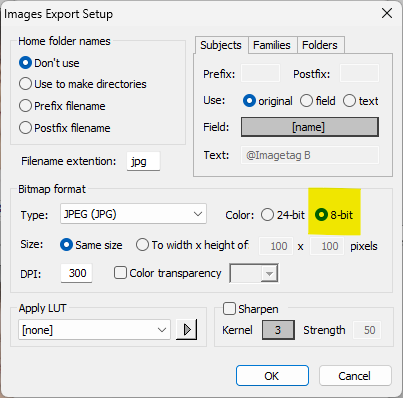
Figure 1: Selecting 8-bit (BW) jpegs
In CapturePost, how do I rotate to vertical orientation?
You can’t rotate the images in CapturePost once it has already come in. You can set the images to auto-rotate as they come in via File>Setup>Image processing. If using version 4.11 or later this also includes having it auto-rotate as per the camera’s exif rotation.
How do I duplicate a column in Details Mode?
Presumably, you want to duplicate all the data from one field to another. The easiest way is to use Populate Field.
Let’s call the column (field) you already have Original and the new field Duplicate.
Make the Duplicate field in either Details Mode (Edit > Fields) or in tsAdmin. Call it something different to the original field. We will call it Duplicate
Go to Populate Field (Subjects > Populate field)
At the top under Populate this field select the Duplicate field from the drop down list
Lower down under Fixed text, enter @Original
If needed select further options to restrict which folders or subjects’ data will be copied
Click OK to copy data from the Original field to the Duplicate field
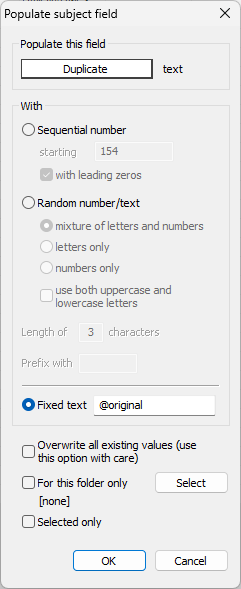
Figure 1: Using Populate Field to duplicate a field
Why are my orders not showing in the queue?
There could be several reasons. Here’s some things to check.
Templates - are the templates available to the job? Do a Templates Report (Help>Templates Report) or have a look in Point ‘n Click Mode
Offer - is the offer set for the job? Check in File>Properties.
Reprocess the orders - go to Orders Mode and re-process orders if you fix or change templates and/or the offer
Filters - make sure your filters in Queue Mode are appropriate
Online orders - have they been downloaded and, if needed, identified? Could they have been mistakenly been set to download to Fulfill instead?
When trying to download orders into NeoPack I am getting an “Invalid URL” message.
Go to File>Options>Portal and enter the credentials for your website. These are the same as those you use to connect tsIOS, Fulfill and the Control and Service panels.
What is the ‘Cannot write file “____” to disk’ Error?
The error message ‘Cannot write file “____” to disk’ often occurs when a file name contains unintended leading or trailing spaces. This is a common issue when using subject names as part of the output file name.
In Timestone, fields such as the subject name may contain hidden spaces that are not visually apparent when working within the software. While Timestone itself does not flag these spaces as problematic, operating systems typically reject file names that begin or end with a space, causing the file write operation to fail when the system attempts to create or save the file.
TIP
Look at the listed filename carefully in the error carefully. If the Space is before the file name the user will be able to notice a small extra space between the start of the filename and the “ character, eg “ Jane Doe.jpg”. If the space is trailing the filename the user will notice a space between the filename and the extension, eg “Jane Doe .jpg”.
I am getting an error when trying to download orders into NeoPack - Unable to read orders from the server. HTTP 404 not found - Incorrect job key
This indicates the job is not online. There is no job online with the same job key as the currently open job.
What is the “Cannot Find Bitmap Image” error?
The “Cannot Find Bitmap Image” error is the system's indication that it cannot find the image. Check the image paths and make sure that the path and the images are set to the appropriate location.
If the user is using SQL jobs, then the application looks for the image paths when a job is opened. If the user is using TNJs, the apps look for the associated path when the app is opened.
Additionally, it is possible to use the “Check..” feature in Images Mode, under Images> Check, to have the system check the paths and ensure that all images are accounted for.
I'm trying to do up some ID cards for a school and they want their email address on it but when it put office@acmehigh.edu I only get office.edu. How can I fix this?
You need to put in two @ symbols like this office@@acmehigh.edu.
How can I make an image on the template partially transparent?
Use the set mask took for this, it's made for the purpose. The icon is to the left of the little stick men on the toolbar. You can load your own mask or make one at say 50%. This embeds the mask into the image hole.
It is also possible to add a mask to the image in Image Mode itself but this will make the image partially transparent wherever it is used.
Error: MySQL Error (1062) Duplicate entry ‘MFGT34D8’ for key images.Images_ImageKey
This can occur when importing or merging a TNJ into SQL. Uncheck the ‘Match Image Keys’ option at the bottom of the import/merge window. This option is generally not needed.
How do I import group names?
You do so in Names Mode of NeoGroup. Names > Import row/positions… From the pop-up window, select the Setup button to map the fields in the text file, then select your text file and hit OK.
Most commonly, the text file needs 4 fields - Folder, ID, Row, Position.
We are getting an invalid URL error message when attempting a knockout in NeoPack.
Most likely, the Host has not been entered into the NeoPack connect window when launching it or was entered incorrectly. The Host is the full address of the Cloud Agent computer, including the http:// a at the beginning and the port at the end.
The format is: http://{cloudagent}:{port}.
For example: http://192.168.5.15:8080.
More information here:
I need a Report that lists the subject’s home folder, but also all his extra folders.
You can get this report from the Subjects (export, email, close orders.. ) report in tsPortal. The report included an Extra Folders column. The report can be filtered before exporting to a CSV.
How to set up Point and Click?
There is nothing to setup. When you go to Point and Click mode, you should be able to select a subject (or family or folder) and click on a template. This will add the product to the queue. If the templates are not visible, check your Template Paths
How much is Timestone Software? How much does it cost? What are the fees associated?
It will depend on the applications you need, whether you will be using the Internet Ordering System, and the integrated Knockouts system for background removal. Please contact us to discuss your needs.