In addition to prompting for an Access Key, the Internet Ordering System (IOS) provides several login page options that allow the user to request or require specific information from the customer upon login.
Site wide options
The login page options are activated by Timestone Staff as a site wide configuration. Since they appear before an Access Key is entered, they apply for all jobs.
The following login page settings are available:
Require email address
Consent to receive marketing emails
Accept Terms and Conditions
Cookies footer
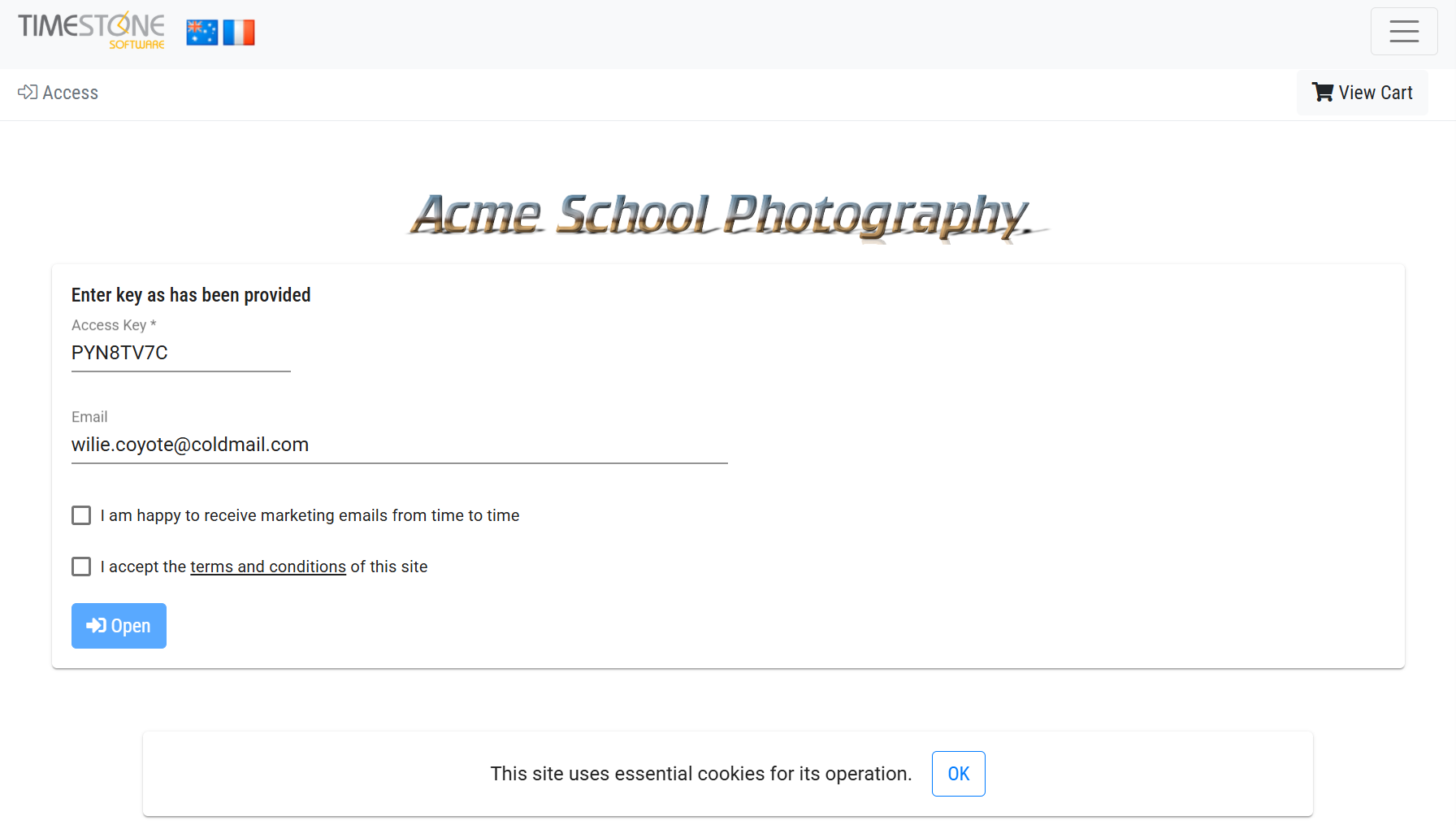
Figure 1: The IOS login page showing all four options
Require email address
It is possible to prompt the customer for an email address. This serves three purposes:
The email address prefills the email address field at checkout when placing an order
Ascertain via the Customer Login report, which customers have visited the site but not ordered
Optionally send Casual Visit and Abandoned Cart follow-up emails
Consent to receive marketing emails
Depending on the user’s jurisdiction, if the collected email addresses are to be used for marketing purposes, it may be necessary to ask for the customer’s consent to receive such emails.
This is achieved via an optional checkbox and message with the following considerations
The checkbox can be unchecked or checked by default (opt-in or opt-out)
The text can be changed at the user’s request and translated into other languages
Marketing consent at checkout
It is also possible to prompt for marketing consent at checkout. This can be used by sites that do not wish to prompt for an email address at login but may wish to market only to customers who place an order.
When prompting at both locations, the selection made at login is remembered however if the customer uses a different email address at checkout, they will be prompted again.
Viewing responses
Responses to marketing consent collected at login are visible in the Customer Login Report.
Responses to marketing consent collected at checkout are visible in the Online Orders Report and the Online Paid Orders Report
Terms and Conditions
Before the customer enters the site, it is possible to force them to accept the site’s Terms and Conditions. With this option, the blue Open button is disabled until the customer checks the ‘I accept ..’ checkbox.
The Terms and Conditions are a topic that the user creates in the Control Panel and is displayed as a pop-up if the user clicks the link in the ‘accept’ message.
Creating the topic
When enabling this option, Timestone staff will assume the topic you have created is called ‘Terms and Conditions’. If your topic has a different name, please advise us when requesting this option be activated.
Cookies footer
IOS uses essential cookies only. A message to this effect can be displayed along with an OK button in a footer on the login page.
Activating the login options
All login options are activated by Timestone Software staff. Please contact us with the following information:
Which option(s) are to be activated
Your preferred wording for the consent text and the cookies message
Whether the check boxes are to be empty or checked by default
Whether the marketing consent option is to appear at checkout
The name of the Terms and Conditions topic
FAQ
What options are available on the login page of the Internet Ordering System (IOS)?
The login page options include requiring an email address, consent to receive marketing emails, accepting Terms and Conditions, and displaying a cookies footer.
Where can I see the email addresses people enter when they log in?
You can see them in the Customer Login Report.
Are the login options compulsory?
No, they are all optional. Contact us if you would like any or all of them activated.
What does the OK button do next to the cookies message? Do people need to click it?
The OK button simply dismisses the message. Not clicking it does not prevent them from entering the site.
Who activates the login options for the IOS?
The login options are activated by Timestone Software staff, and you need to provide specific information for activation.